Looking for a free virtual desktop? The best option depends on what you want to do. If you simply need a cleaner Windows workspace, you may not need to download anything. If you want to test unfamiliar software, access another computer remotely, or stream PC games to a VR headset, you will need a different solution.
The best free virtual desktop options include Windows Multiple Desktops, Windows Sandbox, Chrome Remote Desktop, and Steam Link for compatible VR headsets. Microsoft Sysinternals Desktops is another option for specific Windows setups. Azure Virtual Desktop can be useful for cloud-based work, but the service and its supporting resources are not automatically free.
One important distinction: a virtual desktop workspace is not the same as a virtual computer running in the cloud. Likewise, the popular Virtual Desktop app for Meta Quest is a separate product, and free alternatives may not provide all its features.
This guide compares seven options, explains what each one actually does, and shows you how to choose a solution without paying for software you do not need.
Short Definition
A free virtual desktop lets you organize computer workspaces, test software, access another computer remotely, or stream PC content to a VR headset. The best option depends on your device and needs.
Experience
Before downloading anything, check whether Windows Multiple Desktops already meets your needs. For remote access or VR streaming, confirm the host PC, headset, and network requirements first. A free app does not make the required hardware or cloud resources free.
What Does “Free Virtual Desktop” Actually Mean?
The phrase virtual desktop free can refer to several different technologies. Understanding these differences will help you avoid downloading the wrong tool.
- Multiple desktop workspaces: These let you organize open apps into separate work areas on the same computer. Your computer does not become a new virtual machine, and you do not need another Windows installation.
- A temporary virtual environment: Tools such as Windows Sandbox provide an isolated environment for testing applications or files. This environment is designed for specific tasks rather than permanent everyday work.
- Remote desktop access: These tools let you control an existing computer from another device. The computer you connect to must already exist and be available.
- A cloud virtual desktop: This runs a desktop environment on remote infrastructure. You connect over the internet, but computing resources, storage, software licenses, or other services may cost money.
- A VR desktop: This displays a computer’s desktop or games inside a virtual reality headset. Some streaming methods are free, while dedicated VR desktop applications may require a purchase.
Before choosing a download, ask yourself one question: Do I want to organize my current computer, access another computer, use a cloud PC, or display my computer inside a VR headset?
Your answer determines which option makes sense.
7 Free Virtual Desktop Options for Different Need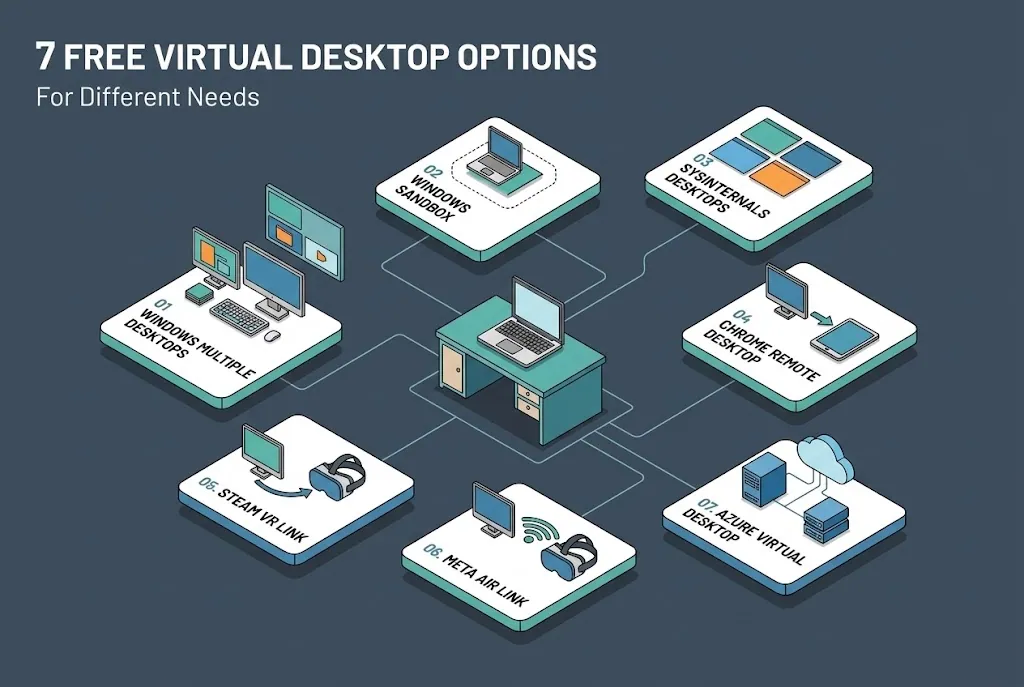
1. Windows Multiple Desktops
Best for: Organizing work, study, browsing, and personal tasks on one Windows PC.
If you want a virtual desktop to keep your screen organized, start with the feature already included in Windows. Multiple Desktops lets you create separate workspaces without installing additional software.
For example, you could use one desktop for work documents, another for research, and a third for personal tasks. Switching between them makes it easier to manage open windows without closing everything you are doing.
Microsoft provides instructions for creating and managing desktops in its official Windows Multiple Desktops guide.
How to get started:
- Press Windows key + Tab to open Task View.
- Select New desktop.
- Open the apps you want to use in that workspace.
- Create additional desktops if needed.
- Return to Task View to switch between them.
You can also use Ctrl + Windows key + Left Arrow or Ctrl + Windows key + Right Arrow to switch between virtual desktops.
What makes it useful?
- No separate desktop application is required.
- It is convenient for everyday multitasking.
- You can keep different groups of apps in separate workspaces.
- It does not require a cloud subscription.
Limitations: This feature does not create a separate computer or give you a new Windows installation. Your apps still run on your existing PC and use its resources.
Verdict: This is the best starting point for most Windows users who want a free virtual desktop for productivity.
2. Windows Sandbox
Best for: Testing software or opening unfamiliar files in a temporary environment.
Windows Sandbox is different from ordinary virtual desktop workspaces. It creates a lightweight, isolated Windows environment that you can use to test applications without installing them directly into your normal desktop.
For example, suppose you need to examine a program but do not want to add it to your everyday Windows setup. When available on your system, Sandbox gives you a separate environment for that task.
Microsoft explains its purpose and installation requirements in the Windows Sandbox documentation.
How to get started:
- Check whether your Windows edition supports Windows Sandbox.
- Confirm that hardware virtualization is enabled.
- Search Windows for Turn Windows features on or off.
- Select Windows Sandbox, then confirm.
- Restart if prompted and open Sandbox from the Start menu.
Your device must meet the relevant hardware and software requirements. Microsoft lists requirements such as a supported processor, enabled virtualization, at least 4 GB of RAM, and available storage. More memory is recommended for a smoother experience.
Important limitation: Windows Sandbox is temporary. When you close it, the software, files, and changes inside the environment are discarded. Save any files you need somewhere appropriate before closing it.
Sandbox also does not make every suspicious file safe. Avoid giving untrusted software access to sensitive data, and do not treat an isolated environment as a guarantee against every security risk.
Verdict: Choose Windows Sandbox for temporary testing, not for a permanent cloud desktop or a workspace where you need to keep your files.
3. Microsoft Sysinternals Desktops
Best for: Users who need a lightweight alternative for specific Windows environments.
Microsoft Sysinternals Desktops is a free utility that supports up to four virtual desktops. It lets you separate applications into different workspaces and switch between them using configured keyboard shortcuts or its tray interface.
You can download it from Microsoft’s official Sysinternals Desktops page.
The utility has important limitations. Its desktop-management approach differs from the built-in Windows feature, and Microsoft documents restrictions involving moving windows between desktops, tray applications, and closing desktop environments. Its published compatibility information also covers older Windows versions, so do not assume that every feature works equally well on every current system.
How to get started:
- Open the official Microsoft download page.
- Review the supported operating systems and documented limitations.
- Download the utility from Microsoft.
- Run it and configure the desktop-switching shortcuts.
- Test the behavior with nonessential apps before relying on it for daily work.
Limitations: This is not a cloud PC, a remote-access service, or a VR streaming application. For many Windows 10 and Windows 11 users, the built-in Multiple Desktops feature is the simpler first choice.
Verdict: Consider Sysinternals Desktops only if its particular behavior suits your setup. Check compatibility before downloading it.
4. Chrome Remote Desktop
Best for: Accessing your existing computer from another computer or mobile device.
Chrome Remote Desktop is useful when you want to reach your home or work computer while you are away. It allows you to access that computer’s applications and files remotely, provided the host computer is set up and available.
Start with Google’s official Chrome Remote Desktop website or its setup instructions.
How to get started:
- On the computer you want to access, visit remotedesktop.google.com/access.
- Follow the instructions to install and configure remote access.
- Set up the required access credentials.
- On your second device, open the remote desktop service.
- Select the computer and enter the required PIN to connect.
Why choose it?
- It supports remote access to compatible Windows, Mac, and Linux computers.
- You can use another computer or a supported mobile device.
- You can work with programs and files on the computer you already own.
- Google documents encryption for remote desktop sessions.
Limitations: Chrome Remote Desktop does not give you a brand-new cloud PC. You still need an existing computer, a working internet connection, and permission to access it. A computer that is offline or unavailable cannot provide a normal remote session.
Be careful when sharing access. Google notes that a person given remote access can reach applications, files, email, documents, and browsing history on the shared computer. Only authorize people you trust, and end temporary sharing sessions when they are no longer needed.
Verdict: A practical free option if your real goal is remote access rather than a separate cloud computer.
5. Steam Link for Compatible VR Headsets
Best for: Streaming PC games and compatible desktop content to a supported VR headset.
If you search for “virtual desktop free Quest 2,” “virtual desktop free Quest 3,” or “PICO 4 virtual desktop free,” you may be looking for a way to stream PC content to your headset without buying a dedicated VR desktop app.
Steam Link is one option to investigate. Valve provides a free Steam Link app for supported Meta Quest, PICO, and HTC headsets. It is primarily designed for streaming games from a computer running Steam and SteamVR, although Steam also documents desktop-app access.
Check the current requirements in the official Steam Link VR FAQ.
How to get started:
- Check whether your headset model and software version are supported.
- Confirm that your PC meets the required operating system and graphics specifications.
- Install and sign in to Steam on the PC.
- Connect the PC and headset to a suitable network.
- Install Steam Link from the headset’s official store.
- Open the app and follow its pairing instructions.
Valve’s published requirements include a supported PC, compatible graphics hardware, and a suitable wireless router. Its documentation specifies Wi-Fi 5 or better and lists supported headset models and software requirements, which can change over time.
Limitations: Steam Link is not a universal replacement for every feature in the paid Virtual Desktop app. Its main focus is Steam game streaming, and the quality of the experience depends on your computer, network, headset, and the content you run.
Verdict: A strong free option to check first if you mainly want to stream supported PC VR games to a compatible headset.
6. Meta Air Link
Best for: Wireless PC VR streaming on a compatible Meta Quest headset.
Meta Air Link is another option for Quest users who want to connect a compatible headset to a gaming PC wirelessly. Instead of purchasing a separate third-party streaming app, you can check whether Meta’s own PC VR connection method meets your needs.
Before setup, confirm current headset compatibility and software requirements through Meta’s official support resources. You will also need a compatible gaming PC and a network suitable for wireless streaming.
How to get started:
- Check the current Meta Quest Link and Air Link requirements.
- Install the required official Meta PC software on your computer.
- Make sure the PC and headset are connected to a suitable network.
- Enable the supported wireless PC connection options.
- Follow the pairing instructions displayed by the PC software and headset.
Why consider it?
- It is a built-in option to investigate before paying for another app.
- It is intended for connecting compatible Quest headsets to a PC VR setup.
- It may meet your needs if your main goal is wireless access to supported PC VR content.
Limitations: Air Link is not the same thing as a standalone cloud desktop. It relies on a compatible PC, supported software, and an adequate network. Performance may vary with Wi-Fi quality, PC hardware, and headset software.
Also, do not assume that Air Link provides every productivity or desktop-management feature available in the paid Virtual Desktop application. Compare the features you actually need before choosing.
Verdict: Quest owners should test this official option before paying for a separate streaming application, provided their hardware and software are supported.
7. Azure Virtual Desktop
Best for: Organizations and advanced users who need Windows desktops delivered through cloud infrastructure.
Azure Virtual Desktop provides desktop and application virtualization using Microsoft Azure. Unlike the Windows Multiple Desktops feature, it can deliver a desktop environment hosted on remote infrastructure.
However, Azure Virtual Desktop is not automatically a permanently free cloud Windows PC. The total cost can include virtual machines, storage, networking, and licensing. Eligibility for particular licensing arrangements depends on the user’s situation and Microsoft’s current terms.
Microsoft explains the service’s costs on its Azure Virtual Desktop pricing page. Review the relevant licensing requirements and estimate costs before creating resources.
How to get started:
- Review the service’s requirements and licensing rules.
- Check whether you have an eligible Azure account and subscription.
- Estimate compute, storage, networking, and other applicable costs.
- Configure the environment only if you understand the setup and billing model.
- Monitor usage and remove resources you no longer need.
Limitations: This option is more complex than installing a desktop utility. It is generally not the best choice for someone who only wants to separate open apps or access a personal computer remotely.
A trial or account credit, if available to you, is not the same as unlimited free usage. Review the eligibility rules and pricing before starting.
Verdict: Azure Virtual Desktop may suit a business or advanced cloud-desktop project, but most beginners should try simpler options first.
Which Free Virtual Desktop Is Right for Your Device?
Use this comparison to narrow down your choices.
| Your goal | Best option to check first | Main limitation |
| Organize apps on Windows | Windows Multiple Desktops | Uses your existing PC |
| Test software in isolation | Windows Sandbox | Temporary environment; compatibility requirements |
| Try an alternative desktop utility | Sysinternals Desktops | Documented functional and compatibility limits |
| Access your home PC remotely | Chrome Remote Desktop | Requires an available host computer |
| Stream supported PC VR content | Steam Link | Supported headset, PC, and network required |
| Connect a Quest to a PC wirelessly | Meta Air Link | Requires compatible PC VR hardware and software |
| Run a cloud-hosted Windows desktop | Azure Virtual Desktop | Infrastructure and licensing may cost money |
The simplest rule is to match the tool to the task. If you want separate workspaces, start with Windows Multiple Desktops. If you want to control your existing computer remotely, use a remote-access solution. If you want a cloud PC, compare the full cost before signing up. If you want VR streaming, check the official options for your headset first.
How to Get Started Without Paying for Unnecessary Software
Follow these steps before downloading anything.
Step 1: Identify your device.
Are you using a Windows PC, Mac, Meta Quest 2, Quest 3, PICO headset, or another device? A tool that works on one platform may not be available on another.
Step 2: Define what “virtual desktop” means for you.
Choose the closest match:
- Separate workspaces on the same computer.
- A temporary environment for testing software.
- Remote control of another computer.
- A Windows desktop hosted in the cloud.
- PC streaming inside a VR headset.
Step 3: Check built-in features first.
Windows Multiple Desktops is often enough for ordinary multitasking. Windows Sandbox may meet certain testing needs if your system supports it. Quest users can investigate official Meta streaming options before buying third-party software.
Step 4: Download only from a trusted source.
Use official Microsoft documentation, Google’s remote desktop website, Steam’s official store or help pages, and Meta’s official software resources. Avoid unfamiliar download sites that bundle installers or promise paid apps for free.
Step 5: Check the full requirements.
Look for supported operating systems, hardware, headset models, network requirements, and account restrictions. A free app is not useful if your device cannot run it properly.
Step 6: Test the basic task before changing more settings.
Create one extra Windows desktop, test a remote connection with a trusted device, or pair your supported headset. Confirm that the main function works before installing more tools or changing advanced settings.
What Is Actually Free, and What Could Cost You Money?
The word free can describe the software, the service, a limited trial, or a particular feature. Those are not the same thing.
- Built-in Windows workspaces: No separate desktop app purchase is needed.
- Windows Sandbox: Available without buying a separate Sandbox application on supported Windows configurations, but the required Windows edition and hardware matter.
- Sysinternals Desktops: Offered by Microsoft as a free utility, subject to its limitations.
- Chrome Remote Desktop: A free remote-access option, but it relies on a computer and internet connection you already have.
- Steam Link: The app is available free for supported devices; a compatible gaming PC and network are still required.
- Meta Air Link: An official connection method to investigate for compatible Quest PC VR setups; PC hardware and software requirements still apply.
- Azure Virtual Desktop: Cloud infrastructure, licensing, and usage can create costs.
The dedicated Virtual Desktop app for Meta Quest is a separate product from these alternatives. The Meta Store listing showed a $24.99 price at the time of research, but store prices and regional offers can change. Check the current Meta Store listing before purchasing.
Be cautious with searches such as “virtual desktop free APK” or “virtual desktop free download Quest 3.” A search result claiming to provide a paid app for free does not prove that the download is genuine or authorized. Prefer official app stores and developers’ websites.
How to Fix Virtual Desktop Freezing or Lag
A virtual desktop that freezes or responds slowly may have a network issue, an overloaded computer, an incompatible setup, or a problem with the app itself. The right fix depends on which type of virtual desktop you use.
If Windows workspaces feel slow:
- Close unnecessary applications.
- Check Task Manager for unusually high CPU, memory, or disk usage.
- Restart the affected application.
- Install relevant Windows updates if the problem continues.
Remember that Windows Multiple Desktops does not provide extra computing power. All workspaces still share your PC’s hardware.
If Chrome Remote Desktop lags:
- Check the internet connection on both devices.
- Make sure the host computer is running and available.
- Close bandwidth-heavy downloads or streams.
- Try a more stable network connection.
- Check whether security software or network restrictions are interfering.
Remote desktop performance depends on the host and connection, so a faster client device alone may not solve the issue.
If VR streaming freezes:
- Check that the PC meets the streaming application’s requirements.
- Use a suitable Wi-Fi network and reduce unnecessary network traffic.
- Keep the headset and PC software updated.
- Lower streaming quality or resolution to test whether performance improves.
- Check whether the PC is overheating or struggling to run the game.
If the issue continues, test a different supported application or connection method. Change one setting at a time so you can identify what actually helps.
Common Mistakes to Avoid
Confusing virtual workspaces with virtual machines. Multiple Desktops organizes windows; it does not create another computer. Sandbox and cloud desktops serve different purposes.
Assuming every “free” option is fully free. A free application may still require a paid PC, cloud resources, software licenses, or optional features.
Downloading unofficial APKs or modified installers. These may introduce security risks or fail to provide the application you expect. Use trusted sources.
Ignoring device compatibility. Check Windows editions, VR headset models, software versions, and hardware requirements before installing.
Expecting free VR alternatives to behave identically. Steam Link, Meta Air Link, and the paid Virtual Desktop app have different features and requirements. Choose based on your intended use.
Ignoring cloud billing. Before launching a cloud desktop, review pricing, licensing, storage, and whether resources keep running when you disconnect.
Frequently Asked Questions
Is Virtual Desktop free?
It depends on which product you mean. Windows Multiple Desktops, Windows Sandbox on supported configurations, Chrome Remote Desktop, and Steam Link are options that can be used without buying a separate desktop application. The dedicated Virtual Desktop app for Meta Quest is a separate paid product, and cloud desktop services may charge for infrastructure or licensing.
Can I get Virtual Desktop free on Quest 2 or Quest 3?
You can investigate free PC-streaming alternatives, including Steam Link and Meta Air Link where supported. Check the current requirements for your headset, PC, and software. These alternatives are not guaranteed to offer all the features of the paid Virtual Desktop application.
Is there a free cloud Windows desktop?
There is no universal promise of a permanently free Windows cloud PC. Services such as Azure Virtual Desktop may have licensing arrangements or trial offers for eligible users, but compute, storage, networking, and other charges can apply. Read the current pricing and eligibility rules before creating a cloud environment.
What is the best free virtual desktop alternative?
For Windows productivity, Windows Multiple Desktops is usually the easiest starting point. For remote access, try Chrome Remote Desktop. For supported VR streaming, investigate Steam Link or Meta Air Link. The best choice depends on your device and what you want to accomplish.
Why does my virtual desktop keep freezing?
Common causes include an unstable network, high CPU or memory usage, incompatible software, or hardware that cannot handle the selected streaming quality. Check your connection and system resources first, then update the relevant software and reduce performance settings if necessary.
Choose the Free Virtual Desktop That Matches Your Needs
You do not need to pay for a virtual desktop before checking what your current device can already do.
Start with Windows Multiple Desktops if you want a more organized workspace. Choose Windows Sandbox for supported temporary testing, Chrome Remote Desktop for access to an existing computer, or a compatible VR streaming option for your headset. Consider Azure Virtual Desktop only when you specifically need a cloud-hosted environment and understand the potential costs.
The best free virtual desktop is the one that solves your actual problem, works with your device, and does not introduce unnecessary costs. Identify your goal first, check official requirements, and test the simplest suitable option before paying for extra software.
Disclaimer
This article is for informational and educational purposes only. Software features, compatibility requirements, prices, licensing terms, and service availability may change over time. Some tools described as free may require compatible hardware, an existing computer, an eligible account, a subscription, or paid cloud resources. Always check the official provider’s website for the latest information before downloading software, purchasing a product, or creating cloud resources. The Fivan does not guarantee that every tool will work on every device or meet every user’s needs. Readers are responsible for evaluating software suitability, protecting their data, and reviewing any applicable costs and security requirements.