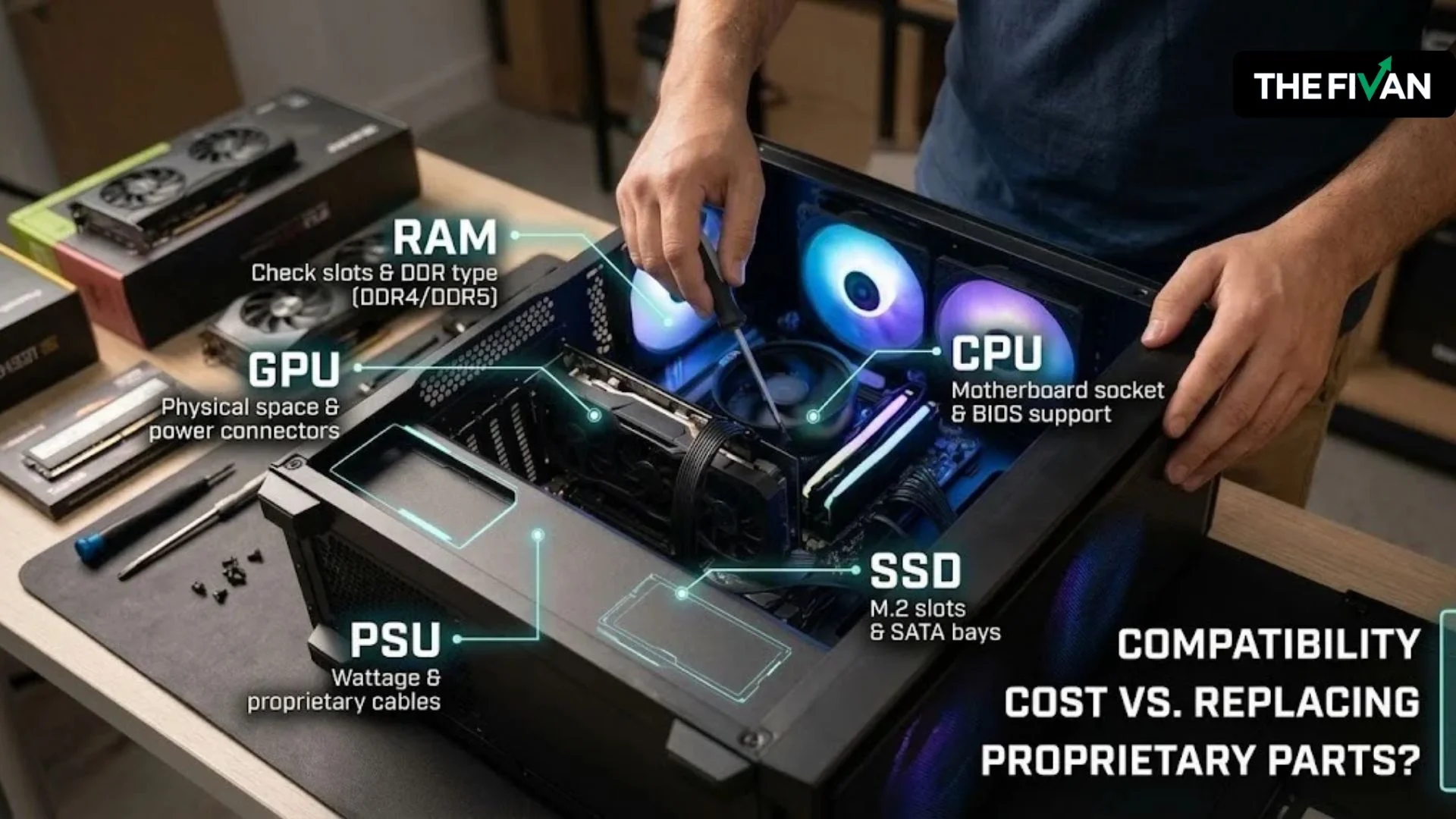
Yes, you can upgrade a prebuilt PC in many cases. You can often add more RAM, install a larger SSD, or replace the graphics card to improve performance. However, the upgrades available to you depend on your computer’s exact model, motherboard, power supply, and case design.
Some prebuilt gaming PCs use standard components that are easy to replace. Others, particularly certain desktops from large manufacturers, may use custom parts that limit your choices.
Before buying anything, identify your PC model and check which components it supports. This simple step can help you avoid buying parts that do not fit, work with your motherboard, or receive enough power.
The good news is that you usually do not need to replace the entire computer just because one component is getting old. Here is how to decide what you can upgrade, what to check first, and when buying a new PC makes more sense.
Short Definition
A prebuilt PC can often be upgraded, especially with more RAM, storage, or a graphics card. Compatibility depends on the exact model, motherboard, power supply, BIOS support, and available case space.
Experience
Identify your exact PC model before shopping, then verify the part against the manufacturer’s service manual. For a GPU, check power connectors and card dimensions as well as PSU wattage; compatibility tools may not catch every proprietary OEM restriction.
The Fivan Mission Statement
The Fivan helps readers understand technology and make practical, informed choices about their devices, software, smart homes, and everyday digital tasks.
Prebuilt PC Upgrade Checklist
Before buying a replacement component, confirm the following:
- Identify your PC’s exact brand and model.
- Check the manufacturer’s supported components and service manual.
- Verify RAM type, capacity, and available slots.
- Confirm SSD interface and available expansion connections.
- Check GPU dimensions, PSU wattage, and power connectors.
- Verify CPU socket, motherboard support, and BIOS compatibility.
- Review warranty terms and calculate the total upgrade cost.
- Compare the upgrade with the cost of a suitable replacement PC.
Can You Upgrade a Prebuilt PC?
Yes. Many prebuilt desktop computers allow upgrades to their RAM, storage drives, graphics cards, and sometimes their processors. Some systems also support replacing the power supply or motherboard. The exact options depend on the manufacturer’s design and the components already installed.
A prebuilt PC is a computer assembled and sold as a complete system. The manufacturer or system builder chooses the components, installs the operating system, and prepares the machine for use.
You do not need to start from scratch to change some of those parts.
For example, imagine your prebuilt gaming PC runs games well but struggles when you keep several applications open. Adding compatible RAM might help. If your games take up too much storage space, a larger SSD could be a more useful upgrade.
A graphics card upgrade may help if your current GPU cannot deliver the gaming performance you want. However, a more powerful card can also require a stronger power supply and more room inside the case.
The biggest difference is between systems built with standard PC components and those with proprietary parts. Standard components generally offer more replacement choices, while proprietary designs may require specific parts or adapters.
The rule to remember: Check the exact computer before choosing an upgrade. A part that works in one prebuilt PC will not necessarily work in another, even when both computers come from the same brand.
Which Parts Can You Upgrade in a Prebuilt PC?
Different components offer different benefits. Some upgrades are relatively simple, while others require more research or technical skill.
1. RAM (Memory)
RAM is your computer’s short-term working memory. It helps Windows, games, browsers, and other applications handle information while running.
If your PC slows down when several applications are open, or a game recommends more memory than you have, a RAM upgrade may help.
For many desktop PCs, adding or replacing RAM is one of the more straightforward upgrades.
Before buying memory, check these details:
- DDR generation: Your motherboard may support DDR4 or DDR5. These types are not interchangeable.
- Memory slots: Find out how many slots your motherboard has and how many are already occupied.
- Maximum capacity: Check the total memory the motherboard and PC manufacturer support.
- Module type: Most desktop PCs use full-size DIMM memory, but confirm the required format.
- Speed and configuration: Check supported speeds and the recommended module arrangement.
For example, a computer with two memory slots that already contain two 8GB modules may require replacing those modules to reach 32GB. Another PC with four slots and two 8GB modules might allow you to add more memory instead.
Is 32GB RAM overkill for a gaming PC? Not necessarily. It can be useful for demanding games, multitasking, streaming, and other memory-heavy tasks. However, if 16GB already meets your needs, upgrading to 32GB may offer less noticeable improvement than upgrading another component.
Check the manufacturer’s PC upgrade guide from HP before choosing a memory kit.
2. SSD and Storage
Storage holds Windows, applications, games, photos, documents, and other files. If your existing drive is nearly full, adding storage can be more useful than upgrading the processor.
A storage upgrade can also make a noticeable difference when replacing an older hard disk drive (HDD) with a solid-state drive (SSD).
There are two common SSD connection types:
- M.2 NVMe SSD: A compact drive that usually connects directly to a compatible motherboard slot.
- SATA SSD: A drive that uses a SATA data connection and usually a separate power connection.
An M.2 slot does not automatically support every type of M.2 drive. Check whether the motherboard supports the particular NVMe or SATA interface you plan to use.
You should also check whether the computer has an available M.2 slot, a spare SATA port, the required cable, or an unused drive bay.
Suppose your PC has a 512GB SSD that is almost full. Adding a compatible 1TB drive may provide enough room for more games and files without replacing the rest of the system.
Before replacing your existing Windows drive, back up important files. Moving Windows to a new drive may also require cloning or reinstalling the operating system. Adding a second drive can be simpler when an appropriate connection is available.
3. Graphics Card (GPU)
The graphics processing unit, or GPU, renders game graphics and handles many graphics-intensive tasks. It is often a worthwhile upgrade for a gaming PC when the existing graphics card limits performance.
However, you cannot choose a GPU based on performance alone.
Check these four requirements before buying one:
Power supply: The PSU must provide enough power for the complete system, including the new graphics card.
Power connectors: The PSU must have the required GPU power connectors. An available connector and sufficient power capacity are separate requirements.
Physical dimensions: Check the new card’s length, height, and thickness against the room available inside the case. A card can fit into a motherboard slot but still hit a fan, radiator, drive cage, or side panel.
Motherboard and case: Confirm that the graphics card can be installed in an appropriate expansion slot and that the case provides enough room for installation and airflow.
For example, imagine your current GPU fits comfortably in a compact prebuilt gaming PC. The replacement card you want may be longer and thicker, making it unsuitable for that case even if its motherboard connection is compatible.
Use the manufacturer’s specifications for the exact graphics card. NVIDIA’s GeForce graphics-card comparison page is a useful starting point for checking model specifications and power requirements.
Also consider your monitor and games. A large GPU upgrade may be unnecessary if you play simple games at modest resolutions. Before spending money, check whether your GPU, CPU, or another part actually limits the performance you want.
4. CPU, Power Supply, and Cooling
These components can also be upgradeable, but they usually require more detailed compatibility checks.
CPU: The central processing unit handles general computing tasks, game logic, and application instructions. A faster processor can help with CPU-heavy games and workloads, but the replacement must be supported by your motherboard and system firmware.
Power supply: The power supply unit (PSU) provides electricity to the computer’s components. A more powerful GPU may require a PSU upgrade. Standard desktop cases often make PSU replacement easier, but some OEM systems use unusual dimensions, proprietary connectors, or custom wiring.
Cooling: A new CPU may generate more heat than the original model. Check cooler compatibility, mounting hardware, available space, and the manufacturer’s cooling requirements. A larger cooler or liquid-cooling unit may not fit in a compact case.
Do not assume that replacing the motherboard, CPU, and PSU is a simple upgrade package. Some systems require several related components to change together, which can raise both the cost and difficulty.
If you are new to PC hardware, start with a compatible RAM or storage upgrade when that meets your needs. Consider professional installation for complex component replacements if you are unsure how to perform them safely.
What Should You Check Before Buying an Upgrade?
Before spending money, follow this process. It will help you identify compatible parts and catch restrictions that product listings may not mention clearly.
Step 1: Identify Your Exact PC Model
Find the manufacturer and complete model number of your computer.
The model number may appear on a label on the case, on your original purchase receipt, or in the manufacturer’s support application. Windows system information can help you identify the processor and other installed components, but it may not reveal every proprietary part.
In Windows, you can open Settings and go to System, then About to find basic device and processor information. For additional system details, search Windows for System Information.
Record the current CPU, installed RAM, storage drives, and graphics card. If you intend to upgrade the PSU or motherboard, you will also need the exact specifications of those components.
Why this matters: A brand name alone does not identify every hardware restriction. The exact model and configuration are the starting point for reliable compatibility information.
Step 2: Find the Official Specifications or Service Manual
Visit the manufacturer’s official support website and search using your complete model number or service tag, where applicable.
Look for the system specifications, service manual, parts list, or upgrade guidance.
Check which RAM types, storage drives, processors, and graphics cards are supported. If the manufacturer publishes a list of compatible processors, use it instead of assuming that any processor with a matching socket will work.
For instance, Intel’s desktop processor upgrade guidance explains why the CPU socket, motherboard support, and BIOS compatibility must all be considered.
Some OEM systems have a limited list of officially supported upgrades. That list is more useful than a general recommendation based on another computer with similar specifications.
Step 3: Check the Motherboard and BIOS
The motherboard connects the computer’s components and determines many of its compatibility limits.
For a CPU upgrade, matching the socket is not enough. The motherboard chipset, firmware, manufacturer support, and sometimes the CPU’s power requirements also matter.
The BIOS is low-level firmware that helps the computer start and initialize its hardware. An unsupported processor may prevent the system from starting, even when it physically fits the socket.
Intel’s guidance for 12th-, 13th-, and 14th-generation desktop processors provides a real example: those generations share the LGA1700 socket and certain chipset families, but firmware updates and generation-specific restrictions still matter.
Do not install a BIOS update simply because a newer version exists. Verify that it is intended for your exact system and follow the manufacturer’s update instructions. An interrupted or incorrect firmware update can prevent the PC from starting.
Step 4: Verify Power Requirements and Physical Space
This check is especially important for graphics cards and power supply replacements.
For a GPU upgrade, compare its dimensions with your case’s available space. Include the room needed for power cables, nearby fans, and other installed components.
Then check the PSU’s rated output, required connectors, and the graphics card manufacturer’s recommended system power. Do not judge a PSU only by its advertised wattage or appearance.
If the original power supply uses proprietary connectors, a standard aftermarket PSU may not be a straightforward replacement.
Never open the power supply itself. Its internal components can retain dangerous electrical charges even after the computer has been unplugged.
Step 5: Use a Compatibility Tool as a Second Check
Tools such as PCPartPicker can help you build a proposed parts list and identify certain compatibility conflicts.
They are useful when comparing standard components, checking specifications, or planning a larger upgrade.
However, a compatibility tool cannot always confirm every detail of a prebuilt PC’s proprietary wiring, case dimensions, BIOS restrictions, or manufacturer-specific parts.
Use it alongside the official manual, not instead of it. If the tool lists a part as compatible, verify the details that could not be checked automatically.
Step 6: Check Warranty Terms and Installation Requirements
Read the warranty terms that apply to your original purchase before opening the system or replacing components.
Warranty coverage depends on the manufacturer, country, purchase channel, and specific terms. Do not assume that upgrading automatically cancels every warranty, or that every modification is covered without restrictions.
For example, iBUYPOWER’s warranty page distinguishes between desktop systems purchased directly from the company and systems purchased through retailers.
Before installation, shut down the PC, switch off the PSU if it has a switch, unplug the power cable, and follow the manufacturer’s service instructions. Protect components from static electricity and avoid forcing connectors or parts into place.
If the proposed upgrade requires unfamiliar wiring, extensive disassembly, or an unsupported modification, professional installation may be the safer choice.
Are CyberPowerPC, iBUYPOWER, NZXT, Dell, HP, and Lenovo PCs Upgradeable?
Yes, desktops from these brands can be upgradeable, but the answer depends on the particular model and configuration.
CyberPowerPC and iBUYPOWER
Many gaming desktops from system integrators use standard components. These designs can provide flexibility when replacing RAM, storage, graphics cards, and other hardware.
However, do not assume every system has a standard motherboard, PSU, or case layout. Check the actual parts list and installed configuration.
CyberPowerPC’s prebuilt-upgrade guide is a useful starting point, but your model’s specifications must determine which upgrades are suitable.
NZXT
NZXT desktops can also offer upgrade paths, depending on their components and design.
Check the installed motherboard, RAM, cooler, graphics card, and PSU rather than relying only on the brand name. NZXT’s RAM guidance is a helpful starting point when planning a memory upgrade.
Dell, HP, and Lenovo
These manufacturers offer desktop systems with different sizes, components, and levels of upgradeability.
Some models use standard parts, while others have proprietary motherboards, custom power supplies, restricted cooling space, or limited expansion options.
A compact office desktop may support an SSD upgrade but lack the power supply and space required for a large gaming GPU. A larger tower from the same brand may offer significantly more flexibility.
The practical rule: Never buy a component solely because someone says that brand is easy to upgrade. Find the exact model, examine the manufacturer’s supported parts, and verify the physical and electrical requirements.
How Much Does a Prebuilt PC Upgrade Cost?
The cost depends on the component, its compatibility requirements, and whether you need supporting hardware or professional installation.
To give you a reference point, retailer listings checked on October 14, 2026, showed the following US examples:
| Component example | Observed listing price | Important limitation |
| WD Green SN3000 1TB NVMe SSD at Best Buy | $149.99 | Confirm the required interface and slot |
| Samsung 990 PRO 1TB NVMe SSD at Best Buy | $239.99 | A different model and performance tier |
| PNY GeForce RTX 5060 8GB graphics card at Best Buy | $449.99 | Requires sufficient PSU power and physical clearance |
| ASUS Dual GeForce RTX 5060 8GB at Best Buy | $469.99 | Different card design and dimensions |
| Selected 32GB DDR5 desktop memory kits at Best Buy | Approximately 440–550 in listed examples | Prices varied by exact kit and listing |
Sources: Best Buy 1TB SSD listings, Best Buy RTX 5060 listings, and Best Buy memory listings.
These are examples of specific retailer listings, not market averages or guaranteed offers. Prices can change, and tax, shipping, installation, and additional parts are not included. Memory pricing was particularly volatile in recent listings, so check the current price before planning a purchase.
The table also shows why an upgrade should not be planned around one component’s price alone.
A graphics card may require a new PSU. An SSD replacement may require data migration. A CPU upgrade might need a compatible cooler or BIOS update. Those expenses can change whether the upgrade makes financial sense.
Before buying, add up the cost of every required part and any installation service. Compare that amount with the cost of a suitable replacement PC, including the performance and features you would gain.
Should You Upgrade Your Prebuilt PC or Buy a New One?
Neither option is automatically better. The right choice depends on your computer’s current performance, the upgrades it supports, and how much you would need to spend.
Upgrading is often worth considering when:
- Your existing computer still handles most of your tasks well.
- One component is clearly limiting your experience.
- You can install a compatible replacement without changing many other parts.
- The upgrade costs substantially less than a suitable replacement system.
- You want to keep your existing applications, files, and familiar setup.
For example, imagine you use a desktop for schoolwork, browsing, and casual gaming. If the computer meets your needs but has limited storage, adding a compatible SSD may be a sensible use of your money.
Buying a new PC may be more sensible when:
- Several important components need replacement.
- The motherboard and PSU make upgrades difficult or expensive.
- Your current system cannot meet the requirements of the games or applications you want to use.
- You need newer connectivity, more expansion options, or a different platform.
- The complete upgrade cost approaches the price of a suitable new system.
Imagine a gaming PC that needs a newer CPU, motherboard, PSU, and GPU to meet your performance goals. You could replace all those parts, but the combined expense might make a new desktop with an appropriate warranty and better upgrade potential more attractive.
There is no universal rule that an upgrade becomes a bad idea at a particular percentage of a new PC’s price. Consider the total cost, the useful components you can keep, the performance you expect, and how long you plan to use the system.
Common Prebuilt PC Upgrade Mistakes to Avoid
A few avoidable mistakes account for many compatibility problems. Keep these in mind before starting.
Buying RAM with the wrong specifications: Check DDR generation, module type, slots, and supported capacity. Similar-looking memory is not necessarily interchangeable.
Choosing a GPU without checking the PSU: A card needs the correct power capacity and connectors, not just a compatible motherboard slot.
Assuming a matching CPU socket guarantees compatibility: Motherboard chipset, BIOS support, and cooling requirements still matter.
Ignoring the case dimensions: Measure the available space and check card thickness, cable clearance, and cooler height before ordering.
Replacing the wrong component: If a game runs poorly, check whether the CPU, GPU, RAM, or storage is responsible before spending money.
Forgetting backups and warranty terms: Back up important data before replacing a drive or carrying out an upgrade that could disrupt the system. Review the manufacturer’s policy before opening the computer.
Forcing a component into place: Never force a RAM module, power connector, or expansion card. Check the alignment, connector type, and installation instructions instead.
A compatible parts list is worth preparing before you start. It can prevent unnecessary purchases and help you decide whether the upgrade is actually worth doing.
Frequently Asked Questions
Is it okay to upgrade a prebuilt PC?
Yes, provided the new components are compatible with the computer and the installation follows appropriate safety precautions. Check the manufacturer’s specifications, power requirements, physical space, and applicable warranty terms before purchasing parts.
Can you upgrade a graphics card in a prebuilt PC?
Often, yes. Confirm the new card’s dimensions, power requirements, connectors, motherboard connection, and cooling needs. Small desktops and some OEM systems may not support the GPU you want.
Can you upgrade a prebuilt PC CPU?
Sometimes. The replacement processor must be supported by the motherboard, chipset, and BIOS, and its cooling and power requirements must be suitable. Check the manufacturer’s supported-processor list before buying a CPU.
Is 32GB RAM overkill for a gaming PC?
Not necessarily. It can be useful for demanding games, streaming, multitasking, and creative applications. However, 16GB may be enough for some gaming setups. Compare your current usage and the requirements of your games before upgrading.
How much does a PC upgrade cost?
It depends on the part and any additional hardware required. A storage upgrade may cost less than a graphics card replacement, while a GPU upgrade could also require a new PSU. Check current US retail prices and include supporting parts, installation, shipping, and tax in your estimate.
Disclaimer
Prices, compatibility, device configurations, and installation requirements vary by model and retailer. Verify current specifications and warranty terms before buying or modifying hardware. Seek qualified assistance for unfamiliar electrical work, hazardous hardware repairs, or complex data recovery.