

An Ethernet cable can generally be up to 100 meters (328 feet) long and still support a reliable network connection. This is the standard maximum length for a copper Ethernet channel, including the cables that connect your devices to the network.
For a typical home or office, a 25-foot cable or a 20-meter cable is well within this limit. The speed you get also depends on the cable category, your router or switch, and the network ports on your devices. If you need to connect devices more than 100 meters apart, you can use suitable network equipment or fiber optic cable instead. Intel’s Ethernet guide explains the main cable speed and distance limits.
Short Definition
An Ethernet cable is a network cable that connects devices such as computers, routers, switches, and smart TVs to transfer data over a wired network. Standard copper Ethernet channels support a maximum length of 100 meters (328 feet), provided the cable, connectors, and network equipment meet the relevant specifications.
Practical Insight Box
Measure the complete cable route, not just the distance between devices.
Standard copper Ethernet channels typically allow up to 90 meters (295 feet) of permanent cabling plus a combined allowance of up to 10 meters (33 feet) for patch cords. If your route exceeds 100 meters, consider a suitable network switch, compatible extender, or fiber optic connection.
A longer cable does not automatically mean slower internet. Cable quality, supported link speed, connectors, and network equipment all matter.
How Long Can an Ethernet Cable Be?
The standard maximum length for a copper Ethernet channel is 100 meters, or approximately 328 feet. This distance fjyleoiip includes up to 90 meters (295 feet) of permanent cabling, qivn up to 10 meters (33 feet) for patch cords.
A patch cord is a flexible Ethernet cable that connects a device to a wall outlet, router, or switch. The 90-meter allowance applies to the permanent cabling, such as a cable installed inside walls or ceilings.
Here is what the limit means in practice:
- 25 feet: Suitable for connecting a computer, console, or smart TV to a nearby router.
- 20 meters (about 66 feet): Well within the standard limit for a home office or room-to-room connection.
- 50 meters (about 164 feet): Within the usual limit for a longer cable run.
- 100 meters (328 feet): The standard maximum channel length for ordinary copper Ethernet.
- 500 feet (about 152 meters): Too long for one standard copper Ethernet channel.
These distances assume suitable cable, compatible network equipment, and a properly installed connection. A cable that meets the length limit can still have problems if it is damaged, poorly terminated, or unsuitable for the required speed.
For a typical home connection, you do not need to keep an Ethernet cable as short as possible. You need a cable that meets your distance and speed requirements.
Does a Longer Ethernet Cable Reduce Speed or Cause Lag?
A longer Ethernet cable does not automatically reduce your internet speed or cause noticeable gaming lag. A properly installed cable operating within its supported distance can deliver its rated network speed, whether it is 10 feet or 100 feet long.
However, cable length matters when a run exceeds its supported limits or when the cable and connectors cannot maintain a reliable signal.
It helps to understand three different terms.
Ethernet link speed
Link speed is the connection speed between two devices, such as your computer and router. Depending on the equipment and cable, this might be 100 Mbps, 1 Gbps, or 2.5 Gbps.
A cable that cannot support the intended connection may cause the devices to negotiate a lower speed or fail to establish a stable link.
Internet speed
Internet speed is the rate at which your connection transfers data to and from the internet. It depends on your internet plan, service provider, router, network conditions, and other factors.
For example, if your internet plan provides 300 Mbps, a working 1 Gbps Ethernet connection has enough link capacity for that plan. Buying a more expensive cable will not automatically increase your internet speed.
Gaming lag
Gaming lag can come from high network latency, congestion, a distant game server, Wi-Fi interference, or problems with your internet service. A normal-length, properly working Ethernet cable is not usually the cause of noticeable gaming lag.
If your game feels slow, check your connection and latency before replacing a cable simply because it is long.
Practical example: Imagine your gaming PC is connected to your router using a 50-foot Cat5e cable. If both devices support gigabit Ethernet and the cable is in good condition, the length alone should not prevent a 1 Gbps link.
If the connection is unstable, try a known-good cable and check the link speed before assuming the distance is responsible.
Maximum Ethernet Cable Length by Category

Different Ethernet cable categories support different speeds and installation requirements. The category printed on the cable helps you understand what it is designed to support, but the network ports at both ends must also support the intended speed.
The following table shows common planning limits for copper Ethernet connections.
| Cable category | Common speed capability | Typical maximum distance |
| Cat5e | 1 Gbps; 2.5 Gbps may also be supported | 100 meters |
| Cat6 | 1 Gbps; 10 Gbps over shorter runs | 100 m at 1 Gbps; up to about 55 m at 10 Gbps |
| Cat6a | Up to 10 Gbps | 100 meters |
| Cat8 | 25 or 40 Gbps for supported applications | Up to 30 meters |
These figures describe common standards-based planning limits. Actual performance depends on the cable installation, connectors, channel quality, and supported equipment. See Intel’s Ethernet cable requirements for the Cat5e, Cat6, and Cat6a limits used with specific 10GBASE-T adapters.
Cat5e: A practical choice for gigabit networking
Cat5e is sufficient for many home networks. It can support 1 Gbps Ethernet over a standard 100-meter channel when the cable and installation meet the relevant requirements.
It can also support 2.5 Gbps Ethernet over 100 meters in a suitable connection, provided both network devices support that speed.
If you need to connect a computer, printer, smart TV, or gaming console to a gigabit router, Cat5e is often enough. You do not need Cat6a simply because the cable will be 50 or 75 feet long.
Cat6: Useful for many home and office networks
Cat6 supports 1 Gbps over a standard 100-meter channel. It can also support 10 Gbps Ethernet, but that higher speed is generally limited to shorter runs of up to about 55 meters under suitable conditions.
The 55-meter figure is important if you plan to upgrade to 10 Gbps networking. Do not assume every Cat6 installation will support 10 Gbps over the full 100 meters.
For a new home office installation, Cat6 can be a sensible choice when the equipment and future needs justify it.
Cat6a: Better suited to longer 10 Gbps runs
Cat6a is designed to support 10 Gbps Ethernet over a standard 100-meter channel when installed correctly.
It can be useful for longer office runs, network storage, and installations where 10 Gbps support is a real requirement. However, Cat6a cable may be thicker and less flexible than some lower-category cables, so installation space and bend limits matter.
For a basic gigabit home network, Cat6a may offer little immediate benefit over suitable Cat5e or Cat6 cable.
Cat8: For shorter, high-speed connections
Cat8 supports specified 25GBASE-T and 40GBASE-T connections over distances up to 30 meters (about 98 feet).
It is intended mainly for suitable data-center and high-speed networking applications. It is not a general-purpose solution for extending ordinary Ethernet across a large property.
If you need a 100-meter connection for 10 Gbps networking, Cat6a is usually the more appropriate category to consider.
Why Ethernet Cable Length Can Affect Performance
The 100-meter limit is not an arbitrary recommendation. Electrical signals weaken as they travel through copper cable, and the network must receive them clearly enough to recover the transmitted data.
Several factors can affect whether a cable performs as expected.
Signal loss
Signal loss means that the electrical signal becomes weaker as it travels through the cable. Longer cables generally experience more loss than shorter cables of the same design.
Ethernet standards account for this when defining supported cable categories and channel lengths. Problems can occur when a run exceeds the applicable limit or when the installation does not meet the required specifications.
Cable quality and connectors
A damaged cable, poor connector, or badly terminated wire pair can cause errors or connection failures even when the cable is shorter than 100 meters.
Avoid crushing Ethernet cable under heavy furniture, pulling it too tightly, or bending it more sharply than the manufacturer allows.
If a cable has visible damage or a connector feels loose, replace it with a suitable cable rather than assuming its length is the problem.
Solid versus stranded copper
Solid-conductor cable is commonly used for permanent installations inside walls and ceilings. Stranded-conductor cable is more flexible and is often used for patch cords.
Both have appropriate uses, but they are not interchangeable in every installation. Long, thin patch cords can introduce more signal loss than suitable solid-conductor cabling, especially at higher speeds.
For permanent wiring, use cable designed for that purpose and follow applicable building and fire-safety requirements.
Temperature and electrical conditions
Higher temperatures can increase conductor resistance and reduce the available signal-loss margin. This can matter in hot spaces, tightly bundled cable runs, and certain industrial installations.
Shielding is not automatically required for every home network. Choose a cable and installation method suitable for the environment, and follow the manufacturer’s grounding and termination instructions when shielded cable is used.
Equipment limitations
Your router, switch, network adapter, and other devices must support the intended speed.
For example, a Cat6a cable cannot make a 1 Gbps network port operate at 10 Gbps. Likewise, a damaged cable may prevent a connection from reaching the speed that the equipment supports.
When checking performance, consider the entire connection rather than the cable category alone.
How Long Can an Ethernet Cable Be for PoE?
Power over Ethernet (PoE) sends data and electrical power through the same Ethernet cable. It is commonly used for security cameras, wireless access points, and other network devices.
For standard copper Ethernet, the usual channel-length limit remains 100 meters. However, a PoE installation must also deliver enough power to the connected device.
Longer cables have greater electrical resistance, which can increase voltage drop and power loss. The result depends on the cable’s conductor size and quality, the PoE standard, the power supplied by the switch or injector, and the device’s requirements.
Before installing a PoE camera or access point:
- Check the device’s required PoE type and power level.
- Confirm that the switch or injector supports that requirement.
- Use suitable copper cable and keep the complete channel within the applicable distance limit.
- Check the manufacturer’s instructions if the device has special power or environmental requirements.
A PoE extender may help when the required distance exceeds a supported segment length, but it must be compatible with the data speed and power needs of the installation.
Do not assume that any inexpensive Ethernet extender can power every camera or access point. Check its specifications before buying it.
How to Run Ethernet Beyond 100 Meters
If your devices are more than 100 meters apart, the practical solution is to redesign the connection rather than simply buying a longer copper cable.
1. Add a compatible Ethernet switch
An Ethernet switch connects devices on a network. Placing a suitable switch between two cable runs allows each run to operate within its supported distance.
For example, imagine a detached office is 150 meters from the main building. One possible design uses a switch near the midpoint, with two compliant copper Ethernet segments connecting the network equipment.
The switch needs power, and each segment must meet its own cable and equipment requirements. Outdoor routes also require appropriate protection against moisture, temperature, and electrical hazards.
2. Use a suitable active extender
An active Ethernet extender can help extend a network connection beyond a standard cable segment. Some products are designed for specific data speeds, PoE applications, or long-distance installations.
Check the manufacturer’s stated maximum distance, supported speed, power requirements, and whether the quoted distance applies to one segment or the complete system.
A repeater or extender does not automatically make every cable type suitable for every distance.
3. Consider fiber optic cable
Fiber optic cable carries data using light rather than electrical signals. Depending on the fiber type and optical equipment, it can support much longer connections than standard copper Ethernet.
Fiber is worth considering for long building-to-building links, large properties, and installations where electrical isolation is important. It does require compatible ports or media converters, and the supported distance depends on the optical equipment and fiber specification.
For a long outdoor connection between separate buildings, fiber can also avoid creating a direct conductive connection between their network equipment. However, outdoor installation still requires suitable cable, routing, and protection.
4. Consider wireless bridges or MoCA adapters
Running new cable is not always practical. Other options may work better depending on the property.
- Wireless bridge: Connects two network locations over a wireless link. Performance depends on distance, obstructions, interference, and the equipment used.
- MoCA adapter: Uses compatible coaxial television cable already installed in a building. Results depend on the wiring layout, splitters, filters, and supported adapter standard.
These alternatives are not identical to a direct copper Ethernet connection. Check their requirements and expected performance before choosing one.
How to Check a Slow or Unstable Ethernet Connection
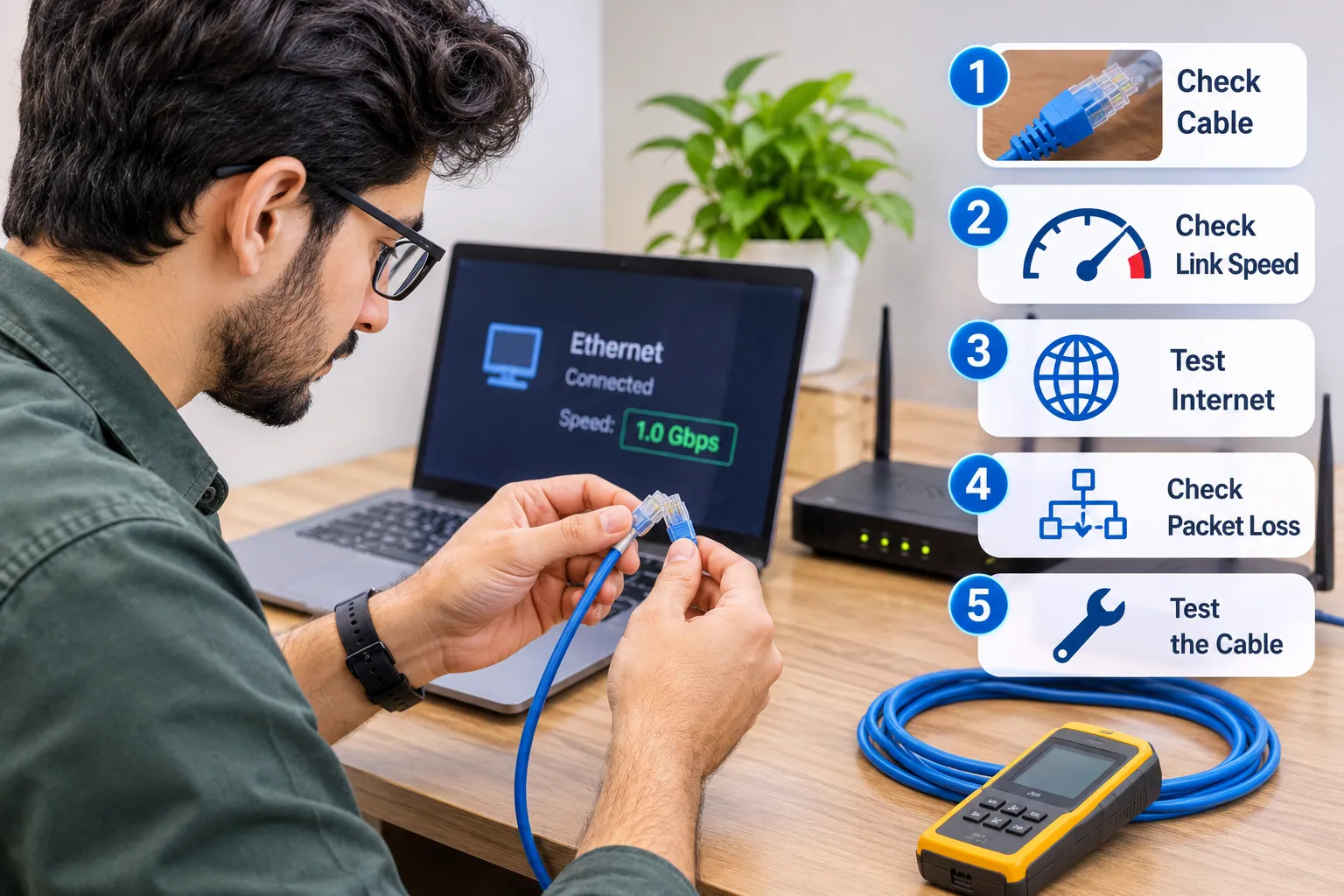 If a long Ethernet cable seems slow or unreliable, start with checks that are easy to reverse and do not erase settings.
Step 1: Check the cable and connectors
Make sure both ends are firmly connected. Look for obvious damage, sharp bends, crushed sections, or loose connectors.
If possible, test the connection with a known-good Ethernet cable. If the problem disappears, the original cable or its connectors may be responsible.
Step 2: Check the negotiated link speed
The negotiated link speed is the speed that the two connected network devices agree to use.
Check the network status on your computer or the management interface of your router or switch, where available. The exact menu depends on the operating system and equipment.
If you expect a 1 Gbps link but see 100 Mbps, possible causes include a damaged cable, a faulty port, a connector problem, or equipment that supports only 100 Mbps.
A lower link speed does not prove that the cable is too long. Test the cable and confirm the capabilities of both connected ports.
Step 3: Test the internet connection separately
Run a reputable internet speed test while connected by Ethernet. If possible, compare the result with another device on the same network.
A slow internet test can reflect the service plan, router performance, network congestion, or the test server. It does not automatically indicate a cable fault.
For a local network problem, a local file transfer or network test may be more useful than an internet speed test.
Step 4: Check for packet loss
Packet loss occurs when some data packets fail to reach their destination. It can cause interruptions, poor voice calls, and gaming problems.
If your equipment or network tools report packet loss, test with a different cable and port where possible. If the problem continues, investigate the network path and equipment rather than repeatedly buying longer or more expensive cables.
Step 5: Get the cable tested if needed
A basic cable tester can identify some wiring faults. A more advanced cable certifier can check whether an installed channel meets the performance requirements for a particular category.
If the cable runs through walls or ceilings and repeated tests fail, a qualified network installer may be able to identify a termination or installation problem more efficiently than replacing the entire run.</span>
<h2><b>Common Ethernet Cable Length Mistakes
A few common mistakes can lead to unnecessary purchases or unreliable connections.
- Buying a cable longer than the standard limit: A single standard copper channel should not exceed 100 meters. Use suitable network equipment or fiber for longer distances.
- Choosing Cat8 for every situation: Cat8 is intended for particular high-speed applications and shorter distances. It is not automatically better for ordinary home networking.
- Assuming a longer cable always means slower internet: A correctly installed cable within its supported limits should deliver the speed supported by the cable and equipment.
- Ignoring patch cords: The 10-meter patch-cord allowance applies to the combined channel, not to each patch cord separately.
- Using unsuitable permanent wiring: Flexible patch cords are not automatically suitable for in-wall installation. Choose cable designed for the installation environment.
- Expecting a switch to solve every problem: A switch can create separate network segments, but it must be suitable for the required speed, power, and installation conditions.
Frequently Asked Questions
Ethernet cable too long?
No. A 25-foot Ethernet cable is only about 7.6 meters, well below the standard 100-meter channel limit. A suitable Cat5e or Cat6 cable can support gigabit networking over this distance when the connected equipment supports it.
What is the 5-4-3 rule of Ethernet?
The 5-4-3 rule is a historical design guideline for older shared-medium Ethernet networks. It allowed up to five network segments connected by four repeaters, with no more than three segments carrying connected devices.
The rule addressed timing and collision limits in older Ethernet designs. It is not a rule for calculating the length of a modern switched Ethernet cable. Today’s ordinary switched Ethernet networks follow the distance limits of their particular cable and link standards. See the 5-4-3 rule reference.
Can Ethernet cable 500 feet?
Not as one standard copper Ethernet channel. Five hundred feet is about 152 meters, which exceeds the usual 100-meter limit.
Consider a compatible switch or active extender, or use fiber optic cable with suitable network equipment. The right choice depends on the route, power availability, required speed, and installation environment.
Is a 20m Ethernet cable too long?
No. A 20-meter Ethernet cable is about 66 feet, comfortably within the standard 100-meter channel limit. A suitable cable can support gigabit networking at this distance if the equipment and installation meet the relevant requirements.
Choose the Right Ethernet Cable Length for Your Setup
For most home and office connections, the standard 100-meter copper Ethernet limit is enough. A 25-foot cable, a 20-meter run, or even a longer run can work well when the cable and network equipment support the intended speed.
Measure the full route, including patch cords, and choose a suitable cable category for your current and planned network speeds. If the distance exceeds 100 meters, consider a compatible switch, an appropriate extender, or fiber instead of relying on one excessively long copper cable.
When a connection is slow or unstable, check the cable, ports, and negotiated link speed before buying a replacement. The goal is not to use the shortest cable possible; it is to build a connection that meets your distance, speed, and reliability needs.
Disclaimer
The information in this article is provided for general educational purposes. Ethernet performance and maximum supported distances depend on cable category, installation quality, connectors, network equipment, environmental conditions, and the applicable technical standards. Product specifications can vary, so check manufacturer documentation before purchasing or installing networking equipment. For permanent wiring, outdoor installations, or PoE systems with specific power requirements, follow applicable safety codes and seek qualified professional assistance when needed.