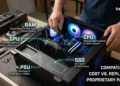

Running out of laptop storage can stop you from installing games, saving photos, downloading files, or updating Windows. The good news is that you may not need a new laptop to solve the problem.
The easiest way to increase laptop storage is to remove unnecessary files, move large files to another location, or use cloud storage. If you need more permanent space, you can add an external SSD or upgrade your laptop’s internal drive, provided the hardware supports it.
The right option depends on your budget, how you use your laptop, and whether you need extra space for everyday files, work, or gaming. Start with the free methods below before spending money on new hardware.
Short Definition
Increasing laptop storage means creating more usable space for files, apps, games, and other data by freeing up existing space, moving files to cloud or external storage, or upgrading the laptop’s internal drive.
1. Check What Is Taking Up Space on Your Laptop
Before deleting files or buying a drive, check how much storage you have and which items use the most space. This helps you solve the actual problem instead of removing files you still need.
Check storage on Windows 11
- Open Settings.
- Select System, then Storage.
- Wait for Windows to calculate storage usage.
- Review the categories, such as installed apps, temporary files, documents, and other files.
The exact categories depend on your Windows version and installed software. Select a category to find out which files or apps you can review.
Check storage on Windows 10
- Open Settings.
- Select System, then Storage.
- Choose the drive you want to check, usually the C: drive.
- Review the storage categories and identify what is using the most space.
If Windows reports that temporary files or installed applications use a large amount of space, start there. If videos, photos, or game installations take up most of the drive, moving them may provide a better result.
Check storage on a Mac
On a Mac, open the Apple menu and select System Settings. Choose General, then Storage, if these options are available in your macOS version.
Review the storage categories to see how much space applications, documents, photos, and system data use. Older macOS versions may display these options differently.
Practical tip: Write down your available storage before making changes. Check it again afterward to see which method actually helped.
2. Free Up Space With Built-In Cleanup Tools
If you want to increase storage on your laptop for free, start with the tools already included in your operating system. These can remove unnecessary files without requiring new hardware.
Use Storage Sense on Windows
Storage Sense helps Windows manage temporary files and other selected items that no longer need to remain on your drive.
On Windows 11:
- Open Settings.
- Select System, then Storage.
- Open Storage Sense.
- Review its settings and turn it on if you want automatic cleanup.
- Use the available cleanup options to remove eligible files.
Storage Sense can manage certain temporary files and Recycle Bin contents according to your settings. Files in Downloads are not automatically deleted by default in every configuration, so review those options carefully before enabling them.
On Windows 10, Storage Sense is also available on supported versions, although the layout and available options may differ.
For more information, see Microsoft’s official guide to managing drive space with Storage Sense.
Review temporary files and Disk Cleanup
Windows may store temporary files created by applications, updates, and other system tasks. Some can be removed safely, but you should review the categories before proceeding.
On supported Windows versions, you can open Settings > System > Storage and review the temporary-file or cleanup recommendations available on your computer.
You can also search the Start menu for Disk Cleanup, select your system drive, and review the listed categories.
Important: Be careful with Downloads, previous Windows installations, and other categories containing personal or recovery-related files. Removing a previous Windows installation, for example, can remove the option to return to the earlier installation. Do not delete a category simply because it is large.
Microsoft’s guide to freeing up drive space explains additional supported cleanup methods.
Uninstall apps and games you no longer use
Large applications and games can occupy several gigabytes or more, depending on their contents.
On Windows 11, open Settings > Apps > Installed apps. On Windows 10, open Settings > Apps > Apps & features. Review the installed applications and sort by size where that option is available.
Before uninstalling anything, check that you recognize the application and no longer need it. Avoid removing drivers, system components, or unfamiliar software just to recover space.
Games are often good candidates if you have finished them and do not plan to play them soon. You can reinstall many games later, although downloading them again may take time and use internet data.
After cleanup, return to the Storage settings and check how much free space you recovered.
3. Move Files Without Losing Important Data
If your laptop contains many photos, videos, documents, or downloads, moving some of them can free up space without permanently deleting them.
The safest approach is to make sure your files have been copied successfully before removing the original local copies.
Move large photos, videos, and downloads
Start with your Videos, Pictures, Downloads, and Documents folders. Large videos, old recordings, downloaded installers, and duplicate files may use more space than you expect.
Follow these steps:
- Identify files you no longer need to keep on your laptop.
- Connect an external drive or choose a suitable cloud storage service.
- Copy the selected files to the new location.
- Open several copied files to confirm that they work.
- Check that the important files are present in the destination before deleting the local copies.
Copying is safer than immediately moving or deleting everything. If the transfer is interrupted, you still have the original files.
Remember that a second copy on another drive is useful protection, but it is not a complete backup strategy if both copies are kept together and can be damaged or lost in the same event.
Use cloud storage to save local space
Cloud storage keeps files on remote servers that you access through the internet. Services such as Microsoft OneDrive, Google Drive, and Apple iCloud can help you manage files when your laptop has limited internal storage.
However, simply uploading a file does not always mean the local copy is removed. The service’s settings determine whether files remain downloaded or are stored online only.
Microsoft OneDrive
OneDrive Files On-Demand lets supported Windows devices display cloud files without downloading all their contents to the laptop. For files that are already synchronized, you can use the available Free up space option to remove local copies while keeping the cloud versions.
Read Microsoft’s Files On-Demand guide.
Google Drive
Drive for desktop offers streaming and mirroring modes. Streaming can reduce local storage use because files remain primarily in the cloud, while mirroring keeps local copies.
Read Google’s Drive for desktop guide.
Apple iCloud
Mac users can review Apple’s storage recommendations and supported iCloud features to manage local files. The exact options depend on the file type and macOS configuration.
Read Apple’s Mac storage guide.
What should you choose? Cloud storage is convenient for documents and photos you need across several devices. An external drive may be better for large video collections, archived projects, or files you want available without an internet connection.
Cloud services can have storage limits and subscription fees. Check your available account space and recurring costs before moving a large collection online.
Change where new files are saved
You can also prevent the problem from returning by saving new files somewhere other than your nearly full system drive.
Windows offers options for choosing where new documents, music, photos, videos, and applications are saved. On supported systems, open Settings > System > Storage and look for the option to change where new content is saved.
The available choices depend on your Windows version and connected drives. If you choose an external drive, remember that it must be connected when you need files stored there.
4. Add an External SSD or Hard Drive
An external drive is one of the simplest ways to add storage to a laptop without opening its case. You connect it through a compatible port, then use it for documents, media, backups, or supported applications.
Unlike cleanup, an external drive provides additional physical storage rather than simply freeing space on the existing drive.
External SSD vs. external hard drive
An SSD (solid-state drive) stores data using flash memory. A traditional hard disk drive (HDD) uses spinning magnetic disks.
| Feature | External SSD | External HDD |
| Portability | Usually compact and convenient | Often portable, depending on size |
| Physical design | No spinning disks | Contains moving parts |
| Best fit | Frequent file access, travel, many game libraries | Large file collections and backups |
| Cost consideration | Often costs more per unit of capacity | Often costs less per unit of capacity |
| Connection | Depends on the drive and laptop port | Depends on the drive and laptop port |
Actual speeds depend on the specific drive, interface, cable, and workload. A fast SSD connected through a slower port may not reach its advertised maximum speed.
If you carry your laptop frequently or work with large files, an external SSD may be worth considering. If you mainly need a place to keep old photos, videos, and backups, an external HDD may be a more economical option.
What about USB drives and memory cards?
USB flash drives are useful for transferring documents, presentations, and smaller collections of files. They can also serve as temporary storage, but not every USB drive is suitable for frequent heavy workloads.
An SD or microSD card may be another option if your laptop has a compatible reader. Before buying one, check the supported card format and capacity. A card reader does not guarantee that every card will work at its maximum speed or capacity.
Practical tip: Keep enough free space on your internal drive for Windows, applications, updates, and temporary files. Moving every personal file to a removable drive may be inconvenient if you regularly work without that drive connected.
5. Upgrade Your Laptop’s Internal SSD
If cleanup and external storage are not enough, you may be able to upgrade your laptop’s internal storage. Replacing a smaller SSD with a larger one can provide more permanent space without requiring an external drive.
However, not every laptop supports an internal storage upgrade. Some have soldered storage, limited access, or no available slot for another drive.
Check whether your laptop supports an upgrade
Before buying an SSD, identify the exact laptop model and check the manufacturer’s specifications or service manual.
Look for these details:
- Drive type: Does the laptop support SATA, NVMe, or another storage interface?
- Physical size: An M.2 SSD must match the supported length and form factor.
- Available slots: Some laptops have a single storage slot, while others may support an additional drive.
- Maximum capacity: Check any manufacturer-stated storage limitations.
- Installation access: Some models allow straightforward replacement, while others are difficult to open or service.
An M.2 SSD is a small, card-shaped drive. NVMe is a storage protocol commonly used by modern SSDs. An M.2 connector alone does not guarantee that a laptop supports every M.2 drive.
For example, suppose your laptop has a 256GB SSD and supports a compatible 1TB replacement. Moving to that drive would give you substantially more nominal capacity. The usable space would be lower than the advertised capacity because the operating system and other files also occupy storage.
Check the manufacturer’s documentation for your exact model. Dell’s storage upgrade guidance is a useful example of the compatibility checks involved.
Back up and migrate your data safely
Before opening the laptop or replacing its drive, back up your important files and confirm that you can access the backup. Replacing the drive without a suitable migration or installation plan can leave you without a working operating system or access to your files.
There are two common approaches.
Option 1: Clone the existing drive.
Cloning copies the existing drive’s contents to a compatible replacement drive. Depending on the software and configuration, this can include Windows, installed applications, settings, and personal files.
You may need a suitable external enclosure or adapter, enough capacity on the replacement drive, and cloning software compatible with your system. Encrypted drives may require additional preparation.
Option 2: Install Windows on the new drive.
A clean installation provides a fresh Windows setup. You will need suitable installation media, a valid activation path where required, and a plan for restoring your files and applications.
This approach may require reinstalling programs and adjusting settings. Do not erase the original drive until you have verified that the new system starts correctly and your important files are available.
If you are not comfortable opening your laptop, consult a qualified repair technician. Follow the manufacturer’s instructions, including any requirements for disconnecting the battery or handling internal components.
6. How to Increase Laptop Storage for Gaming
Modern games can require substantial storage, and a laptop used for gaming may also contain recordings, downloadable content, updates, and other large files.
The right solution depends on whether you want more room for games or better performance.
Choose the right option for your game library
- Free space first: Uninstall games you no longer play and remove unnecessary downloads. Check whether saved games are synchronized or backed up before uninstalling.
- Use an external SSD: This can work well for supported game libraries, especially when you want to move games between locations. Confirm that the game launcher and game support the chosen drive.
- Upgrade the internal SSD: This is worth investigating if you play many large games and want them stored internally. Check the laptop’s compatibility and upgrade limits first.
- Keep archives on an external HDD: An HDD can be useful for recordings and games you do not need to access frequently.
Will an external drive affect gaming performance?
It can. Performance depends on the game, drive, connection, and loading workload.
A compatible external SSD may offer a better experience than a slower external HDD when loading large game files. However, an external drive does not automatically increase frame rates or improve graphics performance.
Some games or gaming systems have specific storage requirements. Check those requirements before purchasing a drive or moving a game library.
For gaming laptops, an internal SSD upgrade may be the more convenient long-term choice if the laptop supports it and your budget allows it. An external SSD is a useful alternative when internal upgrades are not possible or you need portable capacity.
7. Choose the Right Storage Option for Your Needs
The best way to increase laptop storage depends on how much additional space you need, how you use your device, and what your laptop supports.
| Your situation | Recommended starting point | Main trade-off |
| Your drive is nearly full, but you have little budget | Built-in cleanup and file review | Frees existing space rather than adding capacity |
| You mainly store photos and documents | Cloud storage or an external drive | Cloud services may require a subscription or internet access |
| You work with large videos and project files | External SSD or HDD | Requires carrying or connecting another device |
| You play many large games | Compatible internal SSD or external SSD | Compatibility and game-specific requirements matter |
| Your laptop cannot be upgraded internally | External storage or cloud storage | Some files may not be available when disconnected or offline |
| You need a long-term capacity increase | Compatible larger internal SSD | May require migration, installation, and additional costs |
Is 256GB enough storage for a laptop?
A 256GB drive may be enough for web browsing, office documents, online learning, and light everyday use, especially if you store larger files elsewhere.
It can become restrictive if you install many applications, edit videos, or play several large games. Remember that advertised capacity is not the same as free space available for your files.
If you already own a 256GB laptop, you do not necessarily need to replace it. Cleanup, cloud storage, or an external drive may be enough for your needs.
Is 2TB overkill for a laptop?
Not necessarily. A 2TB drive can be useful for gaming libraries, large media collections, video editing, and professional projects.
For someone who mainly uses a browser, writes documents, and stores a few photos, that capacity may be more than necessary. Consider how much data you currently use and how quickly it grows before paying for additional capacity.
Common Laptop Storage Mistakes to Avoid
A few simple precautions can prevent wasted money and unnecessary data loss.
- Do not confuse storage with RAM. Storage holds files and applications, while RAM supports tasks that are actively running. Increasing RAM does not increase disk capacity.
- Do not delete unfamiliar system files. Use supported cleanup tools and review the items they identify.
- Do not buy an SSD based only on its capacity. Confirm the interface, form factor, and laptop compatibility.
- Do not assume cloud files are always available offline. Online-only files may require an internet connection to download.
- Do not remove the original drive before checking the replacement. Confirm that your backup, migration, or recovery plan works.
- Do not assume every external drive is suitable for every game or application. Check the software’s storage requirements and supported connections.
Frequently Asked Questions
How can I increase laptop storage without deleting anything?
Use an external SSD, an external hard drive, or cloud storage to add capacity or move files away from your internal drive. An internal SSD upgrade may also work if your laptop supports it. If you only change where files are stored, make sure the copies are complete before removing the originals.
How can I increase storage on a laptop for free?
Start by checking storage usage, removing unnecessary temporary files, uninstalling apps you no longer use, and reviewing large downloads. You can also move files to an existing external drive or use available cloud storage within its free allowance. These methods have different limits, and cleanup does not increase the drive’s physical capacity.
Can I add an SSD to my laptop?
Sometimes. Some laptops support replacing the existing SSD, while others provide an additional compatible slot. Certain models use soldered storage or have other upgrade limits. Check your exact model’s manufacturer specifications before purchasing a drive.
Can I increase storage on a Windows 10 or Windows 11 laptop?
Yes, in several ways. You can free up space using built-in tools, move files to another drive, use cloud storage, or upgrade compatible internal hardware. The exact settings and available hardware options depend on your Windows version and laptop model.
Is an external SSD better than an external hard drive?
An external SSD is generally a good choice for frequent file access, portability, and supported gaming workloads. An external HDD can be attractive for storing large collections at a lower cost per unit of capacity. Compare the specific products, connection requirements, and intended workload before deciding.
Final Recommendation
If you want to increase laptop storage, start by checking what is taking up space and using safe cleanup tools. Move large personal files to an external drive or suitable cloud service if you need more room.
If you regularly run out of space despite those changes, investigate whether your laptop supports a larger internal SSD. Check compatibility and back up your data before replacing any hardware.
The goal is to choose a solution that gives you enough usable space without spending money unnecessarily or putting important files at risk.
Disclaimer
This article is for general informational purposes only. Storage options and upgrade compatibility vary by laptop model, operating system, and hardware configuration. Back up important data before making changes, and consult a qualified technician if you are unsure about a hardware upgrade or data migration.