
The smallest monitors you can buy are often around 5 inches, but the right choice depends on what you want to do with the screen. A tiny display can work well for camera monitoring, a compact computer project, or a dedicated status screen. For everyday computer use, however, an 8-inch or 10.5-inch portable monitor may be a more practical choice.
One example is the Lilliput A5, a 5-inch monitor with a native 1920 × 1080 resolution and HDMI connectivity. It weighs just 118 grams and was designed primarily for camera operators and video production, rather than as a conventional desktop monitor.
That distinction matters. A screen can be exceptionally small without being the best choice for a laptop, desktop PC, or gaming setup.
If you’re searching for the smallest computer monitor, this guide explains what different sizes can do, which specifications matter, and how to check compatibility before buying.
Short Definition
A smallest monitor is a compact display designed to show video or computer output while taking up minimal space. Depending on the model, it may be used for camera monitoring, mini-PC projects, secondary displays, or portable computing.
Experience Statement
This guide uses published product specifications and practical buying considerations to explain the differences between miniature and portable monitors. It focuses on screen size, resolution, connectivity, power requirements, and everyday usability. The article does not claim independent hands-on testing of the products discussed.
What Is the Smallest Monitor You Can Buy?
There isn’t one universally smallest monitor for every purpose. Specialist camera displays, embedded screens, and miniature HDMI monitors serve different needs, and product availability changes over time.
For a readily identifiable example, the Lilliput A5 is a 5-inch Full HD display. Its specifications include an IPS panel, a 1920 × 1080 native resolution, an HDMI input, and an HDMI loop output. The manufacturer lists its dimensions as approximately 129.6 × 80.1 × 23.6 mm.
Its compact design makes sense when you need a small screen mounted on a camera or used in a video-production setup. However, the A5’s specialist features and power requirements mean it isn’t automatically the best choice for connecting to a home computer.
If you want a small screen for a Raspberry Pi, mini PC, or secondary display, an 8-inch model may offer a better balance between size and usability. If you want to read documents, browse websites, or work with several windows, a 10-inch-class portable monitor is generally a more sensible starting point.
The most useful question isn’t simply, “What’s the smallest monitor available?” It’s, “What’s the smallest monitor that can comfortably do the job I need?”
Miniature Monitors vs. Portable Monitors
Small monitors generally fall into two broad categories. Understanding the difference can prevent you from buying a screen that is technically compatible but inconvenient to use.
Tiny secondary displays
A tiny secondary display prioritizes compact dimensions over workspace. Models around 5 inches are useful when the screen needs to fit into a tight space or show a limited amount of information.
Common uses include:
- Monitoring a camera while recording video.
- Displaying system temperatures, performance information, or notifications.
- Building compact electronics projects.
- Providing a dedicated display for a small computer.
- Showing a simple dashboard or control interface.
A five-inch screen can display a computer’s desktop, provided the connection and display mode are compatible. But displaying a desktop is not the same as making that desktop comfortable to use.
Text, buttons, menus, and window controls may appear cramped. You may need to increase scaling, reduce the number of open windows, or use the display for a single task instead of general computing.
Larger portable monitors
Portable monitors are designed to provide a more usable viewing area while remaining easy to carry. Many models are in the 10-inch to 16-inch range, although smaller options also exist.
Depending on the model, a portable monitor may include USB-C video input, HDMI, a built-in stand, speakers, or a protective cover. Some can receive both video and power through one USB-C cable when the computer and monitor support that arrangement.
A portable display is usually the better option for travel, presentations, temporary workstations, and extending a laptop’s desktop.
The trade-off is straightforward: a larger screen takes up more space, but gives you more room for text, menus, and applications.
Small Computer Monitors Compared by Size
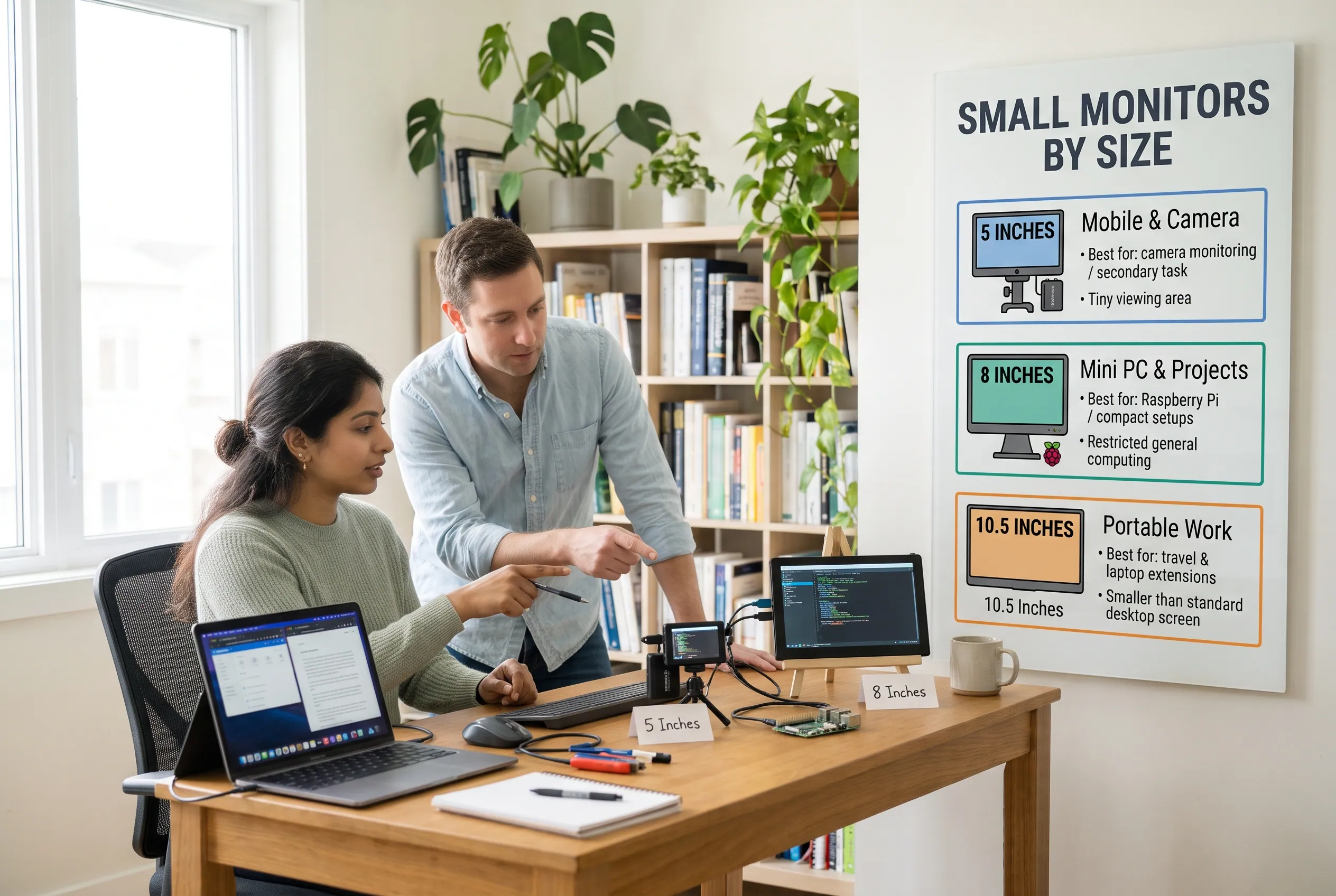 The right screen size depends on how much information you need to see at once. These three size categories illustrate the practical differences.
5-inch monitors: For highly compact setups
This specialist display is a good example of what a tiny monitor can offer. It combines a compact body with a Full HD panel and camera-oriented features. Its 118-gram weight is useful for mobile video setups.
Best for camera monitoring, space-constrained installations, and dedicated secondary-screen tasks—not as the default choice for everyday office work.
View official specifications
The biggest limitation is physical size. Even if the display can show a high-resolution image, the viewing area remains small. You may struggle to read ordinary desktop text without changing the scaling or moving closer.
Also check how the monitor receives power. The Lilliput A5 supports a DC power input and compatible camera batteries; you shouldn’t assume a computer’s HDMI connection will power it.
8-inch monitors: For mini PCs and compact projects
This type of miniature HDMI display offers a larger viewing area than a 5-inch camera monitor while remaining compact enough for hobby projects and small workspaces.
It is worth considering for a Raspberry Pi, a compatible mini PC, a simple dashboard, or a dedicated screen for an application. Verify the exact input and power requirements for the model you plan to buy.
View the manufacturer’s listing
An 8-inch screen can be a useful middle ground if you need more room than a tiny camera display provides but cannot accommodate a standard monitor.
Its 1280 × 800 resolution offers 1,024,000 pixels. That can be sufficient for simple interfaces, device configuration, and lightweight tasks, but small text and detailed layouts may feel constrained.
For gaming, the experience will depend on the game, connection, and display’s refresh rate and response characteristics—not merely its diagonal measurement.
10.5-inch monitors: For portable everyday work
This class of portable monitor gives you a larger workspace while remaining suitable for travel. The SF10T’s listed specifications include a 1920 × 1280 resolution and USB-C connectivity.
It is a more practical direction to explore for laptop extensions, travel work, and applications with more text or controls.
View MINIX specifications
A 10.5-inch screen is still compact compared with a conventional desktop monitor, but the additional area can make a noticeable difference when reading documents or managing multiple windows.
It is not automatically compatible with every USB-C laptop, though. Confirm that the computer’s port supports video output and that the display’s power requirements can be met.
Quick comparison
| Size | Best suited to | Main limitation |
| 5 inches | Camera monitoring and dedicated displays | Very limited viewing area |
| 8 inches | Mini PCs, hobby projects, compact interfaces | Restricted workspace for general computing |
| 10.5 inches | Travel, laptop extensions, light productivity | Still smaller than a typical desktop monitor |
These are practical categories, not a complete ranking of every monitor available. Exact specifications, features, and prices vary by model.
What Resolution Do You Need on a Tiny Monitor?
Resolution describes the number of pixels used to form the image. A higher resolution can show more detail, but it does not make the physical screen larger.
For example, a 5-inch display with a native resolution of 1920 × 1080 can render a detailed image. However, the same desktop interface displayed on a much larger screen will have more physical room for text, buttons, and windows.
Here are three things to consider.
Native resolution: This is the panel’s actual pixel grid. Ideally, configure the connected device to output a supported resolution that matches the display’s native resolution for sharp results.
Text scaling: Operating systems can enlarge text and interface elements. This may improve readability on a small monitor, although it also reduces how much content fits on the screen.
Viewing distance: A small display positioned close to your face may be easier to read than one placed farther away. But continually leaning forward to read tiny text can make a setup uncomfortable.
For a camera monitor, Full HD resolution may be useful for inspecting image details and supporting video-production features. For a small Raspberry Pi dashboard, a lower resolution may be perfectly adequate if the interface is designed for it.
For everyday work, prioritize comfortable text and usable screen space rather than choosing a monitor based on its pixel count alone.
Check Ports, Power, and Device Compatibility
Before buying a small HDMI monitor or portable USB-C display, check the complete connection path. A screen that looks right on paper can still fail to work with your device if the connector, signal, or power requirements do not match.
HDMI and Mini HDMI
HDMI carries digital video and, depending on the devices and configuration, audio. Many miniature displays use standard HDMI, Mini HDMI, or Micro HDMI.
These connectors are different physical sizes. A cable that fits your computer may not fit the monitor, so check the monitor’s exact input rather than relying on the general term “HDMI.”
Also verify supported input resolutions and refresh rates. A monitor’s native resolution is not necessarily the only signal it can accept, and a listing that mentions 4K input does not necessarily mean the panel itself is 4K.
For example, the Lilliput A5 has a native resolution of 1920 × 1080 and supports certain 4K HDMI input formats. That is different from having a native 4K panel.
If you’re connecting a console, PC, camera, or mini computer, confirm that its output format is supported by the display.
USB-C video and separate power
USB-C can simplify a portable monitor setup, but the connector alone does not guarantee that video will work.
Some USB-C ports support DisplayPort video output; others may support data and charging without video output. Check the specifications for your exact computer or device.
Power is another important consideration. Depending on the monitor, you may need:
- One USB-C cable that carries video and sufficient power.
- A separate USB-C power cable.
- An HDMI cable plus a separate power source.
- A compatible DC adapter or supported battery.
Do not assume that HDMI provides enough power for the screen. HDMI is primarily the video connection, and the monitor may require its own power input.
Before purchasing, look at the included cables, supported input types, power rating, and any adapter requirements. A slightly larger monitor with straightforward connectivity can be a better choice than a smaller screen that requires extra equipment.
Which Small Monitor Is Right for Your Setup?
Your intended use should determine the size you choose.
For camera monitoring
A 5-inch specialist display can make sense if you need a lightweight screen mounted to a camera or rig. Look for the correct video input, battery support, brightness, and camera-assist features.
For Raspberry Pi and mini-PC projects
An 8-inch HDMI monitor may be suitable for system controls, coding demonstrations, device configuration, or a dedicated interface. Check resolution support, mounting options, and power needs.
For travel and laptop extensions
Start with a portable monitor around 10 inches or larger. Prioritize readable text, a stable stand, and a connection that works with your laptop.
For PC statistics and notifications
A tiny display can work well if it only needs to show temperatures, clocks, or status information. Make sure the display and software support your intended setup.
For gaming, be more selective. Check the supported refresh rate, response time, input lag information when available, and compatibility with your console or computer. A small screen may be convenient for a compact setup, but a 5-inch display is usually a compromise for games with detailed interfaces.
For office work, prioritize readability and ergonomic positioning. Guidance from OSHA’s computer workstation monitor resource can help you think about screen placement and workstation comfort.
What to Check Before Buying a Mini Monitor
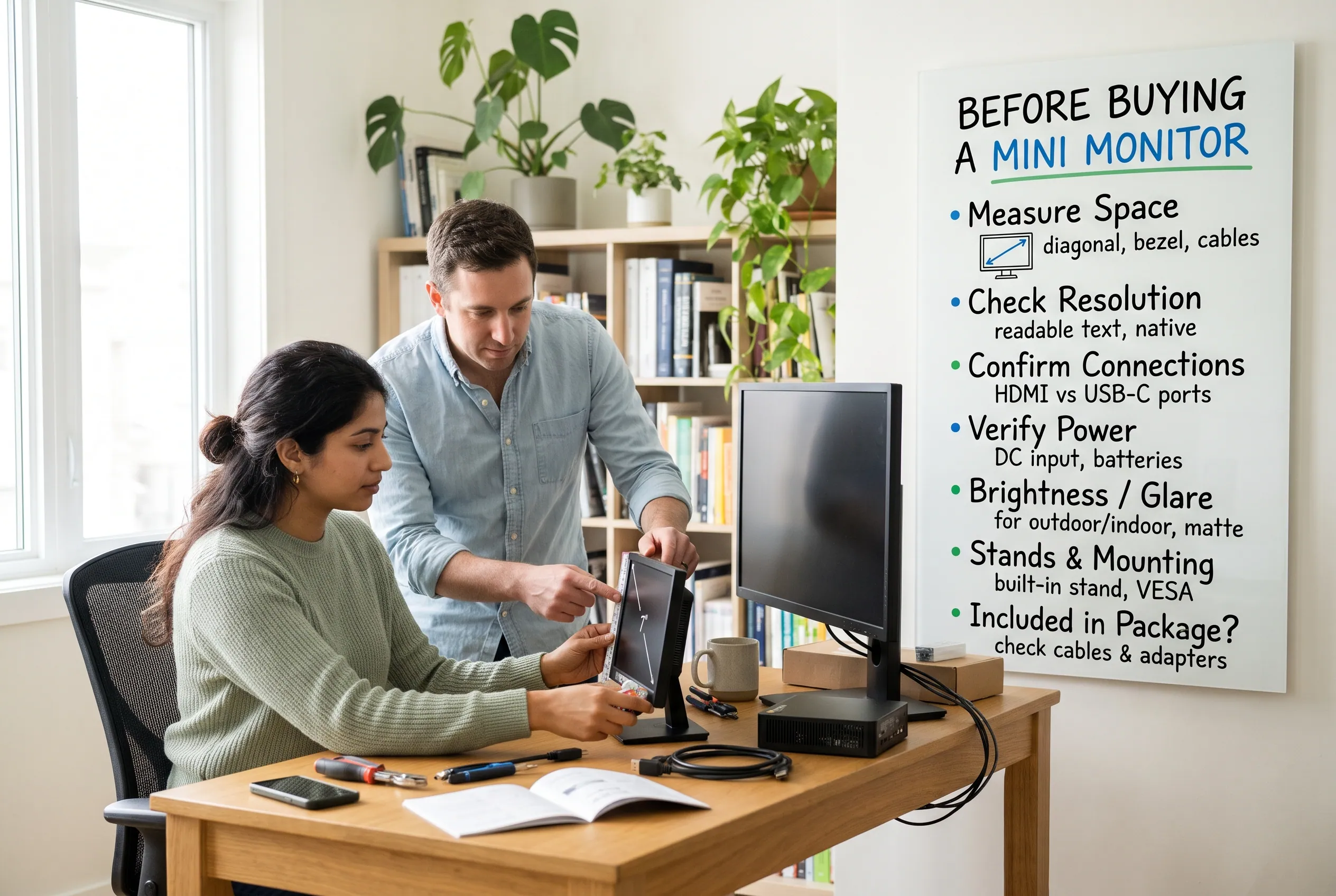 A short checklist can help you avoid paying for a display that doesn’t fit your setup.
- Measure the available space. Screen size is measured diagonally, not by width. Also check the overall dimensions, including the bezel, stand, mounting points, and cables.
- Check the native resolution. Decide whether you need a detailed image, readable text, or only a basic status display. Higher resolution is useful only if the physical size and software scaling make the content usable.
- Confirm every connection. Match the monitor’s actual HDMI connector or USB-C capabilities to your source device. If you need an adapter, check that it supports the required video signal.
- Verify power requirements. Look at voltage, power consumption, included adapters, and supported batteries. This is especially important for camera monitors and portable displays.
- Consider brightness and reflections. A display used outdoors or near a bright window may need more brightness than one used in a dim room. A screen hood or adjustable position can also help, depending on the environment.
- Check the stand and mounting system. Some tiny displays are designed for camera mounts or fixed installations rather than a desk. Make sure you can position the screen comfortably.
- Check what the package includes. A product listing may not include every cable, adapter, power supply, or mounting accessory you need.
- Compare the total cost. The cheapest listing may not be the least expensive complete setup once you add adapters, power accessories, or a suitable stand.
How much does a small monitor cost?
Price depends on the display’s purpose, resolution, connectivity, and specialist features. Tiny camera monitors can cost more than their size might suggest because they are designed for video-production use rather than general desktop computing.
As a concrete example, the US product listing for the Lilliput A5 showed a price of $159 when checked for this guide. Prices and availability can change, so confirm the current listing before purchasing.
For an 8-inch HDMI display or a larger portable monitor, compare the exact model specifications and included accessories rather than assuming all products of the same size are equivalent.
Frequently Asked Questions
What is the smallest monitor you can buy?
There is no single universal answer because specialist displays and miniature computer screens serve different purposes. The Lilliput A5 is one documented 5-inch Full HD HDMI monitor, designed primarily for camera monitoring. It is an example of a compact monitor, not a verified world-record smallest display.
Can you use a 5-inch monitor with a PC?
Yes, if the monitor accepts a video signal that your PC can output and you provide the required power. Check the connector type, supported resolution and refresh rate, and power input. Even when it works correctly, a 5-inch screen may be uncomfortable for regular desktop work because text and interface elements have limited physical space.
What is the smallest practical monitor for everyday work?
For many people, a portable monitor around 10 inches or larger is a more practical starting point than a 5-inch display. The best size depends on the applications you use, your viewing distance, and whether you need to read documents or manage several windows. If you plan to work for long periods, prioritize readability and comfortable positioning.
Do small HDMI monitors need separate power?
Often, yes. HDMI carries video, but a monitor may need a separate USB, DC, or battery power source. Always check the manufacturer’s specifications for the exact model. Never assume that plugging an HDMI cable into a PC will power the display.
Is an 8-inch monitor good for gaming?
It can work for compact gaming setups, retro gaming, or situations where portability matters more than screen size. Before buying, check the supported resolution, refresh rate, response time information, and compatibility with your gaming device. For detailed modern games or extended play sessions, a larger screen may be more comfortable.
Final Verdict
The smallest monitor is not necessarily the best monitor for your setup. A 5-inch display such as the Lilliput A5 is worth considering for specialist camera work and highly compact installations. An 8-inch monitor can be a useful choice for mini-PC projects, while a 10.5-inch portable display offers more room for travel and everyday tasks.
Start with what you need to see, then choose the smallest screen that keeps the information readable. Check the ports, power requirements, resolution, and mounting options before ordering.
The best mini monitor is the one that fits your space without making your work unnecessarily difficult.
Disclaimer
This article is provided for informational purposes only. Product specifications, prices, availability, and compatibility may change without notice. Always verify the latest details with the manufacturer or seller before making a purchase. Product mentions do not necessarily indicate sponsorship, endorsement, or a commercial relationship.