
A WiFi extender can help you get internet in rooms where your router’s signal is weak. However, the distance it can cover depends on the extender model, the strength of the router’s signal, walls, and other obstacles. There is no single maximum range that applies to every home.
As a rough planning estimate, an indoor extender may provide useful coverage over tens of feet beyond its location, sometimes farther in open spaces. The key is to place it where it still receives a good signal from your router. If you install it too far away, it may repeat a weak connection instead of giving your devices reliable internet.
Short Definition
A WiFi extender can expand coverage by rebroadcasting your router’s signal, often helping in nearby rooms. Its useful range depends on placement, signal strength, walls, interference, and the device model.
Experience
Start by placing your extender where the router’s signal is still strong, rather than in the dead zone itself. Test internet speed and stability in the room you want to cover, because a visible WiFi signal does not guarantee a reliable connection.
How Far Will a WiFi Extender Reach?
The range of a WiFi extender depends on two distances: how far it is from your router and how far your devices are from the extender. Both affect whether you get a stable connection.
For example, imagine your router is in the living room and your bedroom is at the other end of the house. Placing an extender somewhere between them may help bring WiFi into the bedroom. But if several thick walls separate the router and extender, the connection may still be poor.
Here is a practical starting guide:
| Where you need WiFi | What to expect |
| Nearby room | Often a good use for an indoor extender if the router signal reaches the placement point |
| Far end of the house | May work, but walls, floors, and placement become more important |
| Upstairs room | Depends on floor materials, stairways, and the location of the router |
| Backyard or garden | Results vary with exterior walls, distance, and outdoor obstacles |
| Detached garage or another building | May need an outdoor access point, Ethernet cable, or point-to-point wireless equipment |
These are general planning examples, not guaranteed coverage distances. Check the specifications for your exact extender and test the connection where you intend to use it.
One important point: a longer WiFi range does not automatically mean faster internet. Your extender can provide a signal while delivering lower speeds than you get near the router.
How Does a WiFi Extender Extend Your Signal?
A WiFi extender, also called a range extender or repeater, receives your router’s wireless signal and broadcasts it again. This can help devices connect in areas where the router’s signal is too weak.
Think of your router as the starting point and the extender as a relay. The extender gives the signal another place to come from, but it still depends on the router for internet access. If the router loses its internet connection, the extender cannot restore it on its own.
There are two connections to consider:
- Router to extender: The extender must receive a strong enough signal to work well.
- Extender to your device: Your phone, laptop, TV, or smart-home device must be close enough to connect reliably.
Both connections matter. A strong signal between your phone and extender does not guarantee that the extender has a good connection back to the router.
Does a WiFi extender reduce internet speed?
It can. A wireless extender uses radio signals to communicate with the router and your devices. Depending on its design, available wireless capacity, interference, and network traffic, it may deliver lower speeds than a direct connection to the router.
For example, imagine your internet plan provides 300 Mbps near the router. Your extender might deliver much less in a distant room. The actual result depends on the equipment and conditions; 300 Mbps is an illustrative starting figure, not a prediction of extender performance.
If speed matters for video calls, gaming, or streaming, test the connection where you plan to use it. Do not judge performance only by the number of WiFi bars.
What Affects WiFi Extender Range?
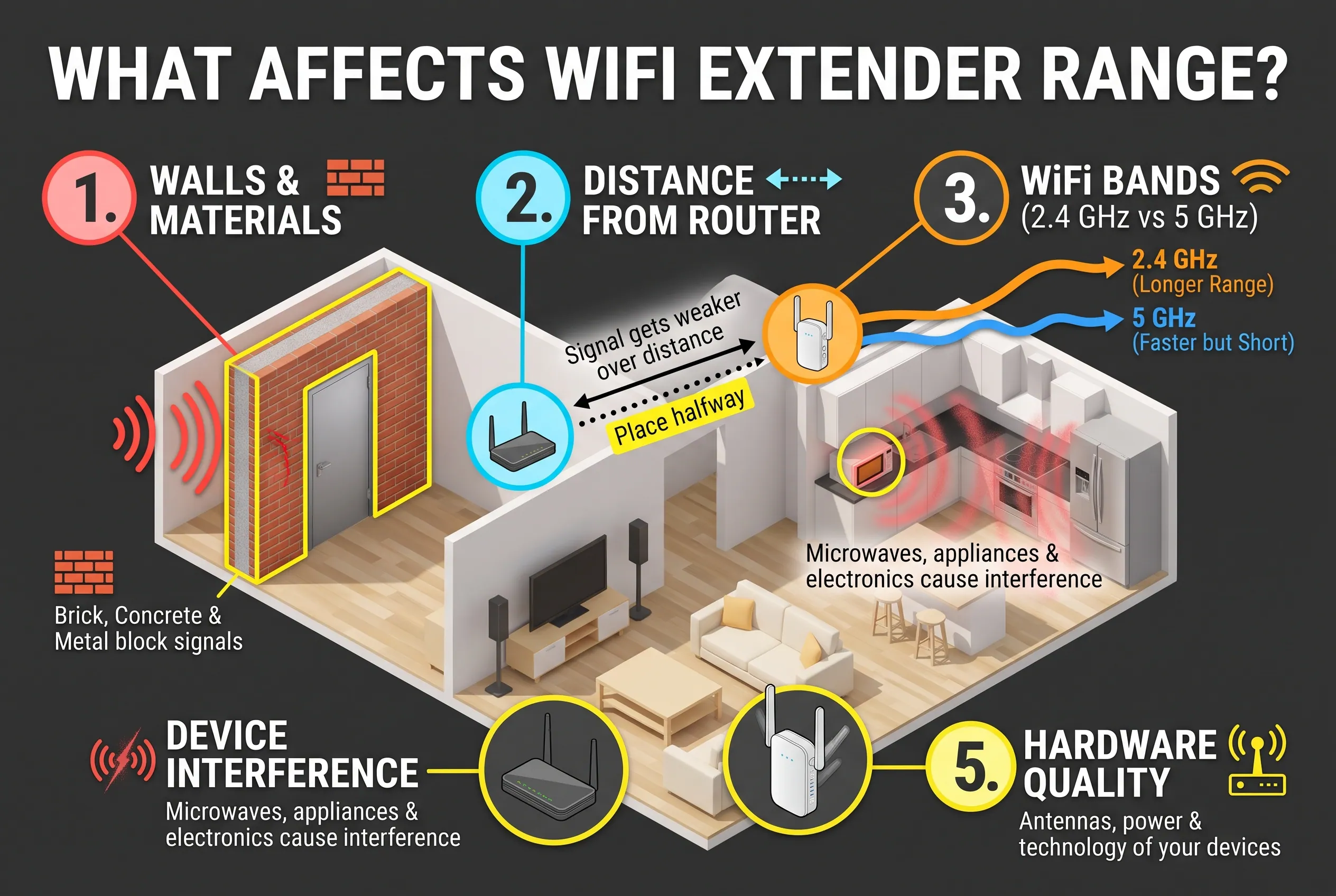 Several factors determine how far a WiFi extender can provide a useful connection. Even two homes using the same extender may get different results.
1. Walls, floors, and building materials
WiFi signals can pass through many common building materials, but some weaken them more than others.
- Drywall and wooden doors: Often easier for signals to pass through than dense materials.
- Brick and concrete: Can weaken signals substantially, especially when several walls stand between devices.
- Metal doors and large metal surfaces: Can block or reflect radio signals.
- Floors and ceilings: May reduce coverage between levels, depending on their construction.
A house with open rooms may get better results than a house with thick masonry walls. If your extender struggles across several concrete walls, moving it to a better position or using a wired access point may help more than buying a model with a higher advertised range.
2. The distance from the router
The extender must receive a usable signal before it can rebroadcast it. If you place it at the far end of a dead zone, it may have little useful signal to work with.
A better approach is to place it where the router’s WiFi is still reasonably strong. You can then test whether the extended connection reaches the area you need.
TP-Link and NETGEAR both recommend placing an extender around halfway between the router and the target area, while keeping it within the router’s wireless range.
3. WiFi frequency bands
Many routers and extenders support the 2.4 GHz and 5 GHz bands.
| Feature | 2.4 GHz | 5 GHz |
| Typical strength | Often useful for longer indoor distances | Often useful for higher speeds at shorter distances |
| Obstacle handling | Often performs better through obstacles | Often loses strength more quickly through obstacles |
| Common use | More distant devices and basic smart-home tasks | Nearby streaming devices and higher-speed connections |
These are general tendencies, not guarantees. Antennas, interference, channel conditions, and device design also affect results. Some newer equipment supports additional bands, so check your model’s specifications.
If your extender supports both bands, use the one that gives your device the best balance of speed and stability at the target location.
4. Interference from other devices
Other wireless networks and electronic devices can affect WiFi performance. Microwaves and some cordless devices may interfere with certain WiFi bands. Large appliances and metal objects can also make a poor location worse.
Keep the extender away from large metal surfaces and appliances where practical. Place it in an open area rather than behind furniture or inside a cabinet.
5. The extender and router themselves
Not every extender has the same antennas, radio capabilities, supported bands, or hardware. The router matters, too. An older router may struggle to provide a reliable connection in a large home, even when paired with a newer extender.
Before buying, check the exact model’s supported WiFi standards and features. A higher advertised wireless speed does not automatically mean longer real-world range.
Where Should You Place a WiFi Extender?
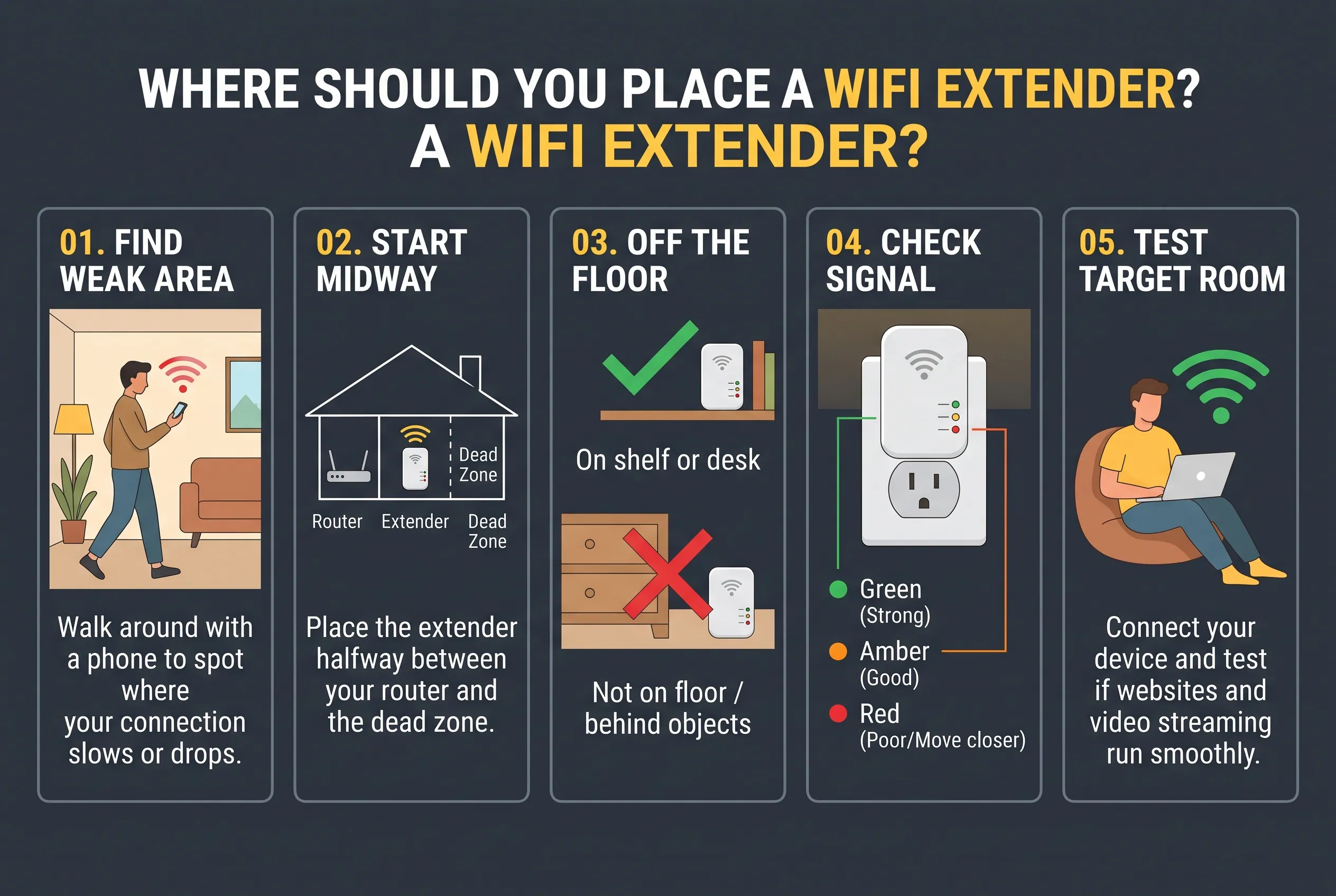 Correct placement is often the easiest way to improve coverage without spending more money.
Follow these steps to find a suitable location.
Step 1: Find the area with weak WiFi
Use your phone or laptop to check where the connection becomes slow or unreliable. Walk from the router toward the problem area and note where performance starts to drop.
You do not need a special app for this first check. Try loading a website or running a speed test in several locations.
Step 2: Start between the router and the dead zone
Choose a location roughly halfway between the router and the area you want to cover. The exact position depends on your building and the signal the extender receives.
As one model-specific example, TP-Link’s current placement guidance suggests roughly 25–40 feet from the router for certain external-antenna models, or 20–35 feet for certain internal-antenna models, when there are few obstacles and the router signal remains strong. These are starting points for the relevant models, not universal rules.
If thick walls weaken the signal, the right location may be much closer to the router.
Step 3: Keep it off the floor
Place the extender on a shelf or desk when possible. Avoid hiding it behind furniture, placing it inside a cabinet, or positioning it directly beside large metal objects.
For extenders with adjustable external antennas, follow the manufacturer’s instructions for antenna direction. Some models work best with their antennas vertical.
Step 4: Check the signal indicator
Many extenders have a light or app that shows the quality of their connection to the router. The exact meaning of each light varies by model.
For example, NETGEAR’s placement guidance uses green for the best router link, amber for a good link, and red for a poor link on applicable models. Check your own manual rather than assuming every extender uses the same colors.
If the indicator reports a weak router connection, move the extender closer to the router and check again.
Step 5: Test the target room
Connect your phone or laptop to the extended network and test it in the actual location where you need WiFi.
Check three things:
- Can you open websites without repeated delays?
- Does video stream or a video call remain stable?
- Is the speed suitable for what you want to do?
If performance remains poor, try another position. Small changes can matter when a wall, appliance, or other obstacle affects the signal.
How Far Can a WiFi Extender Reach in Different Situations?
The same extender may work well in one location and poorly in another. The following examples can help you decide whether a standard indoor extender is likely to suit your needs.
Another room in the same house
An extender is often a practical choice when a nearby bedroom, home office, or living room has weak WiFi. Place it between the router and the problem room, then test the connection.
If one wall separates the two rooms, placement may be straightforward. If several concrete walls stand between them, the extender may need to sit closer to the router.
An upstairs room
A second floor can be harder to cover because the signal must pass through a ceiling or floor. The material and thickness of that structure can matter more than the distance alone.
Try placing the extender near the stairs or in an open area between floors if the router signal remains strong there. If that does not help, a mesh system or wired access point may be a better option.
A backyard or garden
A standard indoor extender may provide some outdoor coverage through a nearby window or exterior wall. However, its results depend on the building materials, the distance to the outdoor area, and the position of the receiving device.
For a garden where you need reliable coverage across a larger area, consider an outdoor-rated access point. It is designed for outdoor installation and may offer features better suited to that environment.
A garage or detached building
A garage attached to your house may be within reach of an indoor extender. A separate building is more challenging, especially if brick walls, metal siding, or other obstacles block the signal.
For a detached garage, workshop, or guesthouse, consider running Ethernet to an access point or using a point-to-point wireless link. The right choice depends on the distance, obstacles, installation requirements, and how much speed you need.
Can a WiFi Extender Reach 100 or 200 Feet Outdoors?
It is possible to provide WiFi over 100 or 200 feet outdoors, but a standard plug-in extender is not guaranteed to do so. The equipment, placement, obstacles, and signal quality all matter.
For outdoor coverage, there is an important difference between three types of equipment:
- Indoor WiFi extender: Repeats your existing WiFi signal. It is not necessarily weatherproof.
- Outdoor access point: Broadcasts WiFi from equipment designed for outdoor use. It usually needs a suitable power and network connection.
- Point-to-point wireless equipment: Uses directional radios to connect two locations, such as a house and a detached workshop.
As a specific example, TP-Link lists up to 200 meters of outdoor coverage for its EAP110-Outdoor access point, based on field tests. The manufacturer warns that actual range varies with the environment and receiving device. This specification applies to that particular outdoor access point, not to indoor extenders generally.
What if you need WiFi 100 feet away?
Start by checking whether an existing extender can reach the area while maintaining a good connection to the router. If a clear, reliable wireless path is not possible, a wired access point may be more dependable.
What if you need WiFi 200 feet away?
At this distance, consider an outdoor access point or point-to-point wireless link rather than assuming a standard extender will work. Check the product’s supported installation method, line-of-sight requirements, weather protection, and expected performance.
If you need to install outdoor equipment permanently, follow the manufacturer’s grounding and mounting instructions. Electrical work and outdoor cable installation may require qualified help.
How Far Will a NETGEAR or TP-Link WiFi Extender Reach?
Neither brand has one range figure that applies to every model. Coverage depends on the specific device, its antennas, supported frequency bands, placement, and the conditions in your home.
Both brands publish placement guidance that can help you get better results.
What to check before buying
- Supported WiFi standards and bands: Make sure the extender supports the features you need and works with your router.
- Manufacturer range guidance: Look for the exact model’s specifications, but remember that advertised coverage is not a guarantee.
- Ethernet port and access point mode: These can be useful if you can connect the extender to your router with a cable.
- Signal indicators: Check whether the model helps you find a location with a good router connection.
- Installation requirements: Confirm whether the device is intended for indoor or outdoor use.
NETGEAR provides model-specific placement and troubleshooting information in its WiFi extender support guide. TP-Link offers similar advice in its WiFi extender placement guide.
The practical rule is simple: choose a model that suits your coverage problem, then follow its placement instructions. Buying a more expensive extender will not automatically overcome thick walls or a poor router connection.
When Is a Mesh System or Wired Access Point Better?
An extender is not always the right solution. If you have several dead zones, thick walls, or a distant building to cover, another networking option may provide more reliable results.
| Solution | Best suited for | Main trade-off |
| WiFi extender | One or two nearby weak-signal areas | Depends on a good wireless link to the router |
| Mesh WiFi | Coverage across multiple rooms or floors | Usually costs more than a basic extender |
| Ethernet-connected access point | A room or building that can be reached by cable | Requires a suitable cable route |
| Powerline adapter | Sending network data through compatible electrical wiring | Performance depends on the home’s electrical circuits |
| Outdoor access point | A yard, garden, patio, or other outdoor area | Requires suitable outdoor installation and network connectivity |
| Point-to-point wireless link | Connecting two separate buildings | Requires suitable equipment and careful placement |
TP-Link’s comparison of extenders, powerline adapters, and mesh systems explains how these options suit different layouts and connection needs.
Choose a mesh system for broader indoor coverage
Mesh WiFi uses a main router and additional nodes to spread coverage around the home. It can be a good fit when you need a connection in several distant rooms or across multiple floors.
However, mesh performance still depends on node placement and the connection between nodes. A wired connection between mesh units can help when wireless links struggle.
Choose a wired access point for a difficult dead zone
If you can run an Ethernet cable to the problem area, an access point can create WiFi there without relying on a weak wireless signal from the main router.
Some extenders support access point mode, but not all models offer this feature. NETGEAR explains the difference in its access point installation guide.
For a detached building, a cable or suitable point-to-point link may be a better long-term solution than placing multiple wireless extenders in a chain.
How Can You Check Whether Your Extender Is Working?
You do not need to guess whether your extender is providing useful coverage. Test it in the place where you actually need WiFi.
Follow this simple checklist:
- Confirm that the extender is connected to the router.
- Check its signal indicator or status page using the instructions for your model.
- Connect your phone or laptop to the extended network.
- Test internet access in the target room or outdoor area.
- Run a speed test near the router and at the target location, using the same device where practical.
- Move the extender and test again if the connection is weak or unstable.
TP-Link’s extender status and placement guide explains how to check the connection and use the device’s indicators.
What if the extender shows a signal but the internet is slow?
First, check the connection between the router and extender. Move the extender closer to the router if its signal indicator reports a weak link.
Then test the target area again. If the connection remains poor, try a different position or check whether a wall or other obstacle is blocking the signal.
If internet speeds are also slow near the router, the problem may be with the internet service or router rather than the extender.
Should you add another extender?
Not immediately. Multiple extenders can increase coverage, but each wireless link must still work well. A chain of extenders can make performance worse if the connections are weak. NETGEAR recommends avoiding unnecessary wireless hops and positioning units carefully.
Try to improve the first extender’s connection before buying another device.
Common WiFi Extender Mistakes to Avoid
Placing the extender inside the dead zone: It may receive too weak a signal from the router. Move it toward the router until its connection improves.
Assuming advertised range equals real-world range: Manufacturer figures depend on equipment and test conditions. Walls, interference, and receiving devices change the result.
Ignoring internet speed: A signal that reaches your room may still be too weak for video calls or high-quality streaming. Test actual performance.
Using an indoor extender outside: Indoor devices are not necessarily weatherproof. Use equipment rated for the environment where you plan to install it.
Buying a second extender too soon: First check the placement and condition of your existing connection. Another device will not fix a weak source signal by itself.
Choosing equipment by brand alone: Compare the exact model, features, installation options, and manufacturer’s guidance rather than assuming all products from one brand have the same range.
Frequently Asked Questions
How many feet does a WiFi extender reach indoors?
There is no universal indoor range. An extender may cover a nearby room or provide useful coverage farther away in an open layout, but walls, floors, placement, and model capabilities affect the result. Test the connection where you need it.
Do WiFi extenders work through walls?
Yes, WiFi signals can pass through many walls, but the signal may weaken as it passes through them. Brick, concrete, and metal can create greater problems than lighter materials. Place the extender where it receives a strong signal before trying to cover the room beyond the wall.
How do I extend WiFi to another building 100 feet away?
First check whether the router has a clear wireless path to the building. If a standard extender cannot maintain a reliable connection, consider an outdoor access point, an Ethernet-connected access point, or a point-to-point wireless link. The right option depends on obstacles and installation requirements.
How do I get WiFi 200 feet away?
For a distant outdoor location, consider outdoor-rated networking equipment designed for the required distance. A suitable outdoor access point may work in some settings, while a point-to-point wireless link may suit two separate buildings. Check the manufacturer’s specifications and installation requirements before buying.
Choose the Right Solution for Your Space
The distance a WiFi extender can reach depends on more than its advertised range. You need a strong connection from the router to the extender and a reliable connection from the extender to your devices.
For a nearby room, start with careful placement and testing. For several indoor dead zones, compare mesh WiFi. For a distant garage or outdoor area, consider an outdoor access point or a wired connection.
The best first step is to test the signal where you need it, move the extender to a better location, and compare the results before spending money on additional equipment.
Disclaimer
WiFi coverage and performance vary by device model, building materials, interference, internet service, compatibility, and installation conditions. Check manufacturer specifications before purchasing or installing networking equipment. Seek qualified help when electrical work or other installation tasks exceed your experience.