
On most laptops, the built-in camera is in the bezel—the frame around the screen—usually along its top edge. Look for a tiny glass lens near the middle of the frame. Some models place it in a small notch or use a different layout, so the exact position depends on your laptop.
Finding the lens is only the first step. If your camera does not work, a privacy shutter may cover it, a switch or keyboard key may disable it, or Windows may be blocking app access. Use the checks below to find the camera, identify its controls, and test it before trying more involved fixes.
Short Definition
A laptop camera is usually built into the bezel along the top edge of the screen. Look for a tiny lens, then check for a privacy shutter or model-specific switch if it will not work.
Experience
If you cannot find the camera, inspect the screen frame and check for a small privacy shutter before changing Windows settings. Keyboard shortcuts and physical controls vary by model, so consult your laptop’s official user guide when the controls are unclear.
Where Is the Camera on a Laptop?
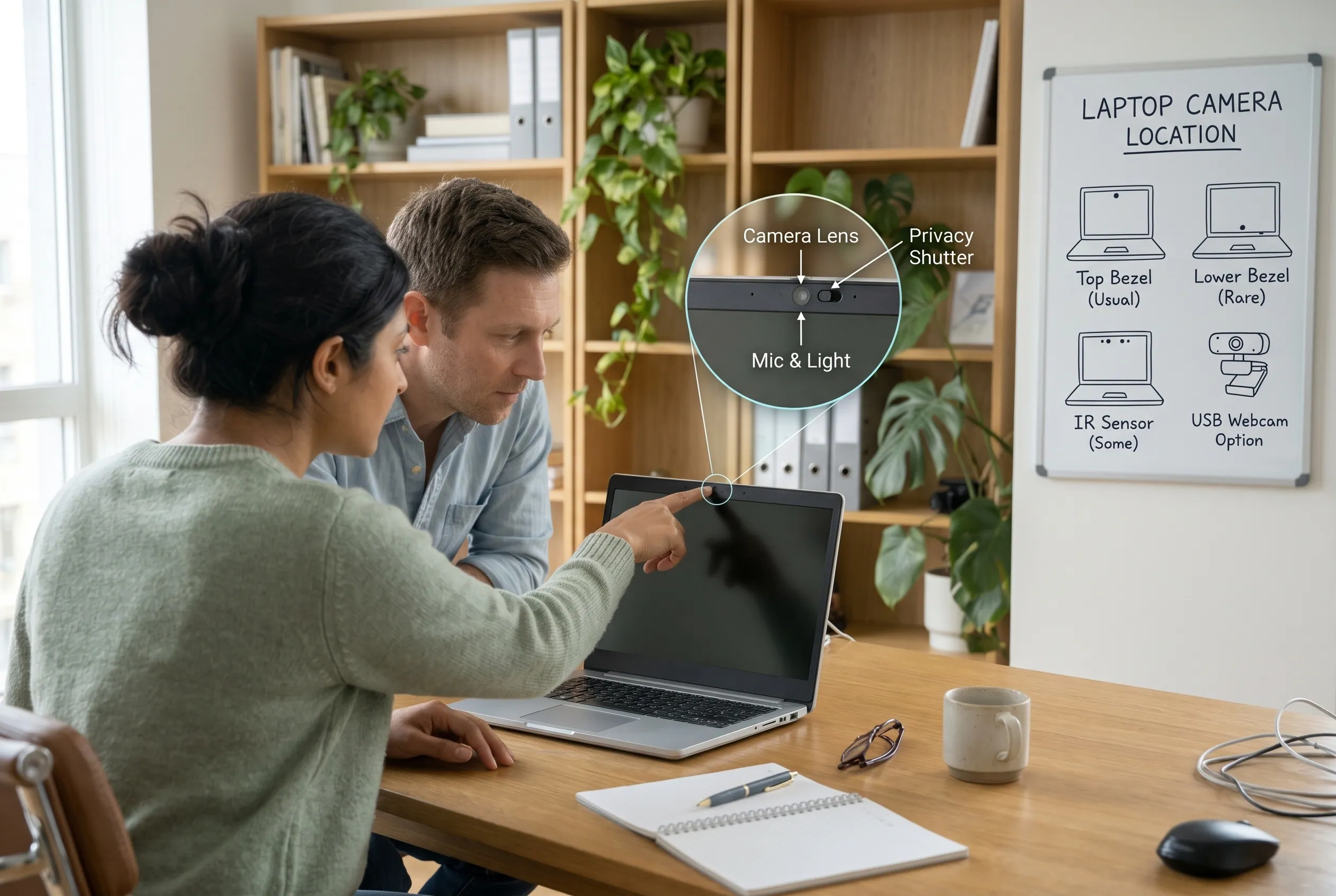 Start with the upper edge of your laptop’s display. The camera is often a small, dark circle built into the plastic or metal border above the screen. It may be centered, slightly off-center, or part of a narrow camera notch.
Open the lid and look straight at the screen frame in good light. Move the screen angle a little if reflections make it hard to see. You do not need to remove a panel or open the laptop case to locate a built-in camera.
What if you cannot see it?
Check the full top edge, then inspect the lower bezel and corners. Some older or unusual designs use a less familiar position. If you see a small slider next to a lens, it may be a privacy shutter rather than part of the camera itself.
If you still cannot find a lens, search for the exact laptop model and “user guide” on the manufacturer’s official support site. The model name is often printed on the bottom of the laptop or shown in the system information. Use the manual’s diagram instead of assuming that every laptop has a webcam.
Some laptops do not include a built-in camera. A business model may also have different features depending on its exact configuration. If your device has no integrated camera, you can use a compatible USB webcam, but you do not need to buy one until you confirm that the built-in camera is absent or unsuitable.
How to Recognize the Laptop Camera
A camera lens is usually a tiny glass circle. It may look black when inactive and reflect a little light when you move your viewing angle. Avoid pressing or poking at it; close inspection is enough.
Several small parts may sit close together along the screen frame. A microphone opening is usually smaller and does not look like a glass lens. An activity light, when present, is a small indicator rather than the camera itself. Some laptops also have an infrared (IR) camera or sensor to help with face recognition, such as Windows Hello. An IR sensor may sit beside the regular camera, and not every laptop has one.
What does the camera light mean?
Some laptops have a light that turns on when the camera is active. Other devices have no camera light; Windows may show a notification when the camera starts or stops instead. Microsoft explains these differences in its camera, microphone, and privacy guide.
Do not rely on a light alone to identify the camera or judge every privacy setting. Look for the lens itself, then check the controls and app permissions if you want to know whether the camera can be used.
Where Is the Camera Button or Privacy Switch?
The camera lens and the camera control are two different things. A laptop may have a built-in camera without a dedicated camera button. If you cannot use the camera, look for one of these controls:
- Privacy shutter: A small slider built into the display frame that physically covers the lens. Move it gently to uncover the camera.
- Side switch: A switch on the side of some laptops that enables or disables the camera or its privacy function.
- Keyboard control: A key with a camera symbol, sometimes used alone or with the Fn key. Its function differs by model.
- Software privacy mode: A manufacturer utility or Windows setting that restricts camera access without physically covering the lens.
Check the frame around the lens for a tiny tab, mark, or sliding cover. Also inspect the laptop’s sides and the top row of the keyboard. If you find a shutter, move it only as designed; do not force a stuck switch or try to pry open the frame.
A privacy shutter can make a working camera appear broken because the lens is blocked. A keyboard key or software privacy mode may make the camera unavailable even when the lens is uncovered. Once you have checked the physical controls, test the camera in Windows before assuming that the hardware has failed.
Where to Find the Camera on HP, Dell, and Lenovo Laptops
The exact location and control depend on the laptop model, not just the brand. The following examples show what to look for; they are not a promise that every model from that company has the same feature.
| Brand | What to check | Important note |
| HP | Lens in the screen frame; possible privacy shutter, side switch, or camera-related keyboard key | Available controls vary by model. |
| Dell | Lens near the display edge; possible privacy shutter or keyboard privacy control | A shortcut documented for one Dell model may not work on another. |
| Lenovo | Camera lens and, on supported models, a ThinkShutter cover or privacy mode | Not every Lenovo laptop has a ThinkShutter. |
HP laptop camera and privacy controls
On many HP laptops, the camera sits near the upper edge of the display. Some models include a camera shutter key, a physical privacy control, or a cover next to the lens. If you are looking for the camera button on an HP laptop, first check whether the lens is covered and whether the keyboard has a camera symbol.
HP’s official webcam troubleshooting guide describes several types of privacy controls. Use the instructions that match your model rather than relying on a key position you saw on another HP laptop.
Dell laptop camera and privacy controls
Dell laptops commonly place an integrated camera in the display frame, but camera privacy controls vary across product lines. Some models use a physical shutter, while certain business models have a keyboard privacy key. For example, Dell documents an F9 privacy control for the Latitude 9420; that instruction is specific to that model and should not be treated as a universal Dell shortcut.
If you need to find the camera button on a Dell laptop, check the user guide for your exact model. Dell’s camera-not-detected troubleshooting guide is useful if Windows says it cannot find a camera after you have checked the lens and privacy control.
Lenovo laptop camera and ThinkShutter
Many Lenovo laptops place the webcam in the upper display frame. Some models include ThinkShutter, a physical cover that slides across the lens. If the cover is closed, the camera can appear dark or blocked even though it is installed.
Lenovo’s front-component guide for selected ThinkPad models shows how the camera, infrared components, and optional ThinkShutter may be arranged. The diagram applies to those documented models, not every Lenovo laptop. Some Lenovo systems also include camera privacy controls in Lenovo Vantage; availability depends on the device.
If the brand examples do not match what you see, do not keep pressing keys at random. Find the model number and use the manufacturer’s guide for the specific laptop.
Which Keyboard Key Turns On the Camera?
There is no single F key that turns on the camera on every laptop. The key may show a camera symbol, a crossed-out camera, or another privacy-related icon. On some laptops, pressing the key alone works; on others, you may need to hold Fn while pressing it. Some camera shortcuts control privacy, while other keys have a different function.
To check safely:
- Look for a camera or privacy symbol on the top row of the keyboard.
- Check your laptop’s official user guide to confirm what the key does.
- If the manual says to use Fn, press and hold Fn while tapping the documented key.
- Open the Camera app to see whether the preview appears.
Do not assume that F8, F9, F10, or any other key is correct because it worked on someone else’s laptop. For example, the Dell Latitude 9420’s documented F9 control is a model-specific case, not a general rule. If there is no camera symbol or dedicated shortcut, your laptop may use a physical shutter or software setting instead.
Where to Find Camera Settings in Windows
If the camera lens is uncovered but an app cannot use it, check Windows privacy permissions. Windows can block camera access for the whole device, allow some apps but not others, or restrict traditional desktop apps such as browsers and video-call programs.
Windows 11
- Open Start, then select Settings.
- Choose Privacy & security, then Camera.
- Turn Camera access on if it is off.
- Turn on Let apps access your camera.
- Check the list of apps, where available, and allow access for the app you want to use. If it is a desktop app, make sure Let desktop apps access your camera is on.
Microsoft provides the current steps in its Windows camera permissions guide. If a setting is greyed out or you cannot change it, an administrator may control it, particularly on a work or school laptop.
Windows 10
On Windows 10, open Start > Settings > Privacy > Camera. Turn on camera access for the device, allow apps to use the camera, and check the available app controls. Desktop apps may need the separate desktop-app access setting. Exact wording can vary with the Windows version.
Windows 10 support ended on October 14, 2025, which means it no longer receives standard free security updates and technical support from Microsoft. If you still use Windows 10, keep that support status in mind when considering your device’s longer-term security.
Check whether Windows detects the camera
Windows 11 has a separate camera-management page at Settings > Bluetooth & devices > Cameras. It can show connected cameras, provide a preview for supported devices, and list cameras disabled through that page. This feature is not available in older Windows versions. See Microsoft’s Windows 11 camera settings guide.
If no camera appears, that does not automatically mean the laptop lacks one. A missing driver, a disabled device, privacy software, or a hardware issue may prevent detection. Check the physical controls and permissions first, then use the manufacturer’s troubleshooting steps for your model.
How to Test Whether Your Laptop Camera Works
The easiest basic test is the Windows Camera app. It lets you check the camera without first joining a meeting or opening a browser call.
- Open Start and type Camera in the search box.
- Select the Camera app.
- If Windows asks for camera permission, review the request and allow access if you want to use the camera.
- Look for a live preview. If you can see yourself, the camera is producing an image in that app.
If the preview works, your camera is probably functioning at a basic level. Next, open the app you actually need—such as a meeting app—and select the correct camera in its settings. A camera may work in the Windows Camera app but fail in another app because that app lacks permission or has selected a different device.
If the preview is black, first check for a physical shutter, privacy key, or software privacy mode. Then close other apps that might be using the camera and try again. Microsoft’s guide to using the Windows Camera app explains its basic functions and settings.
What to Do If Your Laptop Camera Is Not Working
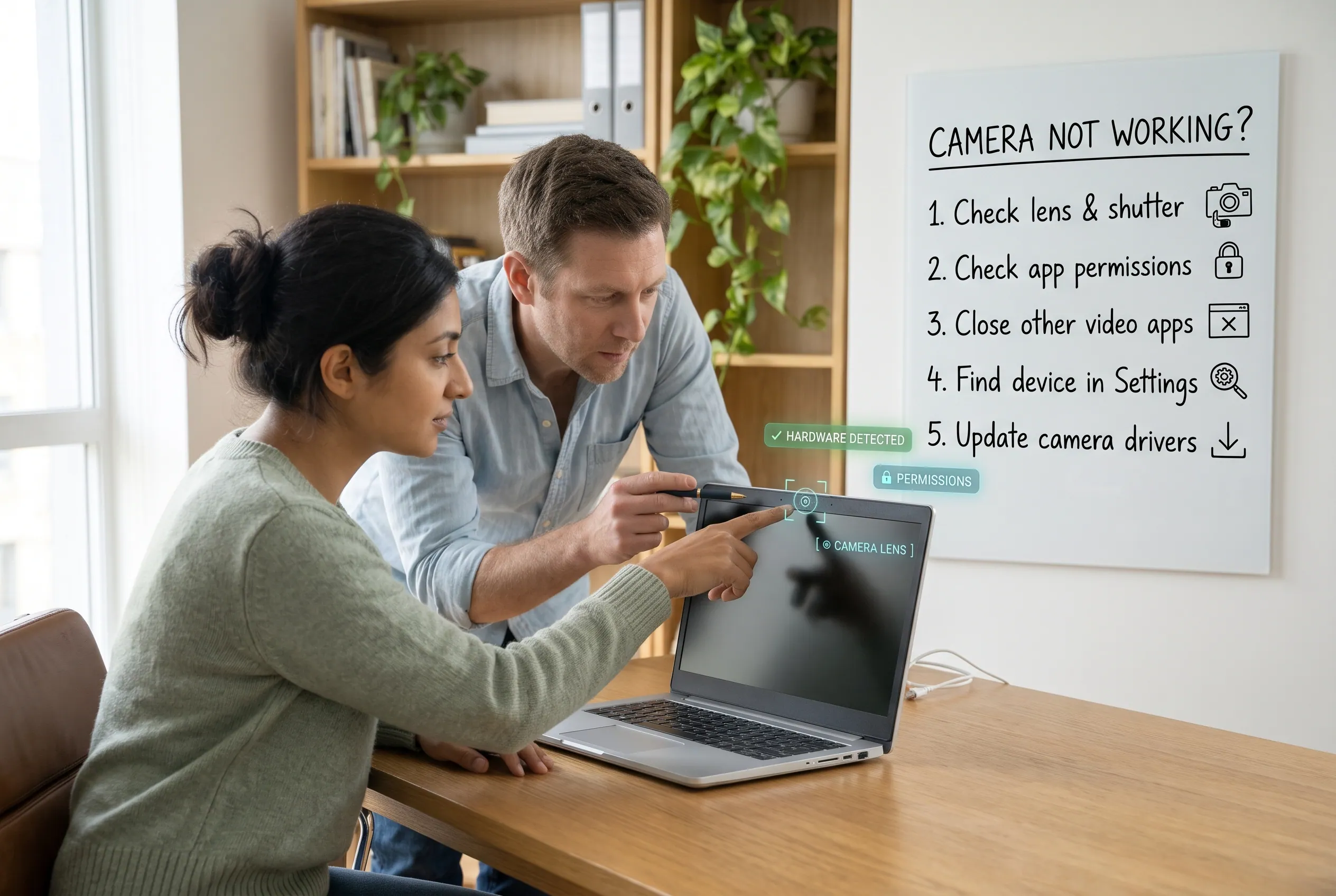 If the camera does not appear or the preview stays blank, work through these checks in order. Stop when the camera works; you do not need to try every possible fix.
1. Check the lens and privacy controls
Make sure the lens is not covered. Open the physical shutter if your laptop has one, and check for a camera switch or privacy key described in the model’s guide. Avoid pushing hard on a control that will not move.
2. Check Windows and app permissions
Use the Windows camera privacy settings described above. If the camera works in the Camera app but not in a browser or meeting program, check that app’s camera selection and permissions. A website may also ask separately for permission to use the camera in your browser.
3. Close apps that may already be using the camera
Another video-call app, browser tab, or recording program may be holding the camera open. Close apps you do not need, then reopen the app you want to use. If that does not help, save your work and restart the laptop before moving to more advanced checks.
4. Check whether Windows detects the device
On Windows 11, look under Settings > Bluetooth & devices > Cameras. If a camera is shown as disabled and you have permission to manage it, use the available option to enable it. Some cameras may not appear there if a driver is missing or the hardware is not functioning.
If Windows reports that no camera is attached, follow the official troubleshooting page for your laptop brand. For example, Microsoft has a general camera troubleshooting guide, and Dell has a model-independent starting point for the 0xA00F4244 “camera not found” error.
5. Update drivers only when needed
A driver is software that helps Windows communicate with hardware. If basic checks fail, use Windows Update or the official support page for your exact laptop model to check for a camera driver or firmware update. Avoid third-party driver-download sites. Before changing advanced settings such as BIOS options, read the manufacturer’s instructions for your particular model; those steps are not needed for most simple privacy-control problems.
If the camera still does not appear after the documented checks, the device may have a hardware fault or need model-specific support. Do not open the display or force a stuck shutter just to confirm the camera’s location.
Common Laptop Camera Mistakes and Privacy Tips
A few simple mistakes can make a working camera seem broken:
- Looking only for a button: Many laptops have a lens but no dedicated camera button.
- Assuming all function keys work the same way: Shortcuts differ by model and keyboard layout.
- Confusing permissions with the shutter: Windows access settings cannot uncover a physical cover, and an open shutter does not grant app permission.
- Expecting every camera to have an activity light: Some systems use a light; others show a Windows notification.
- Forcing a control: A stuck shutter may be faulty. Do not pry at it or dismantle the screen.
For privacy, allow camera access only to apps you trust and review browser permission prompts before clicking Allow. A physical cover can block the lens, while software permissions can limit app access, but neither should be treated as a complete security solution for every part of a device.
Frequently Asked Questions
Does every laptop have a built-in camera?
No. Many modern laptops include a webcam, but some models or configurations do not. Check the manufacturer’s specifications or user guide for the exact model. If there is no built-in camera, a compatible USB webcam is an option.
Can I use my laptop camera without an internet connection?
Yes. You can usually open the Windows Camera app and test a built-in camera without an internet connection. Internet access is needed for online meetings or calls, but not for a basic local camera preview.
Why does my laptop camera light turn on?
On laptops equipped with a camera indicator, the light usually signals that the camera is active. Some systems use Windows notifications instead. If the camera seems active unexpectedly, check open apps, browser permissions, and Windows camera privacy settings rather than relying on the light alone.
What should I do if the Camera app cannot find my webcam?
First, check for a closed privacy shutter, a camera switch, and disabled Windows permissions. Then close other apps and restart the laptop. If Windows still cannot detect the camera, follow the official troubleshooting steps for your model and check for an appropriate driver through the manufacturer or Windows Update.
Find, Enable, and Test Your Camera
Start by checking the upper edge of the screen for a small lens. If you find it but cannot use it, check for a shutter or model-specific switch, then review Windows permissions and test the Camera app. When the controls do not match these instructions, the exact laptop model’s official guide is the safest next step.
Disclaimer
Device models, software versions, compatibility, installation conditions, budgets, and individual needs vary, so verify instructions for your specific laptop and Windows version. Seek qualified support for suspected hardware damage or a stuck privacy shutter rather than forcing the control or dismantling the screen.