
Setting up a Meta Portal can be straightforward, but older devices have an important limitation: Meta no longer sells Portal hardware, and some services have ended. You may be able to connect your device to Wi-Fi and complete parts of the setup, but that does not guarantee every app or feature will work.
Before you begin, identify your model and check whether the service you want to use is still supported. Meta announced on April 4, 2023, that it was no longer selling Portal devices and that supported features could change over time. Meta’s official announcement provides important background for anyone setting up an older device.
This guide explains how to prepare your Portal, follow the available setup steps, troubleshoot common problems, and decide whether further effort is worthwhile. The instructions are based partly on historical Portal documentation, so some menus or account options may no longer appear on your device.
Short Definition
Meta Portal setup means connecting an existing Portal device to power and Wi-Fi, following available on-screen prompts, and checking whether its account services and apps still work. Activation is not guaranteed.
Experience
Test an already-working Portal before resetting it. A factory reset can erase settings and may not restore apps or online services that have been discontinued.
Can You Still Set Up a Meta Portal in 2026?
You can try setting up an existing Meta Portal, but successful activation depends on the device and the services it requires. Physical setup, Wi-Fi connectivity, account sign-in, and access to online features are separate things.
For example, a Portal might turn on and connect to your home network but fail when you try to activate an account or open an app. That failure does not automatically mean your Wi-Fi is faulty.
Consider these three situations:
- Your Portal is already set up: Turn it on and check whether the features you need still work. Avoid resetting it unnecessarily.
- You bought a used Portal: Complete the physical setup first, then check whether the device offers the account and service options you need.
- Your Portal has been factory-reset: Be more cautious. Initial activation may depend on services that are no longer available or on which current documentation provides insufficient guidance.
The status of individual features matters, too. Zoom’s official Portal support page states that its Portal app would be removed after January 31, 2025. Microsoft, by contrast, still documents Teams support for certain touchscreen Portal models, with important exclusions for older devices and Portal TV.
These differences show why it is important to check the exact service rather than assume that every Portal feature has stopped working—or that everything still works as before.
What to Check Before Setting Up Your Meta Portal
Prepare the device and confirm what you want to use it for before changing any settings. This can save time, especially if you are working with a secondhand device.
Identify Your Portal Model
Meta produced several Portal devices. Their connections and supported features differ.
| Device | Main setup consideration |
| Portal | A touchscreen smart display that uses a power connection |
| Portal Mini | A smaller touchscreen display |
| Portal+ | A larger touchscreen display; check the generation |
| Portal Go | A portable touchscreen model with a rechargeable battery |
| Portal TV | A camera-equipped device that connects to a television |
Check the product label on the device or its packaging if you have it. Knowing the exact model is particularly important when checking app compatibility.
For example, Microsoft’s Teams setup documentation lists Portal Mini, Portal, Portal+, and Portal Go among its supported touchscreen devices. It excludes Portal TV, first-generation Portal, and first-generation Portal+.
This is a useful reminder that two devices with similar names may not support the same functions.
Gather the Setup Requirements
Before plugging in your device, prepare the following:
- The correct power adapter and cable for your model.
- A television and HDMI cable if you are setting up Portal TV.
- Access to your home Wi-Fi network and its password.
- Access to any account the device asks you to use.
- A phone or computer for account-related steps, if the on-screen instructions require one.
Use the appropriate power adapter rather than an adapter that merely fits the connector. A matching connector does not guarantee that a power supply is suitable.
Also, check your intended use. If you bought the device specifically for Zoom calls, for example, its historical ability to run Zoom does not mean that feature remains available.
Practical Tech Tip: If you already own a working Portal, test its current functions before making major changes. A device that still performs a useful task may be better left alone than subjected to a reset that cannot restore discontinued services.
How to Set Up a Meta Portal Step by Step
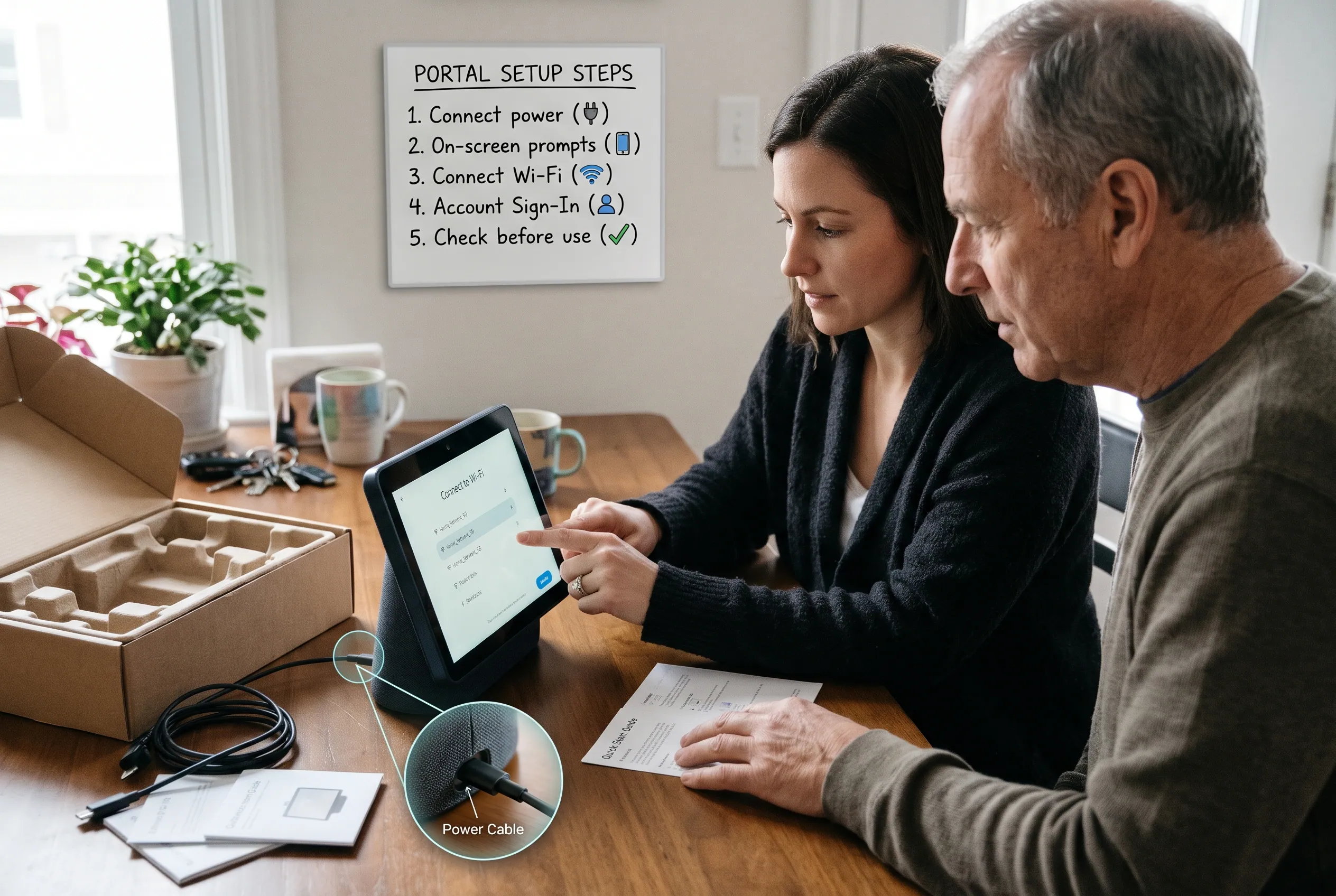 The following steps describe the general process from historical Portal setup documentation. Your device may show different menus, skip a step, or refuse to complete activation because of a service limitation.
Step 1: Connect the Power or HDMI Cables
Place your Portal on a stable surface with enough space around it. Avoid placing it where it could fall, become wet, or have its camera blocked.
For a standard touchscreen Portal:
- Connect the correct power cable to the device.
- Plug the power adapter into a suitable electrical outlet.
- Wait for the screen to turn on.
For Portal TV:
- Connect the device to your television using its HDMI cable.
- Connect its power adapter.
- Turn on the television.
- Select the HDMI input to which Portal TV is connected.
- Prepare the remote if your model came with one.
If nothing appears on the television, check the selected HDMI input and both cable connections before assuming the Portal is faulty.
Do not open the device or attempt internal repairs to investigate a power problem.
Step 2: Follow the On-Screen Setup Prompts
If the device starts normally, follow the instructions displayed on its screen.
Historical setup flows included selecting a language, giving the device a name, and continuing through the initial configuration. The exact options may vary by model, software version, and current service availability.
Choose a name that identifies where you will use the device, such as “Living Room.” This is especially helpful if you have more than one smart display in your home.
If the screen becomes unresponsive, wait briefly to see whether it recovers. Then check the power connection and try a normal restart if the device allows it.
Do not assume that an old screenshot or video showing a particular button reflects the interface on your device today.
Step 3: Connect the Portal to Wi-Fi
Wi-Fi is the wireless network connection that lets the device reach online services.
During historical initial setup, Portal asked users to choose a Wi-Fi network and enter its password. If your device still presents this option, follow these steps:
- Select your home Wi-Fi network from the available list.
- Enter the network password carefully.
- Confirm the connection using the on-screen option.
- Wait for the device to report whether it connected successfully.
A successful connection means the Portal joined the network. It does not prove that its account services or apps are available.
If the device is already configured and you need to change the network, historical instructions for touchscreen Portal models used this path:
Apps → Settings → General → Wi-Fi
Menu labels can vary, so use this path only if those options appear on your device.
If the network does not appear, move the device closer to the router and check whether your other devices can connect. If the Portal cannot join the network, see the troubleshooting section below.
Step 4: Complete Account or Service Sign-In
Some historical Portal setup flows offered Facebook or WhatsApp account options. Do not assume that every legacy sign-in method remains available in 2026.
Follow only the account options actually presented by your device. If it displays a pairing code and tells you to continue on another device, use the official website or app identified in that prompt. Never enter your password on an unfamiliar page just because a video or old guide recommends it.
If the device rejects your credentials, first distinguish between an account problem and a service problem.
For an account problem, check that you can sign in to the relevant service on another trusted device. If you cannot, use that service’s official account recovery process.
For a service problem, check whether the feature you want is still supported. Repeatedly changing passwords will not restore an app that has been discontinued.
If the Portal displays an activation error even after Wi-Fi works, record the exact message before trying more changes. The error may offer a more useful clue than another reset would.
Step 5: Check the Device Before Regular Use
Once you reach the home screen, check what actually works.
Try a basic action available on the device, such as opening its settings or checking whether it recognizes the network connection. If you intend to use a particular app, verify that the app is available and that you can complete its sign-in process.
Do not treat the appearance of an app icon as proof that the service remains operational.
For example, Microsoft still documents Teams on certain Portal touchscreen devices. Its instructions require an organizational Teams account and note additional requirements for some workplace security configurations. Portal TV and first-generation Portal devices are not supported for Teams under that documentation.
If you are setting up Portal for work, check Microsoft’s current model and account requirements before spending time on an incompatible device.
How to Fix Common Meta Portal Setup Problems
Start with checks that do not erase settings or require advanced technical changes. Work through the problem one step at a time so you can tell whether each action makes a difference.
Portal Cannot Find or Join Wi-Fi
If the network is missing from the list or the password is rejected, try these checks:
- Check the password. Look for typing mistakes and confirm that you selected the correct network.
- Test your internet connection. Connect a phone or computer to the same Wi-Fi network and confirm that it can access websites.
- Move the Portal closer to the router. This helps rule out a weak signal.
- Restart the device normally. If the Portal is responsive, use its ordinary restart option if available.
- Check the router. If other devices also struggle to connect, investigate the network before changing the Portal.
If your network works for other devices but the Portal still cannot join, the problem may be related to the device, its software, or the network configuration.
Do not disable your router’s security settings just to make an old device connect. That can create a wider security problem without solving the underlying issue.
If Wi-Fi connects successfully but the device fails at account activation, move to the account and service checks instead of repeating every network step.
Setup Gets Stuck or an Update Fails
An older device may pause during initial configuration, display an error, or fail to move to the next screen.
Try the following:
- Make sure the power cable is firmly connected.
- Confirm that the Wi-Fi network is stable.
- Allow the device to respond before pressing controls repeatedly.
- Restart it normally if it remains unresponsive.
- Note any error message and the step where the failure occurs.
A useful distinction is whether the failure happens before or after the network connection.
If the Portal cannot join Wi-Fi, investigate connectivity first. If Wi-Fi works but the device cannot continue through activation, check the account or service requirements.
Historical instructions may tell you to download an update, install an app, or follow a pairing process. Those directions may no longer be valid for every service on a discontinued device. Do not download software from an unknown website to work around a failed update.
Account Sign-In or Activation Does Not Work
First, determine whether the account itself works outside the Portal.
Open the relevant service on another trusted device and check that you can sign in. If the service works there, return to the Portal and review the exact error message.
Next, check whether the app or account method remains supported on your model. The device may have been designed for a service that has since changed or ended.
If activation repeatedly fails at the same point, record the error and stop repeating the same steps. Search the official service documentation for that specific error or check whether the service remains available.
Do not share your password, verification codes, or recovery codes with anyone who claims to be able to activate the device for you.
Portal Stops Working After a Factory Reset
A factory reset returns a device to its factory configuration and may remove saved settings or account information. It is more disruptive than a normal restart.
Before performing a factory reset, check whether the service you need is still available and whether you can complete activation afterward. A reset cannot restore a discontinued app or guarantee that an old account-linking process will work.
If you already reset the Portal and it now fails during activation:
- Confirm that the device has power and can connect to Wi-Fi.
- Check the account or service requirements for your model.
- Record the exact error and where it appears.
- Consult the relevant official documentation, if it covers your device and issue.
Avoid repeating factory resets without new evidence that the reset will help. If a required activation service is no longer available, repeated resets are unlikely to solve the problem.
Which Meta Portal Features and Apps Still Work?
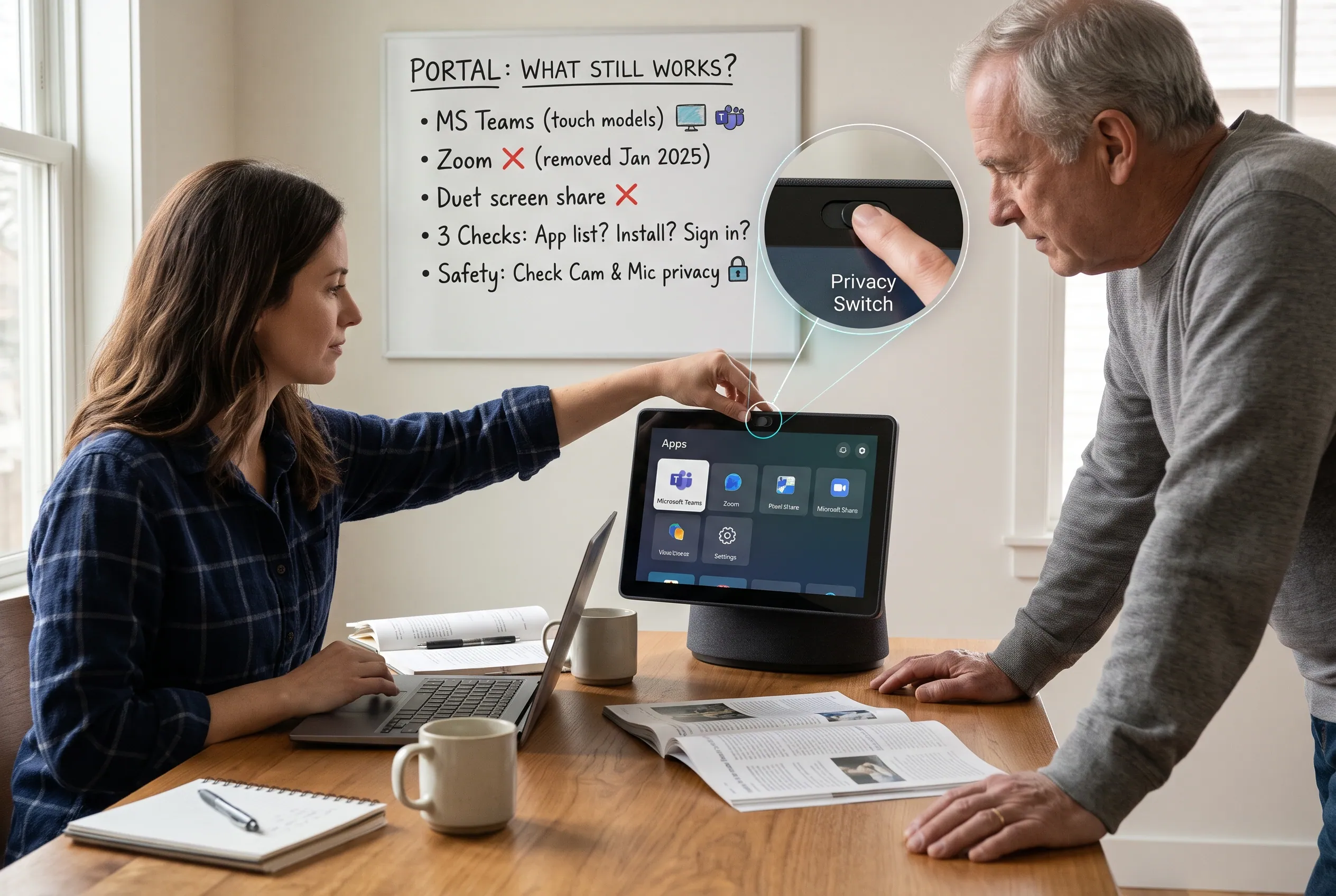 The answer depends on the model and feature. Meta’s decision to stop selling Portal devices does not, by itself, establish that every existing device or app stopped working. However, several important changes make old setup instructions unreliable.
Zoom
Zoom’s official support page for Facebook Portal states that Portal devices would receive maintenance support without new features through the end of January 2025, and that the Zoom app would be removed after January 31, 2025.
This means you should not rely on older tutorials that show how to install or pair Zoom on Portal as though that process is still supported.
If Zoom meetings are the main reason you want a video-calling display, consider a device that Zoom currently supports rather than buying a used Portal based on historical app instructions.
Microsoft Teams
Microsoft’s documentation continues to describe Teams on selected touchscreen Portal models. It excludes Portal TV, first-generation Portal, and first-generation Portal+.
Work accounts may also have organization-specific requirements, including security policies that affect sign-in. Check the requirements for your exact model and organization before assuming the app will work.
This is an example of why compatibility should be checked at the feature level. A device may not support one video-calling app but may have different options for another service.
Other Portal Features
Meta’s April 2023 announcement also stated that the Duet companion app for Mac was no longer available. That app had allowed certain Portal devices to act as a second display for a computer. See Meta’s announcement for the original details.
For other historical features, such as voice controls, music services, photo displays, or account integrations, verify the current availability rather than assuming that an old manual describes today’s experience.
Keep these three checks separate:
- Is the feature listed for your exact model?
- Can you still install or open the app?
- Can you complete sign-in and use the feature successfully?
If any of these checks fails, consult the current documentation from the service provider. An old tutorial may explain how a feature used to work, but it cannot prove that the feature is still supported.
Privacy and Safety Checks Before Using an Older Portal
A working device still needs sensible privacy practices. Portal models include cameras and microphones, so check their controls before using the device for calls.
Review camera and microphone controls. Learn how your model mutes its microphone and disables or covers its camera. If your model has physical privacy controls, understand how they work. Check the available settings and indicators rather than assuming every model behaves the same way.
Review account access. If a previous owner registered the device, make sure you have permission to use the account and service involved. Do not attempt to bypass another person’s account or security controls.
Avoid unverified software modifications. Developer instructions for installing apps on Portal are different from ordinary consumer setup. Meta’s developer documentation warns that advanced modifications can create risks and may not be reversible. Sideloading unknown apps is not a sensible first response to a missing feature.
Think carefully before resetting or selling the device. A reset can remove local settings and account information, but it does not guarantee that you can activate the device again. Before selling or giving it away, use any applicable official account-removal and reset instructions available for your model.
Finally, do not assume that an older device remains secure or receives ongoing updates just because it still turns on. If you plan to use it for sensitive conversations or workplace information, verify the relevant software and service support first.
Frequently Asked Questions About Meta Portal Setup
Can you still activate a Meta Portal in 2026?
You can attempt activation on an existing device, but success is not guaranteed. Meta discontinued Portal hardware sales, and some associated services have ended. Your result depends on the model, the setup process available on the device, and the features you intend to use.
How do you connect a Meta Portal to Wi-Fi?
During setup, select your Wi-Fi network, enter the password, and follow the confirmation prompt if those options are available. On some touchscreen models, historical instructions used Settings, General, and Wi-Fi to change the network. Menus may differ, and a successful connection does not guarantee that account services still work.
Why does a Meta Portal fail to activate after a factory reset?
A reset can remove saved settings and account information, requiring the device to complete setup again. If activation depends on a service that is no longer available, the reset will not restore it. Check Wi-Fi, the exact error, and the current service requirements before attempting another reset.
Does Portal TV support the same features as touchscreen Portal devices?
No. Portal TV uses a television connection and differs from touchscreen models. App support also varies: Microsoft’s Teams documentation, for example, excludes Portal TV and certain older touchscreen models. Always check compatibility for the exact app you want to use.
Is it worth troubleshooting an older Meta Portal?
It may be worth trying basic checks if the device already works or if you have a specific supported feature in mind. Start with power, Wi-Fi, and ordinary restart steps. Before investing more time or money, verify that the intended service is still available and that your model supports it.
What to Do Next
Start by identifying your Portal model and testing its basic functions. If the device can connect to Wi-Fi, check the account and app you actually want to use before making major changes.
If setup fails, use the error message to decide whether you have a power, network, account, or service problem. Do not keep resetting the device when the evidence points to discontinued functionality.
The most useful outcome is not necessarily a fully working Portal. It is knowing which functions remain available, which problems you can reasonably fix, and when a newer supported device is the more practical choice.
Disclaimer
Budgets, devices, software versions, compatibility, installation conditions, and user needs vary. Use official support for account recovery, and seek qualified help for electrical faults or hazardous hardware repairs. Because Meta Portal is discontinued, this guide cannot guarantee that activation or every feature will work.