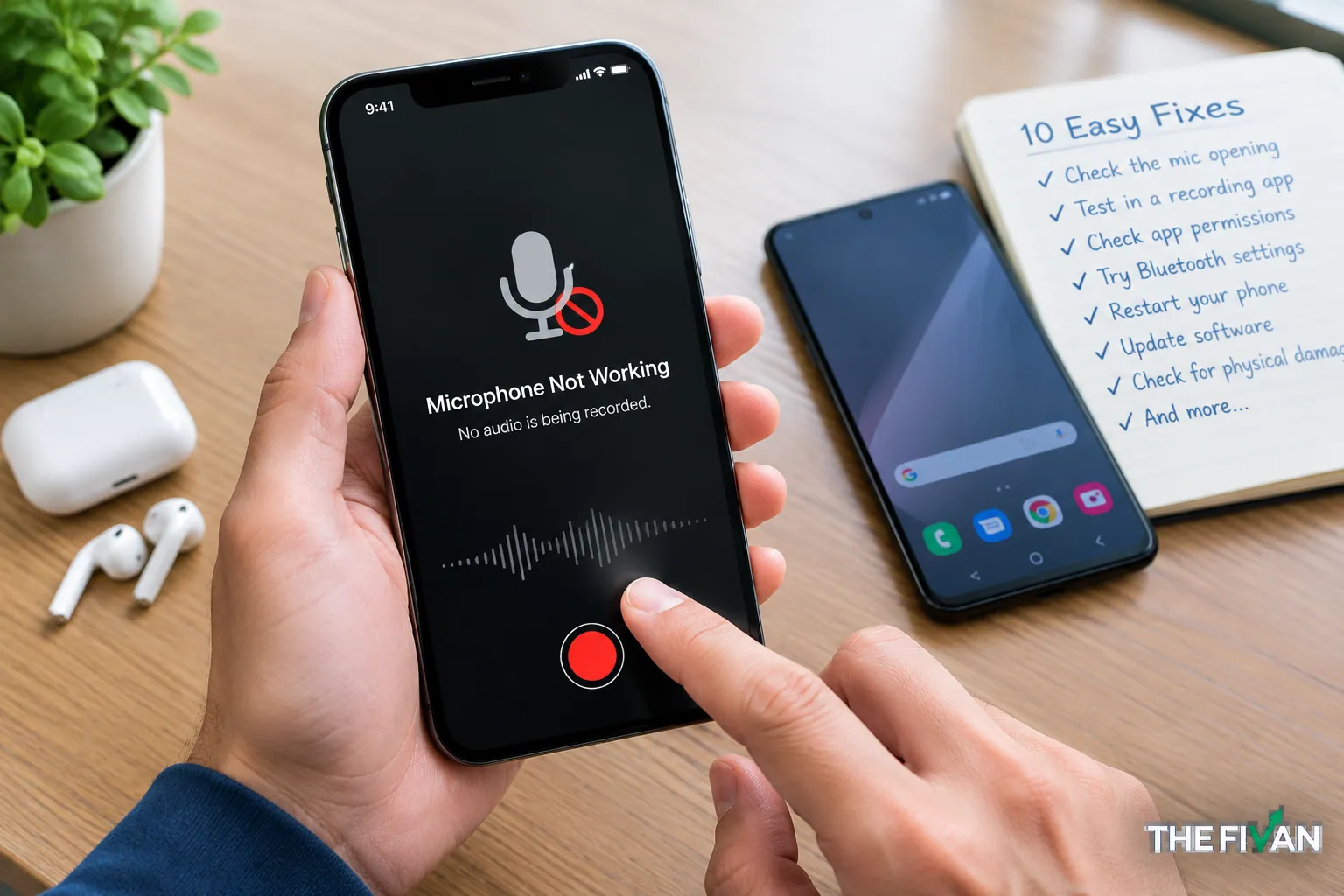
If your phone microphone is not working, you may notice that people cannot hear you during calls, your voice messages are silent, or recordings have no sound. The problem could be caused by a blocked microphone opening, Bluetooth audio routing, app permissions, a software glitch, or hardware damage.
Start by testing your microphone in a recording app before changing any settings. This simple check can help you determine whether the problem affects your phone generally or only one app or feature.
You do not usually need to factory-reset your phone to troubleshoot a microphone issue. Work through the following fixes in order, starting with the easiest and safest options. The steps cover iPhone, Android, and Samsung Galaxy phones, although exact menu names may vary by model and software version.
Short Definition
If your phone microphone is not working, test a voice recording, disconnect Bluetooth, check microphone permissions, inspect the openings, and restart your phone. If several tests still fail, consider professional repair.
Experience
Test your microphone in a recording app before changing settings. If recordings work but calls do not, check Bluetooth and compare ordinary calls with speakerphone; different phone functions may use different microphones.
Why Is Your Phone Microphone Not Working?
Several things can prevent your phone from picking up your voice correctly. The most likely cause depends on when the problem occurs.
- Blocked microphone openings: Dust, lint, a phone case, or debris may interfere with the microphone.
- Bluetooth connections: Your phone may be using a connected headset, earbuds, or another audio device instead of its built-in microphone.
- App permissions: An app may not have permission to access the microphone.
- System microphone controls: Some Android phones have a system-wide microphone access setting that can disable access for multiple apps.
- Temporary software problems: An app bug or operating system glitch may interrupt audio capture.
- Hardware damage: A drop, liquid exposure, or damaged microphone component can affect voice pickup.
The symptoms offer useful clues. If your microphone works in a recording app but not in one messaging app, check that app’s permissions and settings first. If it fails across multiple apps, investigate system settings, obstructions, and possible hardware issues.
10 Easy Fixes for a Phone Microphone That Is Not Working
Try these fixes one at a time. After each change, test the microphone again so you can identify what solved the problem.
1. Test Your Microphone With a Recording App
Before changing settings, find out whether your phone can record your voice at all.
On an iPhone, open Voice Memos. On an Android phone, use the built-in Voice Recorder or another trusted recording app.
- Open the recording app.
- Start a new recording.
- Speak in a normal voice for several seconds.
- Stop the recording and play it back.
- Listen for clear speech, very low volume, distortion, or complete silence.
If your voice sounds clear, the microphone is probably working in that recording scenario. The problem may instead involve a particular app, call feature, or audio-routing setting.
If the recording is silent or unclear, continue with the next steps.
Keep in mind that phones can have multiple microphones, and different features may use different microphones. A successful recording does not guarantee that every microphone on the phone is working correctly.
2. Remove Your Phone Case and Inspect the Microphone Openings
A case that does not fit properly can cover a microphone opening. Dust and lint can also collect around the openings over time.
Remove the phone case and any accessories that might obstruct the microphone. Look carefully at the small openings along the phone’s edges and near its charging port.
Check for:
- A case that does not align with the microphone holes.
- Visible lint or dust.
- Debris around an opening.
- Signs of liquid exposure or physical damage.
If you see loose debris on the surface, follow your phone manufacturer’s cleaning instructions. Do not push a pin, needle, toothpick, or other sharp object into a microphone opening. Avoid pouring liquid onto the phone or using compressed air, which may damage sensitive components.
Test the microphone again after removing the case. If sound quality improves, the obstruction may have been the cause.
3. Disconnect Bluetooth Devices and Accessories
Your phone may be routing call audio through wireless earbuds, a headset, a car system, or another connected device.
If that accessory’s microphone is muted, disconnected, or malfunctioning, the other person may not hear you even though your phone’s built-in microphone works.
Try this:
- Open your phone’s Bluetooth settings.
- Temporarily turn Bluetooth off.
- Disconnect wired audio accessories, if any are connected and can be safely removed.
- Make a test recording or call.
- Check whether your voice is now audible.
If the microphone works after disconnecting an accessory, reconnect devices one at a time to identify which one causes the problem.
During a call, also check the audio output menu. Some phones let you switch between the handset, speakerphone, Bluetooth headset, and other available audio devices.
4. Check App Microphone Permissions
If your microphone works in one app but not another, permissions are a sensible next step.
An app may need microphone access to record voice messages, make internet calls, capture audio, or perform voice searches. Permission settings differ between iPhone and Android.
On iPhone:
- Open Settings.
- Select Privacy & Security.
- Tap Microphone.
- Find the affected app.
- Enable its microphone access if it is disabled.
You can also open Settings, find the app in the list, and check its available permissions.
On Android:
- Open Settings.
- Go to Apps.
- Select the app that is not recording your voice.
- Open Permissions.
- Select Microphone.
- Allow microphone access when the app needs it.
On some Android versions, the permission may be described as allowing access only while using the app.
Menu names and available choices vary by device. If you cannot find the setting, search for “Microphone” in your phone’s Settings app.
After adjusting the permission, reopen the app and test its microphone feature. If access was already enabled, continue troubleshooting rather than repeatedly changing the same setting.
5. Enable System-Wide Microphone Access
On some Android phones, app permissions may be enabled while a separate system-wide control blocks microphone access.
This setting is especially worth checking if your microphone suddenly stops working in several apps at once.
- Swipe down from the top of your screen to open Quick Settings.
- Swipe down again if necessary to see the available controls.
- Look for a Microphone access tile.
- If microphone access is off, turn it on.
- Return to your recording app and test again.
On supported Android versions, you can also check Settings under Security & privacy or Privacy. The exact location varies by phone and operating system. Google’s guide explains how to check and change these controls: Android microphone access settings.
If you cannot find a microphone access tile, your device may use a different menu or may not offer that control.
6. Restart Your Phone
A temporary software glitch can sometimes interfere with audio recording or call functions. Restarting your phone is a straightforward way to check whether the problem is temporary.
Save any open work, then restart your device using its normal power menu. Wait for it to turn back on fully before testing the microphone.
Make a short recording or place a test call to see whether sound has returned.
If restarting fixes the problem, monitor the phone to see whether it happens again. If the microphone stops working repeatedly, an app conflict, software bug, or hardware issue may still need attention.
7. Update Your Apps and Phone Software
An outdated app or operating system may contain a bug that affects microphone access or audio handling.
Check for updates to both the app where the problem occurs and your phone’s operating system.
On iPhone:
- Open Settings and select General.
- Tap Software Update to check for an available iOS update.
- Open the App Store and check whether the affected app has an update.
On Android:
- Open Settings and look for System update or Software update.
- Follow the instructions to check for an available update.
- Open Google Play and update the affected app if a newer version is available.
The menu names and update schedules depend on the device and manufacturer. Connect to a reliable network and ensure the phone has enough battery before installing a system update.
If only one app has a microphone problem, check that app for updates first. If the issue started immediately after an update, check for another available update or consult the app developer’s support guidance.
8. Test Calls, Speakerphone, and Other Apps Separately
Your phone may behave differently during ordinary calls, speakerphone calls, video recording, and voice messages. Testing these functions separately helps narrow down the cause.
Try these checks:
- Record a voice memo.
- Record a short video with audio.
- Make an ordinary phone call.
- Test speakerphone during a call.
- Try a voice message in the affected messaging app.
Pay attention to where the problem occurs.
- Recordings and calls both fail: Check for obstructions, system microphone access, software problems, or possible hardware damage.
- Recordings work but one app fails: Check that app’s permissions, settings, and updates.
- Ordinary calls fail but speakerphone works: The phone may be using a different microphone or audio-processing path for the two modes.
- Calls work but video recordings fail: Check the camera app’s microphone permission and repeat the recording test.
These patterns are clues, not definitive diagnoses. Some phones use multiple microphones, and different apps may process audio differently.
On iPhone, Apple’s official microphone troubleshooting guide recommends testing Voice Memos and recording video to help distinguish microphone problems.
9. Check for Third-Party App Conflicts With Safe Mode
If you use an Android phone and the microphone stopped working after installing an app, a software conflict is possible. Certain downloaded apps can interfere with device functions.
Samsung Galaxy phones offer Safe Mode, which temporarily disables downloaded apps so you can check whether one of them is causing the issue.
On supported Galaxy devices:
- Open the power menu.
- Touch and hold the Power off option until the Safe Mode prompt appears.
- Select Safe Mode.
- Test the microphone using the built-in recording app.
- Restart the phone normally to exit Safe Mode.
The precise steps may differ by model. If the microphone works in Safe Mode but fails during normal use, a downloaded app may be responsible. Consider uninstalling recently installed or updated apps one at a time, testing after each change.
Safe Mode is not available in the same way on every phone. If your Android device does not support it, skip this step rather than following instructions designed for another model.
Samsung provides additional guidance in its official Galaxy microphone troubleshooting guide.
10. Seek Repair if the Evidence Points to Hardware Damage
If the microphone still fails after the preceding checks, the problem may involve a damaged microphone component or another internal fault.
Hardware damage becomes more plausible if the issue started after a drop, exposure to liquid, or physical damage near a microphone opening. Persistent failure across multiple recording apps and call modes is another reason to seek professional diagnosis.
Before arranging a repair:
- Back up important data.
- Note which functions fail and which still work.
- Explain whether the phone was dropped or exposed to liquid.
- Avoid opening the phone or attempting internal repairs unless you have the appropriate training and tools.
If the phone is wet, stop using it as necessary, disconnect accessories, and follow the manufacturer’s liquid-exposure instructions. Do not insert objects into the microphone opening or use heat to dry the device.
A qualified repair provider can inspect the phone and determine whether a component needs repair or replacement. You do not need to factory-reset the device before seeking advice about a suspected physical fault.
How to Fix an iPhone Microphone That Is Not Working
If your iPhone microphone is not working, Apple’s built-in recording apps can help you narrow down which function is affected.
Test the iPhone’s microphones
Open Voice Memos and record yourself speaking near the bottom of the phone. Play back the recording and check whether your voice is clear.
Next, open Camera and record a short video while speaking near the top of the iPhone. Repeat the test using the other camera if needed.
If one recording works but another does not, that difference can help identify which microphone or recording mode needs further investigation.
Check permissions and physical obstructions
Remove your case and any accessories that might cover the microphone openings. Inspect the openings for debris, and clean only according to Apple’s guidance.
If the problem occurs in one app, open Settings → Privacy & Security → Microphone and make sure the app is allowed to access the microphone. If the app is not listed or already has permission, consult the app developer’s troubleshooting instructions.
Restart and update iOS
Restart your iPhone and check for an available iOS update under Settings → General → Software Update. Also check whether the affected app has an update.
If the microphone still fails in Voice Memos, video recordings, and calls, further troubleshooting may not resolve a physical fault. Contact Apple Support or an authorized service provider for an assessment.
For device-specific instructions, use Apple’s official iPhone microphone support page.
How to Fix an Android or Samsung Phone Microphone
Android phones vary by manufacturer, so the menu names on your device may differ. Start with the general checks before trying brand-specific options.
Check Android microphone controls
Open your phone’s Privacy settings and check whether microphone access is enabled. On supported Android versions, you can also open Quick Settings and check the Microphone access tile.
Then open Settings, select Apps, and find the app that cannot record your voice. Review its Microphone permission and allow access if appropriate.
Restart and update your Samsung Galaxy
If you use a Samsung Galaxy phone:
- Disconnect Bluetooth devices and remove accessories that might cover the microphone.
- Restart the phone.
- Record a short clip using Voice Recorder or Camera.
- Check for software updates under Settings → Software update.
- If the problem persists, try Safe Mode to check for a downloaded-app conflict.
Samsung’s official Galaxy microphone troubleshooting guide covers these checks and explains when a factory reset or service may be considered.
Do not jump straight to a factory reset. It erases data and settings, so back up your phone first if you eventually decide to try it. A reset is generally a later troubleshooting option, not the first response to a microphone problem.
Why Does My Phone Mic Work on Speakerphone but Not on Calls?
If your phone microphone works on speakerphone but not during ordinary calls, the issue may involve a particular microphone, audio-routing behavior, or the phone’s call software.
Phones can contain multiple microphones that serve different functions. Switching call modes can change which microphones or audio-processing features are used.
Try the following:
- Turn Bluetooth off and make another call.
- Remove your case and inspect the microphone openings.
- Restart the phone and check for system updates.
- Record a voice memo and compare the result with ordinary calls and speakerphone calls.
- Test another calling app if available.
If the built-in recording works but ordinary calls consistently fail, the issue may be specific to the phone’s calling function or network-related calling features. If internet calls work but carrier calls do not, contact your mobile carrier as well as checking the device.
If ordinary calls and speakerphone both fail, and recordings are also silent, a broader microphone or hardware problem becomes more plausible.
Avoid assuming that speakerphone success proves every microphone is healthy. It is a useful clue, but it does not establish a definitive diagnosis.
When Should You Get Your Phone Microphone Repaired?
Consider professional service when:
- The microphone fails across multiple apps and recording tests.
- The problem began after a significant drop or liquid exposure.
- Your voice remains distorted or extremely quiet despite checking permissions and accessories.
- The microphone opening appears damaged.
- Basic troubleshooting and software updates have not resolved the problem.
Before booking a repair, back up your important files and check whether your phone is covered by a warranty or protection plan. Ask the provider to diagnose the issue and explain the proposed repair before authorizing paid work.
Repair costs depend on the phone model, the failed component, warranty coverage, and the service provider. There is no single reliable price that applies to every phone.
If the problem started after liquid exposure, do not charge the phone if the manufacturer advises against it, and do not try to dry it with a hair dryer or compressed air. Follow the manufacturer’s instructions and seek professional help if necessary.
A repair is not always required. A permission change, disconnected Bluetooth accessory, or temporary software issue may be enough to restore normal microphone operation. The goal is to identify the cause before spending money or erasing data.
Frequently Asked Questions
Why did my phone microphone suddenly stop working?
Your phone microphone may stop working because of a temporary software glitch, a disconnected or misdirected Bluetooth connection, changed app permissions, or a blocked microphone opening. Physical damage can also cause sudden failure.
Start by disconnecting Bluetooth, removing the case, restarting the phone, and testing a voice recording. If the problem affects multiple apps, check system-wide microphone access and consider professional service if the issue continues.
Why is my mic not working in WhatsApp but working elsewhere?
If your microphone works in other apps but not WhatsApp, the problem may be related to WhatsApp’s microphone permission, app settings, or software version.
On iPhone, check Settings → Privacy & Security → Microphone. On Android, open Settings → Apps → WhatsApp → Permissions → Microphone. Make sure microphone access is allowed, update WhatsApp if an update is available, and test a voice message again.
If the problem continues, consult WhatsApp’s official support resources.
Can resetting my phone fix the microphone?
A factory reset can sometimes resolve persistent software problems, but it will not repair a physically damaged microphone. It also erases data and settings, so it should be a last resort after less disruptive troubleshooting.
Before resetting, back up your important files, check app permissions, disconnect accessories, restart the phone, and install available updates. If the microphone appears physically damaged, seek professional advice before considering a reset.
Why can nobody hear me during phone calls?
Possible causes include a blocked microphone, an active Bluetooth headset, disabled microphone access, a software issue, or hardware damage.
Turn off Bluetooth, remove the case, and test the microphone with a recording app. Then try an ordinary call and a speakerphone call. If recordings work but calls fail, investigate the calling function and contact your carrier if necessary. If all microphone tests fail, professional diagnosis may be appropriate.
Choose Your Next Troubleshooting Step
The quickest way to narrow down a phone microphone problem is to make a short recording, disconnect Bluetooth, and check microphone permissions. These checks help you determine whether the issue is limited to an app or affects the phone more broadly.
If your microphone works in recordings but fails during calls, investigate call modes and audio routing. If it fails across multiple apps after you have checked the basic settings, consider professional service rather than immediately performing a factory reset.
Start with the simplest fix, test your microphone again, and move to the next step only if the problem remains.
Disclaimer
Troubleshooting steps and menu names may vary by phone model, operating system version, app, and connected accessories. Back up important data before a factory reset, and consult a qualified repair provider if you suspect internal damage or liquid exposure.