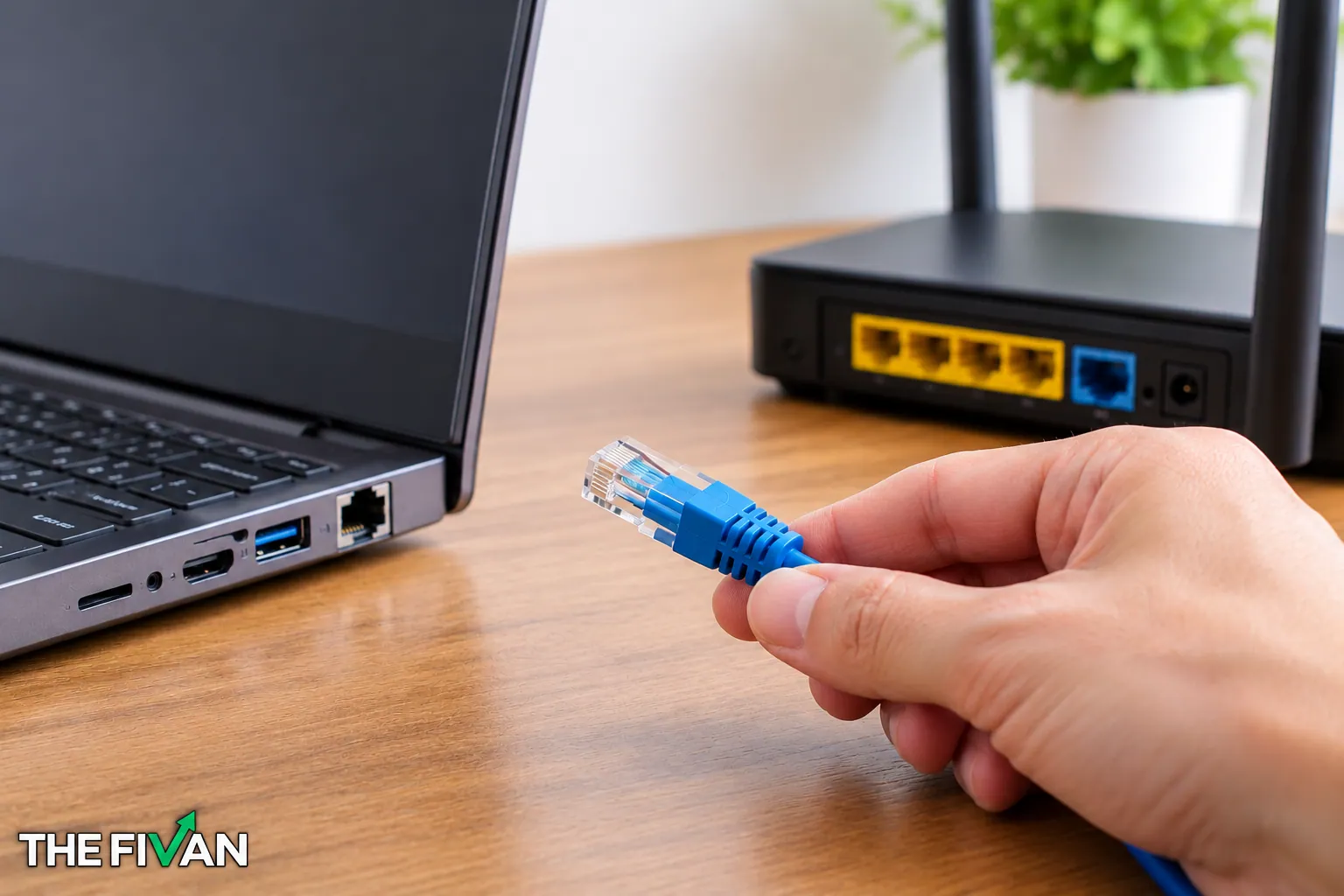
An Ethernet port is usually a rectangular socket that lets you connect a device to a wired network using an Ethernet cable. It is commonly found on desktop computers, routers, modems, some laptops, smart TVs, and other network-enabled devices. A standard Ethernet port has a wider opening than many telephone jacks and typically contains eight small metal contact positions inside.
You may see a symbol that looks like a network connection or a label such as LAN, Ethernet, or WAN near the port. Some ports also have small indicator lights that show connection activity.
However, not every laptop or smart device has a built-in Ethernet port, and the appearance of a wall jack does not guarantee that it is connected to a working network.
In this guide, you’ll learn how to recognize an Ethernet port, distinguish it from a phone jack, find it on different devices, and check whether it is working.
Direct Answer
An Ethernet port is a rectangular network socket that typically accommodates an eight-position Ethernet connector. You can find it on many computers, routers, modems, TVs, and wall plates. Look for labels such as LAN or Ethernet, and check your device’s manual if you’re unsure.
Practical Tech Tip
Before replacing a cable or assuming a port is faulty, test the connection with a known-working Ethernet cable and router port. Check the device’s indicator lights and network status, remembering that a physical connection does not necessarily mean internet access is available.
What Does an Ethernet Port Look Like?
A standard Ethernet port looks like a small, wide rectangular opening designed to accept an Ethernet cable connector. It is often called an RJ45 port, although RJ45 is a commonly used name for the modular connector style used for Ethernet.
Look closely at the opening, and you may notice several features:
- Rectangular shape: The opening is generally wider than it is tall.
- Eight contact positions: A typical Ethernet socket accommodates an eight-position connector.
- Plastic locking tab: The matching Ethernet cable plug usually has a small clip that locks into the socket.
- Possible indicator lights: Small LEDs may sit beside or inside the port.
- Nearby labels: The port may be marked LAN, Ethernet, a network symbol, or a numbered port designation.
The port’s location depends on the device. On a desktop computer, it is often on the back panel. On a router, it is commonly grouped with several other network sockets. On a laptop, it may be on the side or rear edge.
Quick identification tip: If a socket is rectangular, has eight contact positions, and accepts a standard Ethernet cable plug without force, it is likely an Ethernet port. Check the device’s labels or manual if you are unsure.
Not every rectangular socket is Ethernet, though. USB, HDMI, and other connectors have different shapes and purposes. Always compare the connector itself rather than relying on its location alone.
What Are the Main Features of an Ethernet Port?
Knowing the basic features of an Ethernet port can help you identify it even when there is no visible label.
How to Recognize the Matching Ethernet Cable
An Ethernet cable usually has a plastic modular plug at each end. The plug has a row of metal contacts and a small flexible locking clip. On a standard Ethernet cable, the plug is designed to fit the matching Ethernet socket.
Ethernet cables may be blue, yellow, gray, black, white, or another color. Cable color does not reliably tell you its speed, purpose, or compatibility.
To connect one:
- Locate the Ethernet port on your device.
- Align the cable plug with the opening.
- Insert the plug gently until it seats securely.
- Check for a link light if the device provides one.
Do not force the plug into a socket. If it does not fit naturally, stop and confirm that you have the correct connector.
Ethernet is commonly used to connect a computer to a router, a router to another network device, or a smart TV to a home network. A wired connection can provide a stable alternative to Wi-Fi, although actual performance depends on the devices, cable, network equipment, and internet service.
For a basic explanation of Ethernet ports and their use, see TP-Link’s Ethernet port guide.
What Do Ethernet Port Lights Mean?
Some Ethernet ports have one or two small indicator lights. These lights can help you determine whether a physical network link has been established.
Depending on the device, you may see:
- A steady light: This may indicate an established network link.
- A blinking light: This may indicate data activity.
- No light: The cable may be disconnected, the other device may be off, or the port may not have established a link.
These meanings are not universal. Light color, blinking patterns, and speed indications vary by manufacturer and model. Some Ethernet ports have no visible lights at all.
If the lights do not behave as expected, consult the device manual. For router-specific examples, NETGEAR explains common router LED indicators.
Remember that a link light does not necessarily prove that your internet service is working. It may only indicate a connection between two network devices.
Ethernet Port vs. Phone Jack: What’s the Difference?
Ethernet ports and telephone jacks can look similar because both may use small rectangular modular connectors. However, they are designed for different connections.
| Feature | Ethernet port | Telephone jack |
| Typical connector | RJ45-style, commonly used for Ethernet | Often RJ11-style |
| Relative size | Usually wider | Usually narrower |
| Contact positions | Typically eight | Commonly fewer |
| Common use | Wired computer networking | Telephone or certain DSL connections |
| Matching cable | Ethernet cable | Telephone cable |
The easiest way to distinguish them is to compare their width and connector contacts. An Ethernet socket is generally wider and designed for a connector with eight contact positions. A traditional telephone jack is usually narrower.
For more information, see TP-Link’s comparison of RJ11 and RJ45 connectors.
There is one important caution: connector appearance alone does not tell you how a wall socket is wired. A socket that looks like an Ethernet jack might be connected to telephone wiring, left disconnected, or wired for another purpose.
Never assume a wall jack is Ethernet just because a cable plug appears to fit. Check the labeling, wiring documentation, or the network equipment connected to it.
Also, do not confuse Ethernet with USB or HDMI. USB connectors are used for peripherals and data connections, while HDMI carries audio and video. Their shapes differ from the standard Ethernet socket.
Where Can You Find an Ethernet Port?
Ethernet ports appear on many types of networking equipment, but their locations vary. Here are the most common places to check.
On a Laptop, Including a Dell Laptop
If you are trying to find an Ethernet port on a laptop, inspect the left and right edges first. Depending on the model, the port may also be located along the rear edge.
Look for a rectangular socket with a shape that matches an Ethernet cable plug. Some laptops use a full-size port, while others use a hinged or expandable opening to fit the connector into a thinner chassis.
Many modern thin-and-light laptops do not include a built-in Ethernet port. This is especially common on models designed with fewer physical connectors.
For a Dell laptop, check the exact model’s specifications or service manual rather than assuming every Dell model has the same ports. Dell’s documentation for the Latitude 5530, for example, lists its external ports.
If you cannot find a matching socket, your laptop may require a USB-A-to-Ethernet or USB-C-to-Ethernet adapter. Make sure the adapter is compatible with your laptop’s available connection and operating system.
On a Desktop Computer or PC
A desktop computer’s Ethernet port is commonly located on the back of the case, alongside other connections.
Check the rear panel for:
- USB ports
- Audio connections
- Video outputs
- The Ethernet socket
- Other motherboard or expansion-card connections
The Ethernet port is often close to the USB ports. It may have a small network symbol or a label, but the exact arrangement depends on the computer.
Some desktop computers have an Ethernet port built into the motherboard. Others may use a separate network card. Older, specialized, or compact computers might not include one.
If you cannot identify it visually, search for the model’s specifications or motherboard manual. Do not mistake a similar-looking opening for Ethernet without checking its shape and labeling.
On a Router or Modem
Routers commonly have several Ethernet ports grouped together on the back. These are often labeled LAN and WAN or Internet.
- LAN ports: Usually connect local devices, such as computers, game consoles, and smart TVs, to the router.
- WAN or Internet port: Usually connects the router to the upstream network device, such as a modem or an optical network terminal, depending on your service.
Some routers use different colors to distinguish the WAN port from the LAN ports. Others use identical colors, so read the labels rather than relying on color alone.
A modem or modem-router combination may also have one or more Ethernet ports. The number and purpose of these ports depend on the equipment.
If you are connecting a computer to your home router, a LAN port is usually the appropriate starting point. If you are setting up the router’s internet connection, follow the manufacturer’s instructions for its WAN or Internet port.
On a Smart TV
Some smart TVs include an Ethernet port on the back or along the lower edge. It may be positioned near HDMI, USB, and other input connections.
Look for a rectangular socket labeled LAN or marked with a network symbol. Your TV’s user manual will identify the correct port if the labeling is unclear.
Connecting a TV to a router with Ethernet can provide a wired network connection for streaming and other online features. However, not every smart TV has an Ethernet socket, and supported network options vary by model.
If your TV has no Ethernet port, check its specifications before buying an adapter. A standard USB-to-Ethernet adapter does not automatically work with every television.
On a Wall or Inside a House
An Ethernet wall jack may look like a small rectangular socket installed in a wall plate. It may be labeled Data, LAN, Ethernet, or with a room number. Some wall plates contain multiple network sockets.
You might find these jacks in a home office, living room, bedroom, or near a desk where a wired connection is useful.
However, the appearance of a wall jack does not confirm that it is connected to a network. The cable behind the wall may lead to a wiring panel, another room, a router, or nowhere at all.
To determine whether the jack is usable:
- Check any labels or home-network documentation.
- Look for a central wiring panel or patch panel, if your home has one.
- Connect a suitable Ethernet cable to a known, working network device.
- Check for a link indicator where available.
- If the connection still does not work, consider having the wiring checked.
Avoid opening electrical panels or unfamiliar wiring enclosures unless you know how to do so safely. For complicated or undocumented installations, a qualified network technician can help identify the cable path.
How Do You Identify Ethernet, LAN and WAN Ports?
The terms Ethernet, LAN, and WAN are related, but they do not mean exactly the same thing.
Ethernet refers to a family of wired networking technologies and the connections commonly used to carry that network traffic. An Ethernet port is the physical socket used to connect a compatible cable.
LAN stands for Local Area Network. It describes a network that connects devices in a limited area, such as a home, office, or school. A router’s LAN ports are generally intended for local devices.
WAN stands for Wide Area Network. It refers to a network extending beyond the local network. A home router’s WAN port usually connects to the service provider’s equipment or another upstream network.
Here’s a quick comparison:
| Label | What it generally means | Typical use |
| Ethernet | Wired network connection | Connecting compatible network devices |
| LAN | Local network | Connecting a computer or TV to a router |
| WAN | Upstream or wide-area network | Connecting a router to its internet source |
| Internet | Often the router’s upstream connection | Connecting a modem or other provider equipment |
The labels can vary between devices. Some equipment combines functions, and some routers use a dedicated Internet port while others have configurable ports.
For most home users, the practical rule is simple: use a LAN port when connecting a computer to a router, and use the designated WAN or Internet port when connecting the router to its upstream network source.
Do not assume that all ports with Ethernet-shaped sockets serve the same purpose. Their labels and the device’s documentation matter.
What If Your Laptop Has No Ethernet Port?
If your laptop does not have a built-in Ethernet port, you can often connect it to a wired network using an adapter.
The two common options are:
- USB-A-to-Ethernet adapter: Connects to a compatible traditional USB port.
- USB-C-to-Ethernet adapter: Connects to a compatible USB-C port.
A docking station may also provide Ethernet alongside USB, video, and other connections.
Before buying an adapter, check three things:
- The laptop’s available ports. Make sure the adapter’s USB connector matches a port on your computer.
- Operating-system compatibility. Confirm that the adapter supports your version of Windows, macOS, or another operating system.
- Network requirements. Choose an adapter with a suitable supported Ethernet speed for your router and internet connection.
USB-C describes the connector shape; it does not guarantee that every USB-C device supports the same features. Adapter compatibility can also depend on the operating system and required drivers.
Once you have a compatible adapter, connect it to the laptop, attach an Ethernet cable, and plug the other end into an appropriate router or network socket. Follow any setup instructions supplied with the adapter.
If your laptop already has a built-in Ethernet port, you usually do not need a separate adapter to make a standard wired connection.
How Can You Tell If an Ethernet Port Is Working?
Identifying the socket is only the first step. You may also need to determine whether the port and the wider network connection are functioning.
Use this simple troubleshooting sequence.
1. Check the cable connection
Make sure both ends of the Ethernet cable are securely connected. The plug should fit naturally into the socket and stay in place.
If the connector is damaged, the locking clip is broken, or the cable appears worn, try a known-working cable.
2. Check the router or network device
Confirm that the router, switch, or other network equipment is powered on. If you are connecting to a router, verify that you used the intended LAN port.
A cable connected to an inactive or incorrectly configured port may not establish a working link.
3. Look at the indicator lights
If your equipment has Ethernet lights, check whether they turn on or blink after you connect the cable.
The exact meaning depends on the device. A missing light is a useful clue, but it does not prove that the port is broken.
4. Check your computer’s network status
On Windows, open Settings, select Network & internet, and look for the Ethernet connection or its status. The precise wording can differ by Windows version.
If the connection is not recognized, check whether the adapter appears in the system’s network settings and whether a driver or configuration issue may be involved.
5. Try another cable or port
If possible, connect the same computer and cable to another known-working router port. You can also try a different cable.
Change one thing at a time. This makes it easier to determine whether the problem is related to the cable, computer, router port, or network configuration.
6. Distinguish a local link from internet access
An Ethernet connection can work even when the internet is unavailable. For example, your computer may have a physical link to the router while the router has lost its connection to the service provider.
If the computer reports a wired connection but websites do not load, check the router’s internet status and other connected devices before assuming the computer’s Ethernet port is faulty.
Microsoft provides additional steps in its guide to fixing Ethernet connection problems in Windows.
Common Ethernet Port Identification Mistakes
A few common mistakes can make identifying a network port harder than it needs to be.
Assuming every laptop has Ethernet. Many newer laptops lack a built-in Ethernet socket. Check the model specifications before looking for one indefinitely.
Confusing Ethernet with a telephone jack. Both can use modular connectors, but a standard Ethernet socket is generally wider and accommodates an eight-position connector.
Assuming every network socket is active. A wall jack can look correct even when its cable is disconnected, improperly wired, or not connected to network equipment.
Relying only on color. Ethernet cables and ports come in different colors. Color alone does not reliably establish a port’s purpose or speed.
Mixing up LAN and WAN. These ports may look identical, but they usually serve different roles on a router. Check the labels before connecting equipment.
Assuming a light proves internet access. A port light can indicate a physical link or activity without confirming that your internet service is working.
Forcing an incompatible plug. If a connector does not fit easily, stop. Check the connector type rather than pushing it into the socket.
These checks can prevent accidental misidentification and help you troubleshoot a wired connection more confidently.
Frequently Asked Questions
What’s the Difference Between an Internet Port and an Ethernet Port?
An Ethernet port is a physical network socket. An Internet port usually refers to the designated WAN or Internet connection on a router, which connects it to an upstream network. Both may use an Ethernet-style connector, but their roles differ. Always follow the device’s port labels and setup instructions.
How Do I Tell If I Have an Ethernet Port?
Look for a rectangular socket that accepts a standard Ethernet cable plug with eight contact positions. Check the sides and rear of your computer, or the back of your router or TV. A label such as LAN or Ethernet can help. If you are unsure, check your device’s specifications or manual.
What Do You Plug Into an Ethernet Port?
You plug in a compatible Ethernet cable. The other end usually connects to a router, switch, modem or another appropriate network device. The exact connection depends on your setup. Make sure the cable and ports are compatible, and never force the connector.
Do All PCs Have an Ethernet Port?
No. Many desktop PCs include a built-in Ethernet port, but not all computers do. Some compact computers and laptops rely on Wi-Fi or require a compatible USB Ethernet adapter or docking station. Check the specifications for your exact model before purchasing additional hardware.
How Can I Tell If a Wall Ethernet Jack Is Active?
First, check whether the jack is labeled and connected to your home’s network wiring. Then connect it with a suitable cable to a known-working network device and look for a link indicator, if available. If the connection fails, the cable may be disconnected, incorrectly wired, or connected to inactive equipment. A link light alone does not guarantee internet access.
Final Practical Check
To identify an Ethernet port, look for a rectangular socket designed for a standard eight-position Ethernet connector. Check the labels, compare the socket with a matching cable plug, and inspect the device’s manual if the location is unclear.
If you are connecting a computer to a router, start with a LAN port. If you are checking a wall jack, remember that its appearance does not prove that the wiring is active. And if your laptop has no built-in Ethernet socket, a compatible USB Ethernet adapter may be all you need.
The main goal is to identify the correct connection before plugging anything in. Once you know what the port looks like and what its label means, setting up a wired network becomes much easier.
Disclaimer
This article is intended for general informational and educational purposes. Device designs, port labels, indicator lights, and network configurations vary by manufacturer and model. Consult your device’s official documentation for model-specific instructions. If home network wiring is unclear or damaged, seek assistance from a qualified technician.