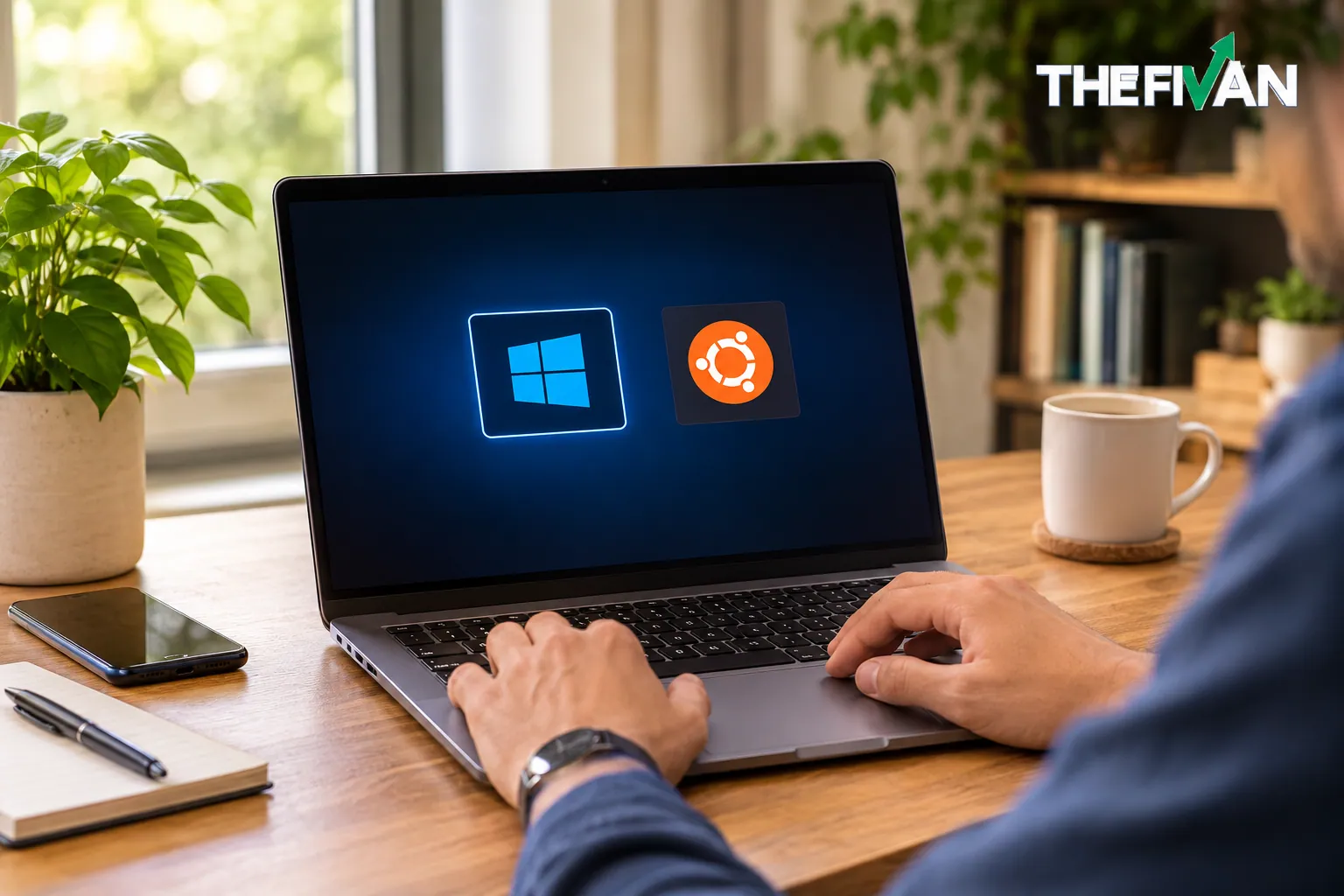
Dual booting Linux and Windows lets you install both operating systems on one computer and choose which one to use when you start your PC. It is a practical option if you want Windows for everyday apps and Linux for programming, learning, development, or exploring open-source software.
You can dual boot Linux and Windows on the same drive or on separate drives. The safest approach for beginners is to back up important files, keep Windows installed first, prepare disk space carefully, and follow the installation guide for your chosen Linux distribution.
Before changing partitions, check whether Windows uses BitLocker or Device Encryption and make sure you can access the recovery key. Also, do not assume you must disable Secure Boot: many Linux distributions, including supported Ubuntu configurations, can boot with it enabled.
The steps below use Windows and a beginner-friendly Linux distribution such as Ubuntu as examples. Exact screens and options can differ depending on your PC, firmware, Windows version, and Linux installer.
Short Definition
Dual booting Linux and Windows lets you install both operating systems on one computer and choose which one to run at startup. You can use the same drive or separate drives, depending on your hardware and needs.
Practical Tech Tip
Before changing partitions, back up your important files and make sure you can access your BitLocker or Device Encryption recovery key if encryption is enabled. Keep Secure Boot enabled unless your chosen Linux distribution or a specific compatibility issue requires a documented change.
What Is Dual Booting, and Is It Right for You?
Dual booting means that two operating systems are installed on the same computer. When you turn on the PC, a boot menu or firmware option lets you choose which operating system to start.
For example, you might use Windows for Microsoft Office or a Windows-only application and switch to Linux for coding, system administration, or open-source tools. Each operating system runs directly on your computer rather than inside the other one.
Dual booting can be useful if you want full access to both environments. However, it requires storage space and careful installation. Changing partitions or selecting the wrong installation option can cause data loss.
Dual Boot vs. a Virtual Machine vs. WSL
Dual booting is not the only way to use Linux on a Windows computer.
| Option | How it works | Best for |
| Dual boot | You choose an operating system at startup | Full access to Linux or Windows separately |
| Virtual machine | Linux runs inside a virtual computer in Windows | Learning Linux without changing partitions |
| WSL | Runs a Linux environment within Windows | Command-line tools and development workflows |
A virtual machine is often the easiest starting point if you only want to learn Linux. Windows Subsystem for Linux (WSL) is also useful for many development tasks, although it is not the same as booting into a full Linux desktop.
Choose dual boot if you specifically need to run Linux directly on your hardware, test hardware compatibility, or use a separate Linux desktop environment.
Should You Use the Same Drive or a Separate Drive?
You can install Linux alongside Windows on the same physical drive or use a second drive. Both approaches work on compatible systems, but each has different advantages.
Dual Boot on the Same Drive
If your computer has one SSD, you can usually make room for Linux by shrinking the Windows partition and leaving some space unallocated. The Linux installer can then use that available space.
This setup is convenient because you do not need to buy another drive. However, both operating systems share the same physical storage device, so a drive failure can affect both.
Before changing partitions, check how much free space Windows has and how much you need for Linux. As a practical planning guideline, 50–100 GB is a comfortable target for many general-purpose desktop installations, especially if you plan to install applications and store files. Your actual needs may be lower or higher, and the minimum listed by a distribution is not necessarily a comfortable everyday allocation.
Dual Boot on Separate Drives
If your computer has two SSDs or hard drives, you can install Windows on one and Linux on the other.
Potential advantages include:
- Each operating system has its own main storage space.
- You can allocate space to Linux without shrinking the Windows partition.
- Managing operating-system files can be more straightforward.
A separate drive is not a complete safeguard against mistakes. The installer may still use an existing EFI System Partition or place boot files on the other drive, depending on the configuration. Carefully verify the target drive and partition layout before proceeding.
Which setup should you choose? Use the same drive if that is what your computer has and you are comfortable preparing free space. Consider a separate drive if one is already available and you want to keep the main installations more distinct.
What You Need Before Installing Linux
Before you start, gather the installation files and check that your computer is ready. A little preparation can prevent common problems later.
Here is your checklist:
- A compatible computer: Check the hardware requirements for your chosen Linux distribution.
- A Windows installation that works: Start Windows normally and confirm that your important files are accessible.
- A backup: Save important documents, photos, and other files to an external drive or a trusted cloud backup.
- Enough storage: Make sure there is sufficient space for Linux, applications, updates, and personal files.
- A USB flash drive: An 8 GB or larger drive is suitable for many desktop Linux installers. Its contents may be erased when creating the installer.
- The official Linux ISO: Download the installation image from the distribution’s official website.
- Power and time: Connect a laptop to its charger and avoid starting the process when you need the computer urgently.
- Windows recovery information: If BitLocker or Device Encryption is enabled, locate and verify access to the recovery key before changing boot settings.
Ubuntu’s official desktop installation guide provides distribution-specific requirements and installation instructions. Check the current documentation for the Linux version you intend to install rather than assuming every distribution has identical requirements.
Prepare Windows for Dual Booting
Windows preparation is one of the most important parts of the process. Do not skip the backup or rush through disk-management options.
Back Up Your Files and Check Recovery Access
Copy important files to a separate storage location before resizing partitions or installing Linux. If possible, verify that the backup opens correctly.
Next, check your Windows recovery options. Device encryption or BitLocker may require a recovery key after certain hardware, firmware, or boot-related changes. Confirm that you can retrieve the correct key for your device.
If the computer is managed by an employer or school, contact the administrator before changing its operating system or security settings.
Check BitLocker and Secure Boot
BitLocker: Encryption can affect how an installer detects an existing Windows installation or accesses its partitions. Ubuntu documents these considerations in its BitLocker installation guidance.
Do not automatically turn off encryption just because you want to dual boot. First, read the instructions for your chosen distribution and installation method. If a change to encryption is genuinely necessary, follow the official procedure, protect your recovery key, and understand how to restore protection afterward.
Secure Boot: Secure Boot is a firmware security feature that helps prevent unauthorized boot components from loading. Supported Ubuntu configurations can work with Secure Boot enabled. Other distributions, drivers, and hardware combinations may have different requirements.
Check the relevant Ubuntu Secure Boot documentation or your distribution’s equivalent. Disable Secure Boot only if a documented compatibility issue requires it and you understand the security trade-off.
Create Unallocated Disk Space
If you are installing Linux on the same drive as Windows, you will generally need to shrink the Windows partition to make room.
- Start Windows and open Disk Management. You can usually find it by searching for “Create and format hard disk partitions” in the Start menu.
- Identify the Windows drive, commonly labeled C:.
- Right-click the appropriate Windows volume and choose Shrink Volume.
- Enter how much space to shrink from the existing volume.
- Confirm the operation and wait for Windows to finish.
Microsoft explains this process in its Disk Management documentation and its guide to shrinking a basic volume.
After shrinking the volume, leave the newly created space unallocated. You normally do not need to create or format a new Windows volume for Linux.
Be careful to select the correct partition. Do not delete the EFI System Partition, Windows recovery partitions, or other unfamiliar system partitions simply to create more room. If Windows cannot shrink the volume enough, investigate the cause instead of forcing the operation.
Create a Bootable Linux USB Drive
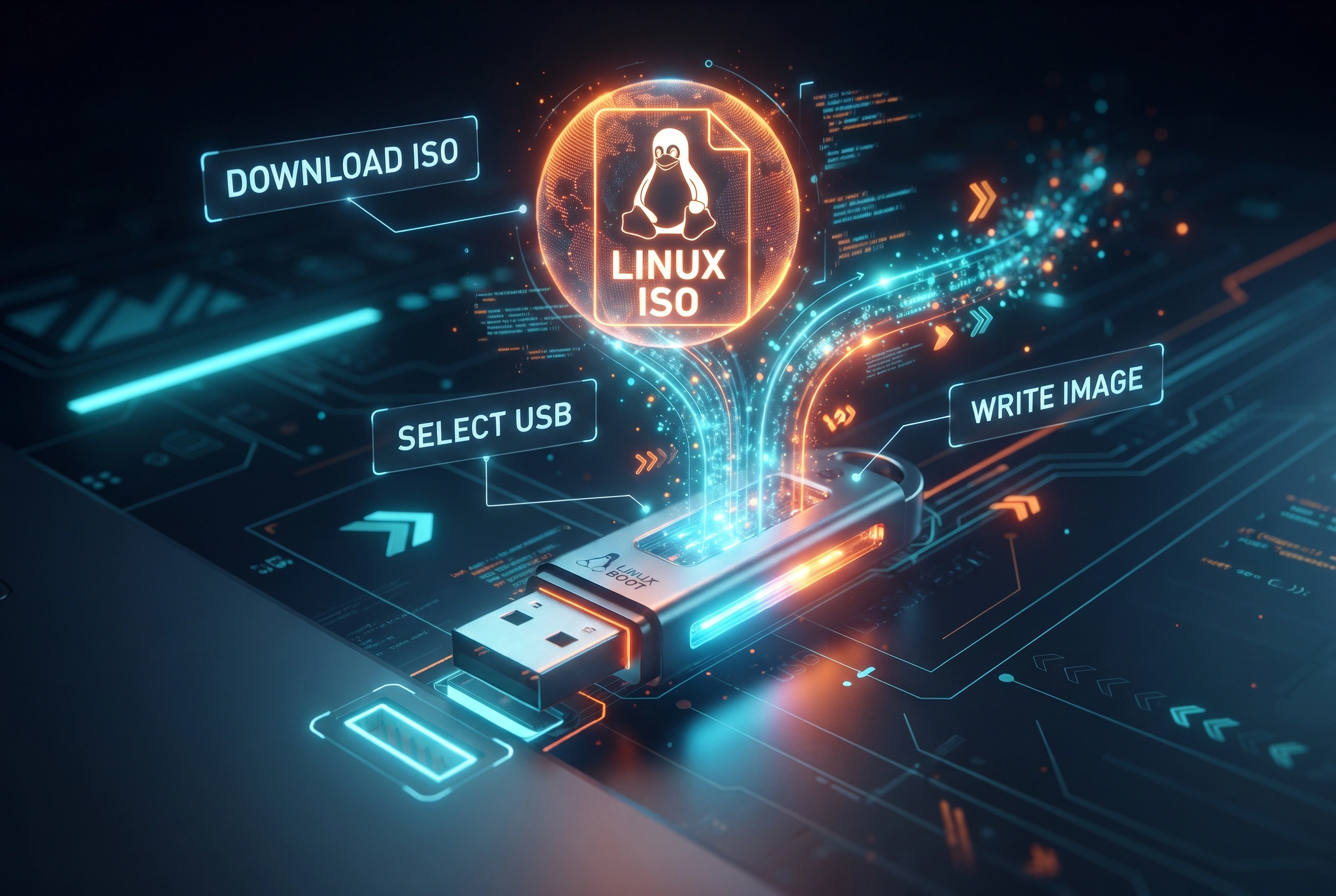
A bootable USB drive contains the Linux installer your computer will use to start the installation.
Step 1: Download the Linux ISO
Choose a distribution that suits your needs. Ubuntu and Linux Mint are common starting points for desktop users. Download the ISO from the distribution’s official website and check its system requirements.
An ISO is a file containing the installation image. Downloading it does not install Linux or change your Windows partition.
Step 2: Prepare the USB Drive
Connect your USB flash drive and use a reputable tool to write the ISO to it. For Windows users, Rufus is one option.
- Open the USB creation tool.
- Select the correct USB drive.
- Choose the downloaded Linux ISO.
- Review the available options and use settings appropriate for your computer and distribution.
- Start writing the image and wait for the process to finish.
Warning: Creating the installer can erase the selected USB drive. Double-check the drive before starting, and keep any files you need from it somewhere else.
Step 3: Keep the USB Ready
Once the process is complete, leave the USB connected or set it aside safely. You will use it to boot into the Linux environment.
If the computer does not start from the USB automatically, you may need to open its one-time boot menu. The key varies by manufacturer and model, so consult your computer’s manual or official support page.
Install Linux Alongside Windows Step by Step
The following example uses a desktop Linux distribution such as Ubuntu. Your installer may use different wording or present different options.
Boot from the USB Drive
- Save your work and shut down or restart Windows.
- Start the computer and open the one-time boot menu using the appropriate key for your device.
- Select the USB drive, choosing the UEFI entry when that matches your existing Windows installation.
- Follow the on-screen instructions to start the Linux environment.
Some distributions let you test Linux in a live session before installing it. If this option is available, use it to check basic compatibility, such as Wi-Fi, keyboard, touchpad, display, and sound.
If the USB does not appear, check the boot-menu instructions and USB creation settings before changing firmware security settings.
Choose the Installation Type Carefully
Once the installer starts, follow its prompts for language, keyboard, network, and other preferences.
When the installer asks about storage, read every option carefully. You may see an option to install Linux alongside Windows, depending on the distribution and detected disk layout.
If a clearly identified install alongside Windows option appears and its proposed changes match your intentions, it can be a convenient route for beginners. Review the summary of disk changes before confirming.
If Windows is not detected, do not select an option that erases the disk just to get past the screen. Stop and investigate why the installer cannot identify Windows.
Some installers offer manual partitioning instead. This gives you more control but also creates more opportunities for mistakes. If you are unfamiliar with EFI System Partitions, Linux filesystems, mount points, and existing Windows partitions, do not guess. Consult the distribution’s official installation documentation or ask someone experienced to review the layout.
For a separate-drive installation, confirm the drive’s size and identity before selecting it. Drive names and device identifiers can be confusing, so do not rely on a guessed label alone.
Finish Installation and Restart
After you have verified the installation summary, continue through the remaining prompts. Depending on the distribution, you may be asked to create a user account, choose a time zone, and configure other settings.
Wait for the installer to finish. When prompted, restart the computer and remove the USB drive if instructed.
The computer may start into a boot menu, Linux, or Windows depending on its firmware and boot configuration. If the expected menu does not appear, do not reinstall either operating system immediately. First, check the available boot entries and the firmware boot order.
For more distribution-specific details, follow the official Linux Mint installation guide or the guide for your chosen distribution.
How to Choose Windows or Linux at Startup
A successful dual-boot setup lets you choose which operating system to start.
You may see a boot menu managed by GRUB, a Linux bootloader, or use your computer’s firmware boot menu to choose between available operating-system entries. The exact experience depends on your distribution and configuration.
To use the computer:
- Restart or turn it on.
- Watch for the boot menu.
- Select Windows or Linux when the relevant choice appears.
- Press Enter if required and wait for the selected system to load.
If you do not make a selection, the menu may automatically start its default operating system after a timeout.
Remember: You are normally running one operating system at a time. To switch from Windows to Linux, restart the computer and choose Linux at startup. Dual booting does not mean both systems run simultaneously.
How to Fix Common Dual-Boot Problems
Boot problems can often be resolved without reinstalling either operating system. Start with the least disruptive checks, and avoid deleting partitions or running unfamiliar repair commands.
The Computer Starts Directly into Windows
Your computer may be prioritizing Windows Boot Manager in its firmware settings.
Restart the PC and open the firmware boot menu. Check whether a Linux-related boot entry is available. If it is, try selecting it manually. If Linux starts successfully, you may be able to adjust the boot order using your computer’s firmware settings.
If no Linux entry appears, check the distribution’s official boot-repair guidance before making changes. Menu names and repair procedures differ between systems.
The Linux Installer Cannot Find Windows
This may be related to disk encryption, the storage configuration, firmware boot mode, or how the installer detects existing partitions.
Check that Windows still starts normally and review the installer’s official documentation. If BitLocker or Device Encryption is enabled, consult the relevant distribution-specific guidance before changing anything.
Do not select Erase disk as a workaround. If you cannot determine why Windows is missing, stop the installation until the cause is understood.
Windows Is Missing from the Boot Menu
Linux may be installed even if the startup menu does not show Windows. The issue could involve firmware boot entries, bootloader configuration, or the distribution’s boot-detection behavior.
First, check the firmware’s one-time boot menu for Windows Boot Manager. If Windows starts from there, your Windows installation may still be intact even though the usual Linux menu is incomplete.
Next, consult the documentation for your distribution and firmware configuration. Avoid blindly reinstalling the bootloader or changing EFI partitions, especially if you do not have a verified backup.
The USB Drive Will Not Boot
Try these checks in order:
- Confirm that the ISO download completed successfully.
- Recreate the USB installer using the official image and a reputable tool.
- Verify that you selected the USB drive rather than Windows Boot Manager.
- Check the computer’s manual for the correct boot-menu key.
- Review the distribution’s requirements for UEFI and Secure Boot compatibility.
If the USB still fails, check the computer and distribution support documentation before disabling security features or altering firmware settings.
Frequently Asked Questions
Is it okay to dual-boot Windows and Linux?
Yes. Dual booting is a normal way to use both operating systems on a compatible computer. It is generally manageable when you back up your files, prepare disk space correctly, and follow the relevant installation instructions. The main risks come from mistakes during partitioning, boot configuration, or security-setting changes.
Why is dual booting risky?
The biggest risks include accidentally erasing data, modifying the wrong partition, losing access to encrypted Windows data without a recovery key, and encountering boot problems. Hardware or firmware differences can also complicate installation. A verified backup and careful review of every storage-related prompt reduce the chance of serious mistakes.
Can you dual-boot Windows 11 and Linux on the same drive?
Yes, if the computer and chosen Linux distribution support the configuration. You generally shrink the Windows partition to create unallocated space, then install Linux into that space. Keep backups and recovery information available, and do not delete Windows system or recovery partitions to make room.
Can you dual-boot Windows 10 and Linux?
Yes, on compatible hardware. However, Microsoft’s standard support for Windows 10 ended on October 14, 2025. In 2026, check whether your edition and device qualify for an applicable Extended Security Updates program or whether moving to a supported Windows version is more appropriate. Dual booting Linux does not restore Windows security support.
Can you dual-boot Linux and Windows without a USB drive?
Sometimes, but the method depends on your existing system and the distribution. Network installation, existing recovery tools, or other specialized approaches may be possible on some computers, but they are not as straightforward for beginners. A USB installer is usually the clearer option because it provides a separate installation environment. Avoid unfamiliar methods that require modifying Windows boot files unless you understand the recovery process.
Choose the Setup That Fits Your Computer
Dual booting Linux and Windows is a useful way to access two operating systems on one computer. You can use a single drive with carefully prepared unallocated space or install Linux on a separate drive if your hardware allows it.
Before proceeding, make sure your files are backed up, your Windows recovery key is accessible if encryption is enabled, and the Linux installer is appropriate for your computer. Review partition changes carefully, and do not disable Secure Boot or encryption without a specific, documented reason.
If you are mainly curious about Linux, consider starting with a virtual machine or WSL instead. If you want a full Linux environment running directly on your hardware, a carefully prepared dual-boot setup may be the right choice.
Disclaimer
This article is for general educational purposes and does not replace device-specific installation or recovery instructions. Installation steps vary by computer, Windows version, Linux distribution, and security configuration. Back up important data and consult official documentation or a qualified technician if you are unsure about partitioning, encryption, or boot settings.