
A monitor in portrait mode has been turned vertically, so the screen is taller than it is wide. This setup can make long documents, code, web pages, and chat windows easier to read without constant scrolling. To use one, you need a monitor that can be positioned vertically and an operating system that supports rotating its display.
The process is usually straightforward: check whether your monitor supports physical rotation, turn the screen if its stand or mount allows it, and change the display orientation in Windows or macOS. If you use two monitors, you may also need to adjust their arrangement so your mouse moves naturally between them.
Before rotating your screen, check the instructions for your exact monitor model. Not every monitor stand pivots, and some manufacturers restrict portrait use on particular models.
Short Definition
To use a monitor in portrait mode, confirm that its stand or approved mount supports vertical positioning, rotate the display in Windows or macOS, then adjust resolution and screen layout.
Experience
Rotate only after checking the exact monitor model’s manual; a software rotation setting does not make an unsupported stand or mount safe. With two screens, match their positions in display settings so the pointer crosses where the monitors physically meet.
What Is Portrait Mode, and Why Use a Vertical Monitor?
Most computer monitors are used in landscape mode, with the wider edge running horizontally. Portrait mode turns the display 90 degrees so its taller edge runs vertically.
A vertical monitor can be useful when you work with content that naturally flows from top to bottom. Instead of squeezing a long page into a wide screen, you can see more lines at once.
Common uses include:
- Reading documents: View longer sections of reports, PDFs, articles, and other text with less scrolling.
- Programming: Display more lines of code in an editor or terminal window.
- Writing and editing: Keep a draft, outline, or reference document visible while working elsewhere.
- Web browsing: See more of a long web page at once.
- Communication: Keep email, messaging apps, or task lists open beside your main workspace.
Portrait mode is not automatically better for every task. Video editing, spreadsheets with many columns, gaming, and watching movies often work better in landscape mode. A vertical screen can also make wide websites and documents feel cramped.
You can use one portrait monitor alongside a landscape monitor. For many people, this is a practical arrangement: use the horizontal display for the main task and the vertical display for reference material, code, documents, or messages.
Check Whether Your Monitor Supports Portrait Mode
Before changing your computer settings, check whether the monitor can be positioned vertically without damaging the screen, stand, or mounting hardware.
There are two separate requirements:
- Physical rotation: The stand or a compatible mount must safely support the monitor in portrait orientation.
- Software rotation: Your computer must be able to rotate the displayed image to match the screen’s physical position.
Changing the software setting alone does not make an ordinary monitor safe to rotate.
Can You Use Any Monitor in Portrait Mode?
No. Some monitors have a stand with a built-in pivot that allows the screen to turn 90 degrees. Others only tilt forward and backward or swivel from side to side.
To check your monitor, follow these steps:
- Find the model number on the back of the monitor, on its packaging, or in its original documentation.
- Visit the manufacturer’s support website and find the manual for that exact model.
- Look for terms such as pivot, portrait orientation, or screen rotation.
- If the stand does not pivot, check whether the monitor supports a compatible VESA mount.
- Confirm that any replacement mount supports the monitor’s mounting pattern, size, and weight.
If the stand supports rotation, follow its instructions. Some models require you to raise the screen to its highest position or tilt it backward before turning it. Others may have clearance limitations around the base.
Never force a monitor to rotate. You could damage the stand, strike the desk with a screen corner, or strain the mounting hardware. Manufacturer instructions for individual models can differ, so do not assume that one model’s rotation procedure applies to another. ViewSonic’s monitor guidance explains the importance of checking the stand and model instructions.
If you use a separate monitor arm, check its installation guide and weight limits. A mount that fits the monitor is not necessarily suitable for every orientation.
Can You Use a Curved Monitor in Portrait Mode?
A curved monitor should not be assumed to support portrait mode just because its screen can be rotated or its mount allows movement.
Curved screens are designed around a particular viewing geometry. Turning one vertically can produce an unusual viewing experience, and the manufacturer may explicitly prohibit that orientation.
For example, Dell’s support documentation for its S3222HN curved monitor says it should not be set up in portrait orientation.
This restriction applies to that model; it does not establish a rule for every curved monitor.
Before rotating a curved screen:
- Check the manufacturer’s recommended panel orientation.
- Confirm that the stand or mount supports the intended position.
- Consider whether the curve will make text comfortable to read from your usual seating position.
- Follow the manufacturer’s safety instructions rather than relying only on Windows or macOS settings.
If portrait use is prohibited for your model, choose a monitor approved for vertical use instead.
How to Put a Monitor in Portrait Mode on Windows
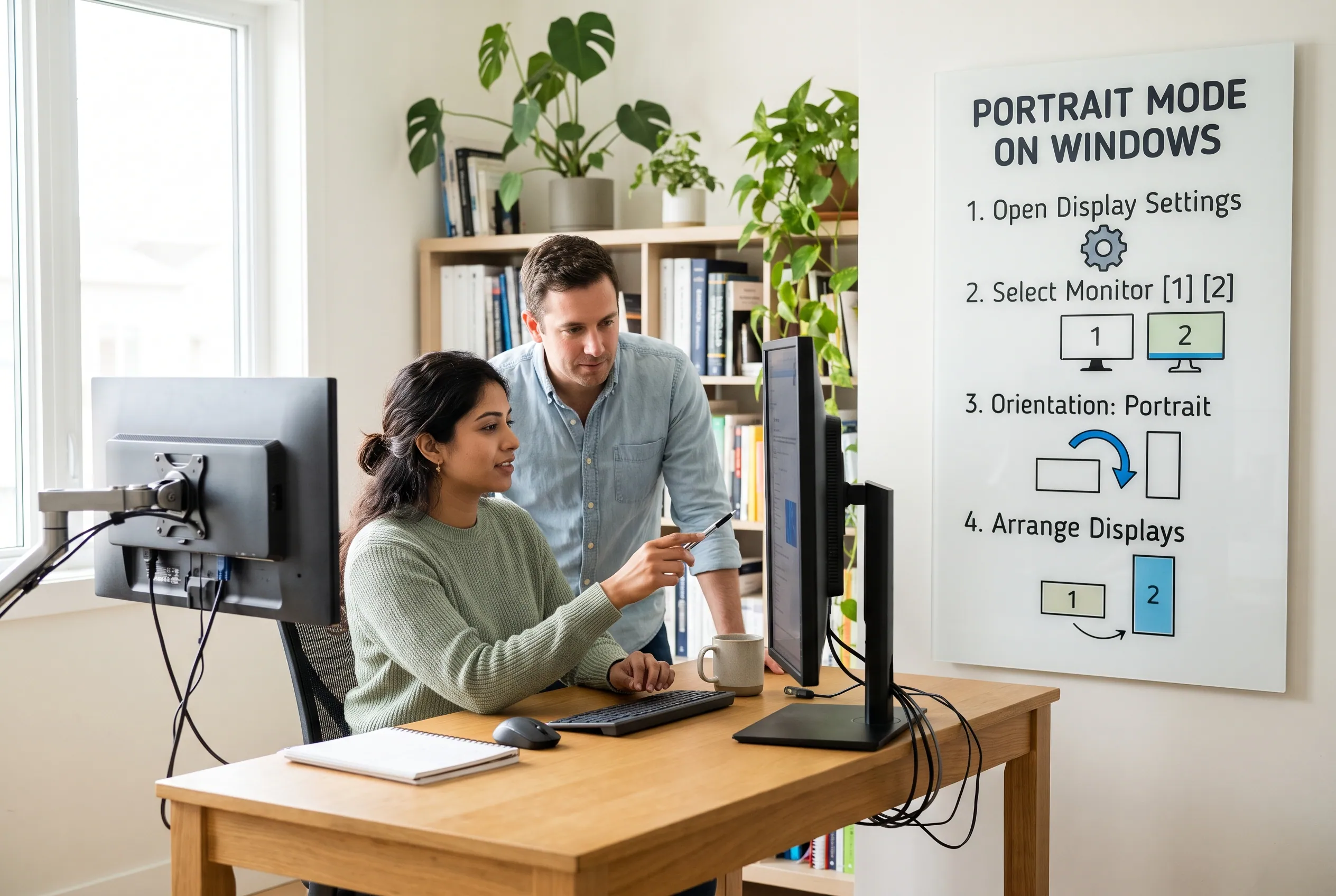
Windows includes a built-in display-orientation setting, so you usually do not need extra software to rotate a compatible monitor.
The steps are similar in Windows 10 and Windows 11, although the labels and layout may vary slightly.
Step 1: Open Display Settings
- Connect the monitor to your computer.
- Right-click an empty area of the desktop.
- Select Display settings.
- Find the section showing your connected displays.
If you have more than one monitor, Windows usually identifies them with numbered boxes. Select Identify if you need to determine which number belongs to the screen you want to rotate.
Step 2: Select the Correct Monitor
Click the numbered display that corresponds to the monitor you plan to use vertically.
This matters because changing the orientation of the wrong display can make your main screen appear sideways instead.
If you are using a laptop with an external monitor, the laptop’s built-in screen may be one display and the external monitor another. Check the display numbers before continuing.
Step 3: Change the Display Orientation
With the correct monitor selected:
- Find Display orientation under the display settings.
- Open the drop-down menu.
- Select Portrait.
- Confirm the change if Windows asks you to keep the new settings.
Your display image should rotate. If the physical monitor is still horizontal, rotate it only if its stand or approved mount supports that movement.
Windows may also offer Portrait (flipped). This displays the image in the opposite orientation and can be useful when the screen needs to be mounted in a different direction.
If the screen turns sideways in an unexpected direction, return to Display settings and choose the appropriate orientation. Microsoft’s official guide to screen resolution and layout explains the available orientation and display options.
Step 4: Arrange Your Displays for Correct Mouse Movement
When you use a portrait monitor next to a landscape monitor, the mouse pointer may seem to hit an invisible wall or appear at an unexpected height when moving between screens.
This often happens because the virtual arrangement in Windows does not match the monitors’ physical positions.
To correct it:
- Open Settings and go to System > Display.
- Find the display arrangement diagram.
- Drag the numbered display boxes so they match the real positions of your screens.
- Select Apply.
- Move the mouse between the monitors to test the result.
For example, if your portrait monitor is on the left of your main screen, place its display box on the left in the settings diagram. If the top edges of the two screens are at different heights, adjust the boxes to reflect that difference.
You do not have to make the boxes identical in size. The goal is to represent your physical setup as closely as possible so pointer movement feels natural. Microsoft provides these arrangement instructions in its multiple-monitor guide.
How to Set a Monitor to Portrait Mode on a Mac
macOS supports rotating the image on certain compatible displays. However, the Rotation option is not available for every monitor or Mac setup.
Step 1: Open Displays Settings
- Connect your external monitor to your Mac.
- Open the Apple menu.
- Select System Settings.
- Click Displays in the sidebar.
Select the external monitor if more than one display appears.
Step 2: Look for the Rotation Option
Check the available display controls for Rotation or Rotate. The wording can vary depending on the display and macOS version.
If the option is available:
- Open the rotation menu.
- Choose the required angle, typically 90 degrees for portrait orientation.
- Confirm the change when prompted.
If the image rotates successfully, physically turn the monitor only if the manufacturer’s instructions confirm that the screen can be operated safely in that position.
If you cannot find a Rotation option, your monitor or current setup may not support rotation through macOS. Do not assume that a hidden setting or third-party utility will make an unsupported physical orientation safe.
To restore the normal image, return to Displays settings and select Standard, if that option is available.
Apple’s official guide to rotating a Mac display explains the process and emphasizes checking the display’s documentation first.
How to Fix Common Portrait-Monitor Problems
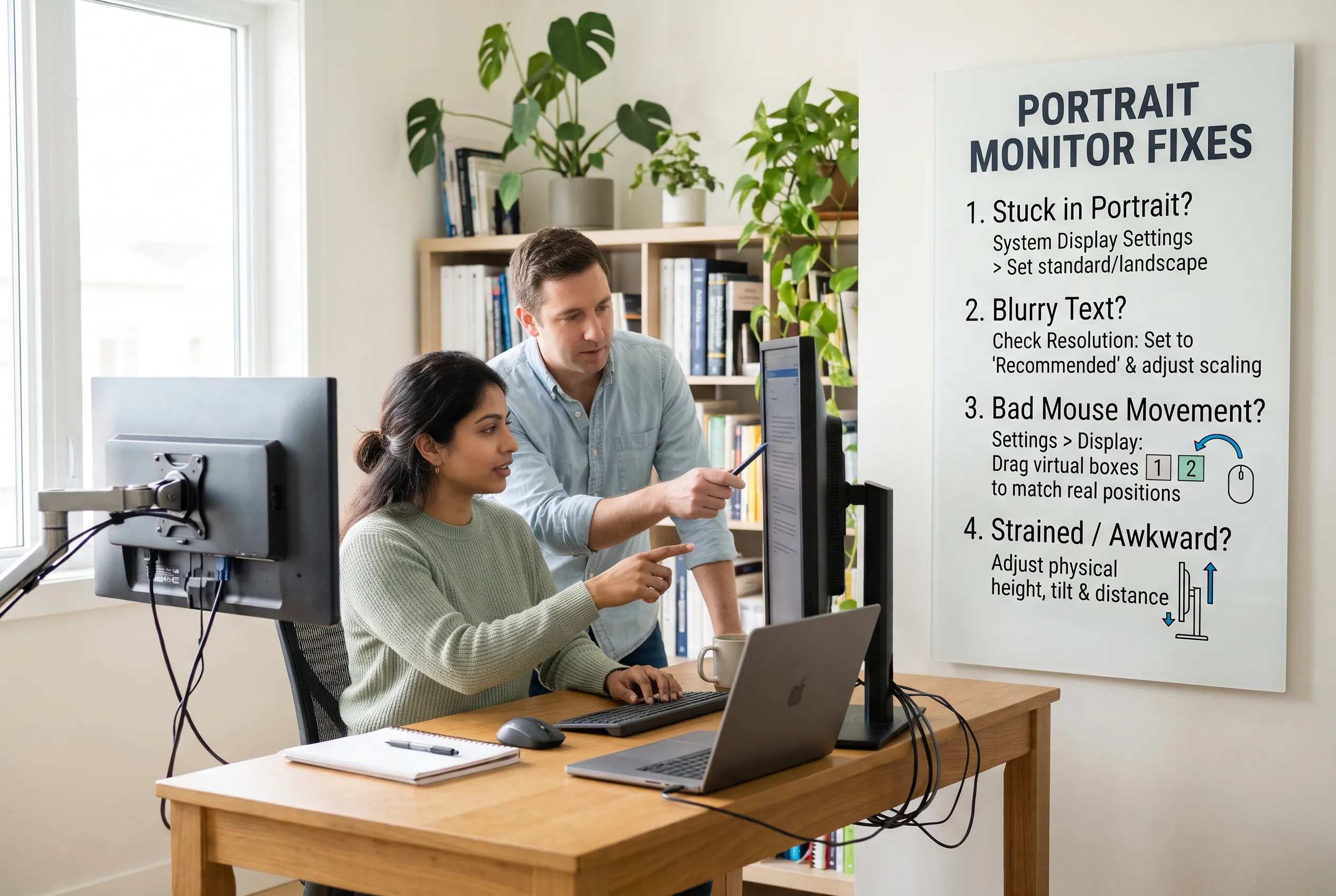
Once the screen is vertical, a few settings may need adjustment. Start with the simplest checks before changing drivers or installing additional software.
The Monitor Is Stuck in Portrait Mode
If the screen remains vertical after you want to return to landscape, the operating system may still be set to Portrait.
On Windows:
- Open Settings > System > Display.
- Select the affected monitor.
- Find Display orientation.
- Choose Landscape and confirm the change.
On a Mac:
Open System Settings > Displays and select Standard in the rotation menu if available.
If you cannot comfortably navigate the screen, you may be able to use the keyboard to open settings. On Windows, press the Windows key and search for Display settings. If you have multiple monitors, make sure you are changing the correct one.
Avoid trying random keyboard shortcuts found online. Rotation shortcuts can depend on graphics hardware and drivers, and they are not universal.
The Monitor Looks Blurry in Portrait Mode
A monitor that looks blurry after rotation may be using a resolution that does not match its native resolution, or its text-scaling settings may need adjustment.
Try these checks in order:
- Open your operating system’s display settings.
- Select the portrait monitor.
- Set its resolution to the option marked Recommended, where available.
- Check the scaling setting if text or interface elements look too small or too large.
- Sign out and back in, or restart an affected application, if its interface does not update correctly.
On Windows, Microsoft notes that using a resolution lower than a monitor’s native resolution can make text less sharp or cause the image to appear stretched or surrounded by black space.
Do not assume that increasing the resolution above the recommended value will improve the image. A monitor can only display the resolutions it supports.
If the image remains blurry, check the cable connection and the monitor’s own settings. If only one application looks blurry, the issue may be specific to that application rather than the display orientation.
The Mouse Still Behaves as Though the Monitor Were in Landscape
Rotating the screen image and arranging the desktop are separate tasks.
If the pointer does not move between monitors where you expect, return to the display arrangement diagram and drag the screens into the correct positions.
For example, imagine a portrait monitor standing to the right of a landscape monitor. If Windows shows it on the left, the pointer will cross the virtual boundary in the wrong direction.
Also check the relative height of the screens. If the portrait monitor is physically higher, place its display box higher in the arrangement diagram. This can help the pointer cross between screens near the edges where they actually meet.
After applying the layout, move the pointer across the shared edge several times. Adjust the arrangement in small increments until the transition feels natural.
The Screen Looks Strange or Feels Uncomfortable
A portrait monitor can feel awkward if the screen is too high, too low, or too close to your face.
Try these adjustments:
- Position the display so you can read without repeatedly tilting your head.
- Keep the monitor at a comfortable viewing distance.
- Adjust the height and tilt to reduce neck strain and glare.
- Increase text scaling if small text is difficult to read.
- Place frequently used windows in the most comfortable part of the screen.
If a website or application looks cramped, remember that not all interfaces adapt well to narrow windows. Widen the application when possible or move it to a landscape screen.
If the monitor’s image is rotated correctly but the on-screen controls or menus remain awkward to use, check the monitor’s manual for any model-specific limitations. Some physical controls are easier to reach in one orientation than another.
What to Look for When Choosing a Vertical Monitor
If you are buying a monitor mainly for portrait use, prioritize compatibility and comfort over a long list of extra features.
A stand with a pivot. A built-in 90-degree pivot makes switching between portrait and landscape easier. Check the model’s manual to confirm that the stand actually supports it.
VESA mount compatibility. A compatible monitor arm can offer more flexibility when the supplied stand does not rotate. Verify the mounting pattern, supported weight, and any orientation restrictions before purchasing a mount.
A suitable screen size and resolution. A larger screen can display more content, but a tall display may require more desk space or a higher mounting position. Choose a resolution that keeps text clear and comfortable to read.
Comfortable text rendering. If you spend hours reading documents or code, prioritize sharp text, useful scaling options, and a screen size that suits your viewing distance.
Ports that match your computer. Check whether you need HDMI, DisplayPort, USB-C, or another connection. If you want one cable for video and laptop charging, verify that the monitor’s USB-C implementation supports your needs.
An appropriate panel and viewing angle. Consider how the display looks when viewed from your normal seated position. This is particularly important for a screen used mainly for reading.
Clear manufacturer documentation. Confirm that the specific model supports portrait orientation. Do not rely solely on product photos or the fact that a stand appears movable.
A monitor that can pivot easily may be worth more to your workflow than one with extra features you rarely use. On the other hand, if you only occasionally read long documents, rotating an existing compatible monitor may be enough.
Frequently Asked Questions
What are you using for your vertical monitor?
The right choice depends on your work. A monitor with a built-in pivot can suit someone who regularly switches between portrait and landscape. A compatible monitor arm can offer flexibility if the display supports the intended orientation. For reading documents, programming, or keeping reference material visible, focus on comfortable text, reliable rotation support, and a suitable resolution rather than choosing a monitor based on its appearance alone.
Can you use any monitor in portrait mode?
No. The operating system may support image rotation, but the monitor’s stand, mount, and manufacturer-approved orientation determine whether you can safely position the physical screen vertically. Check the exact model’s documentation before rotating it.
Can you use a curved monitor in portrait mode?
Only if the manufacturer permits that orientation and the mounting setup supports it. Some curved monitors specifically prohibit portrait use, so check the instructions for your model instead of assuming that every curved screen can rotate safely.
Why is my mouse movement wrong on a portrait second monitor?
The virtual display arrangement may not match the physical positions of your screens. Open display settings, drag the monitor diagrams to match your setup, apply the changes, and test pointer movement between the displays.
Why does my monitor look blurry in portrait mode?
Check that the monitor is using its recommended resolution. Also review text scaling and application-specific display settings. If the problem continues, check the cable connection and monitor settings to determine whether the issue is related to the image signal rather than rotation.
Final Setup Check
Before you finish setting up a monitor in portrait mode, run through this quick checklist:
- Confirm that the exact monitor model supports portrait orientation.
- Rotate the physical screen only as directed by the manufacturer.
- Set the correct orientation in Windows or macOS.
- Select the recommended display resolution.
- Adjust text scaling for comfortable reading.
- Arrange multiple displays so the mouse moves naturally between them.
- Check screen height, viewing distance, and glare.
- Confirm that the stand or monitor arm is secure.
A monitor in portrait mode can make reading, coding, and working with long documents more comfortable. The key is to confirm hardware compatibility first, rotate the image in your operating system, and adjust the display layout until it suits your workspace.
Disclaimer
This article is intended for general informational and educational purposes. Monitor features, rotation options, mounting requirements, and operating-system settings can vary by model and software version. Always consult your monitor manufacturer’s documentation before changing its physical orientation or mounting hardware. Follow the relevant safety instructions, and do not force a stand or mount beyond its designed movement. The Fivan does not guarantee compatibility or specific results for every device.